




















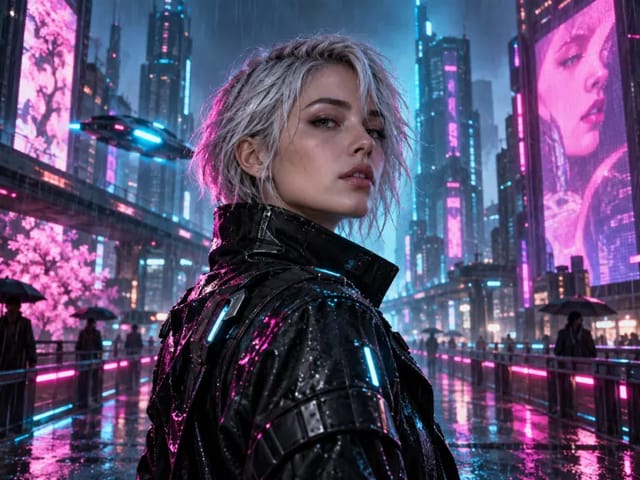

GPT Image 2 Lite AI Image Generator
Sign In
CreditsCost

GPT Image 2 Lite AI Image Generator

GPT Image 2

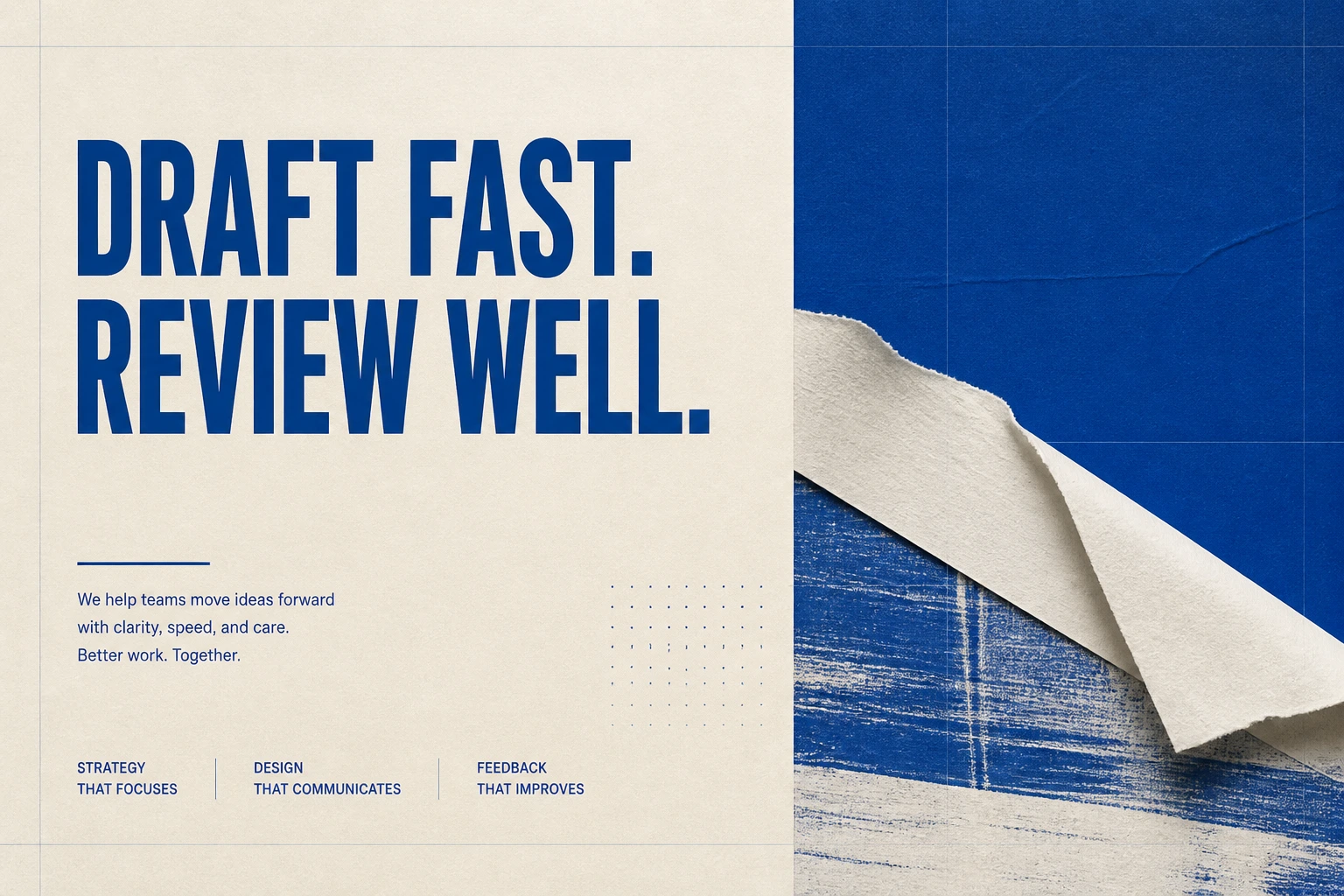
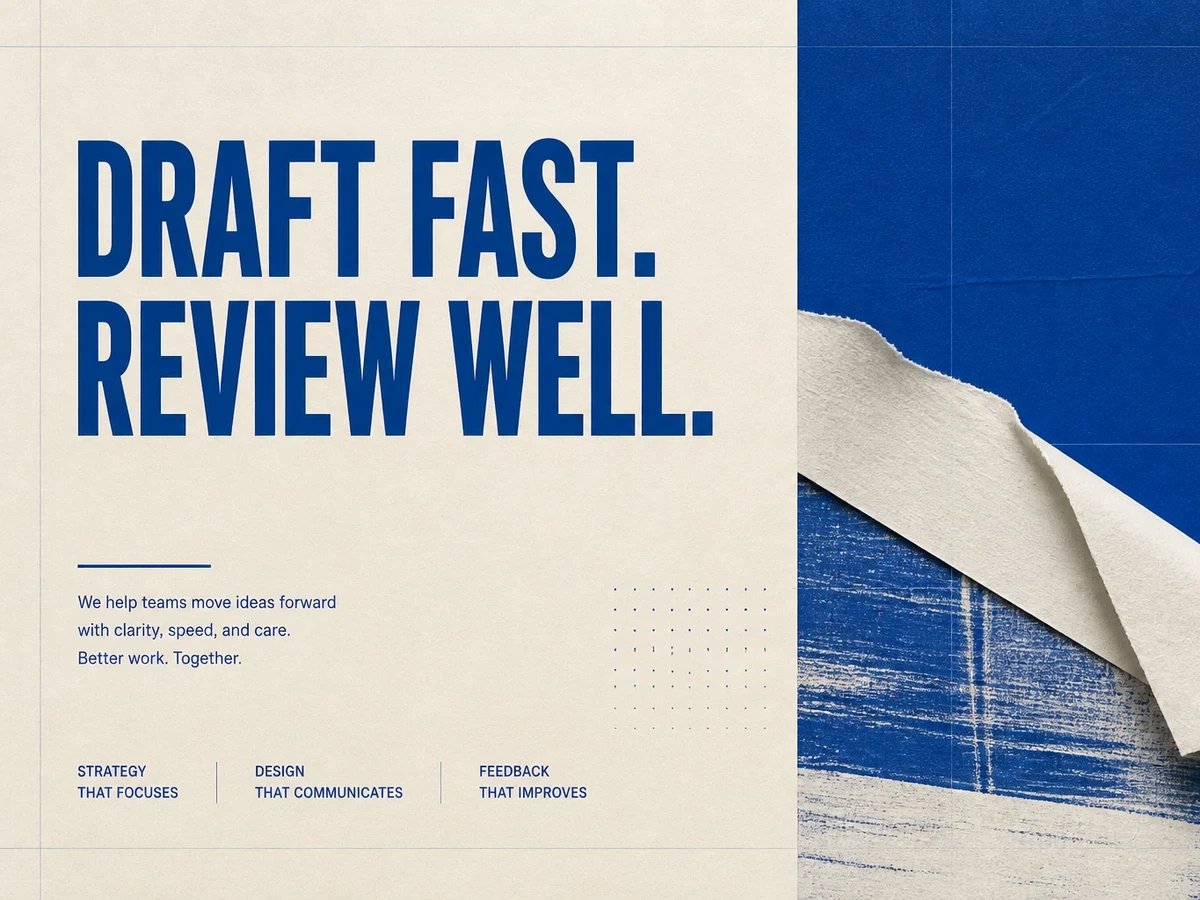
Editorial campaign poster with the exact headline DRAFT FAST. REVIEW WELL., cobalt and ivory paper textures, safe margins, no logo, no watermark.

AI output preview

Editorial campaign poster with the exact headline DRAFT FAST. REVIEW WELL., cobalt and ivory paper textures, safe margins, no logo, no watermark.

1/3
Real low-quality GPT Image 2 API output with the headline Draft Fast Review Well

GPT Image 2 Lite: A Practical Draft-First GPT Image 2 Workflow

GPT Image 2 Lite is NanoPic’s name for a lightweight preset, not a separate model published by OpenAI. The generator visibly selects GPT Image 2 and starts with Low quality, a 3:2 canvas, WebP delivery, an opaque background, and automatic moderation. You can review every selected setting before submitting, then raise quality only after the visual direction is worth refining.

What GPT Image 2 Lite Means on NanoPic

The Lite label describes a preset, not a fabricated OpenAI release. Every claim below maps to controls users can inspect before they generate.

Verified Model Identity

OpenAI’s model catalog names GPT Image 2 with the API ID gpt-image-2. It does not document gpt-image-2-lite as a distinct model, so NanoPic does not imply that OpenAI released a separate Lite checkpoint. The visible model selector remains the source of truth for every generation.
Low Quality by Default

This page starts on Low quality so you can test composition, palette, and prompt direction quickly. You can deliberately change quality before submission, while the visible generator remains the authoritative place to review the current task settings.

Generation and Editing

The selected model supports prompt-only text-to-image and reference-guided image-to-image workflows. When references are supplied, NanoPic uses them as input images while following your edit instructions. The model selector remains the source of truth in both scenes, and one completed task produces one downloadable output in the current interface.

GPT Image 2 Lite Draft Examples

These page-specific examples demonstrate the Low-quality 3:2 preset. The 4:3 cards are deliberate crops of the original landscape outputs, not substituted stock images.

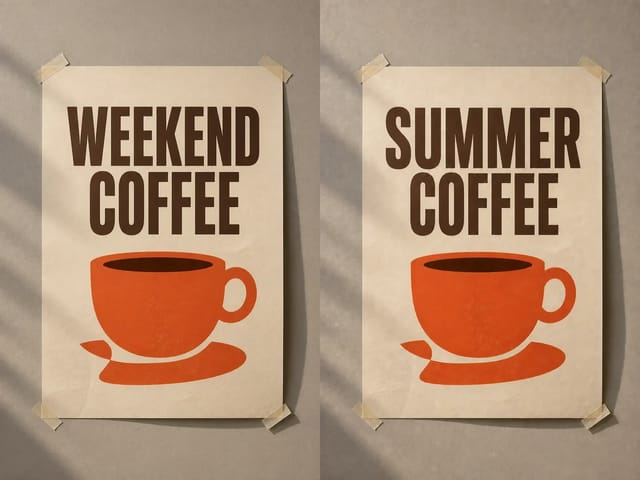
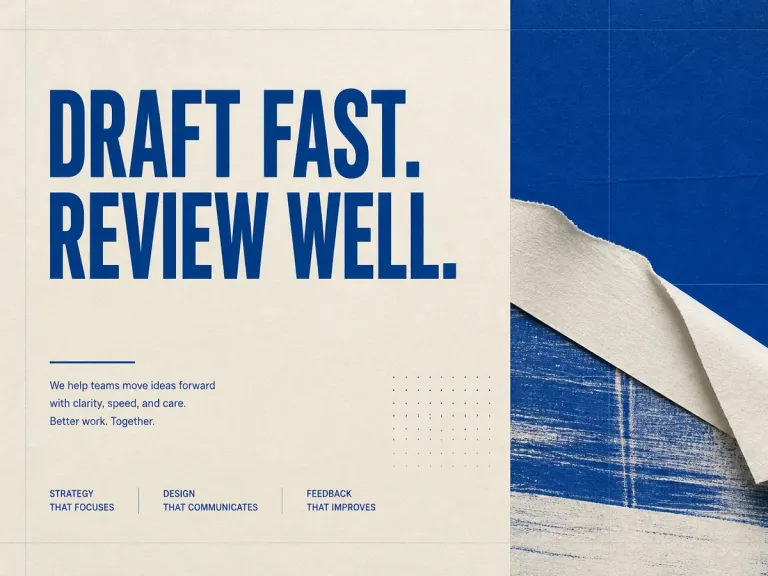
GPT Image 2 low-quality editorial poster with readable blue headline

Readable Editorial Headline

The requested headline rendered correctly at the draft tier. Small supporting text should still be proofread before publication because generative typography can introduce subtle errors even when the main line is accurate.

Try Now
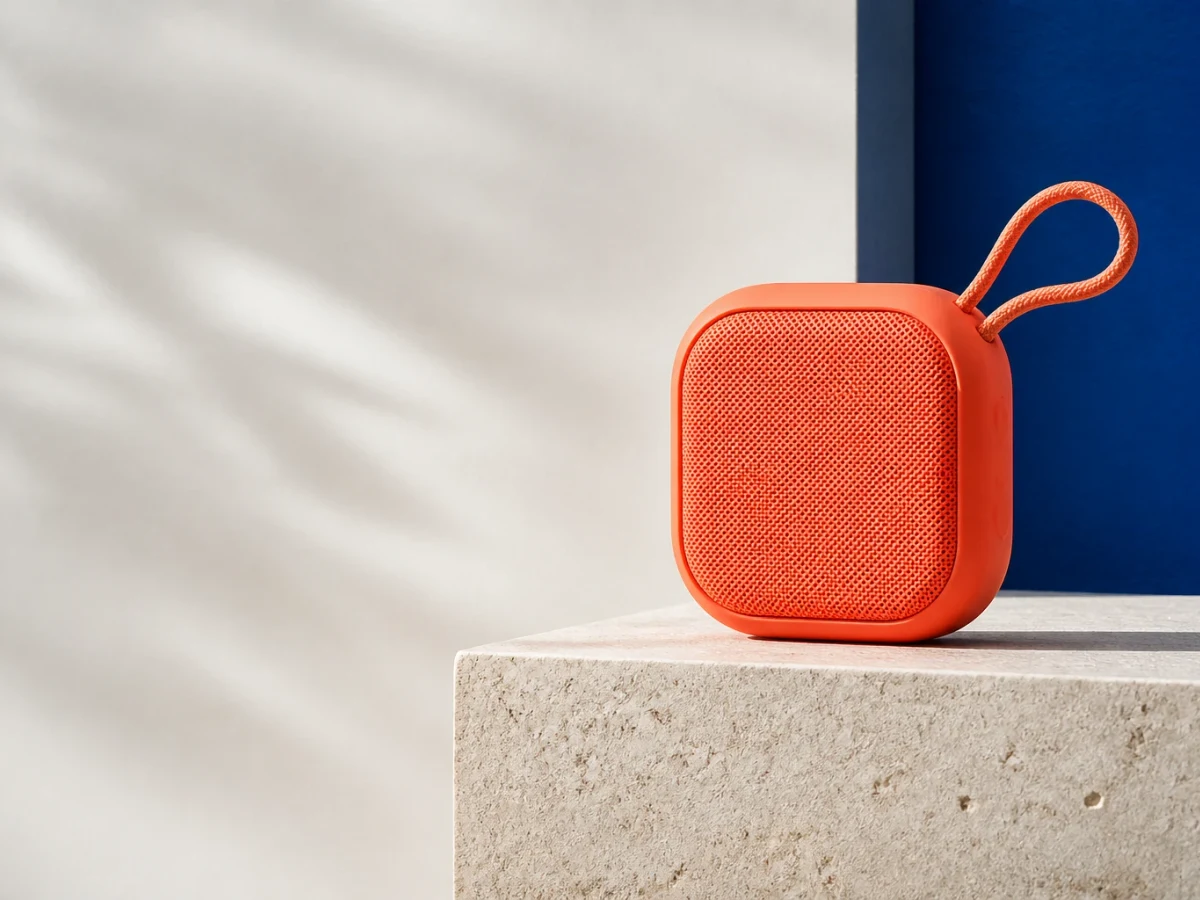
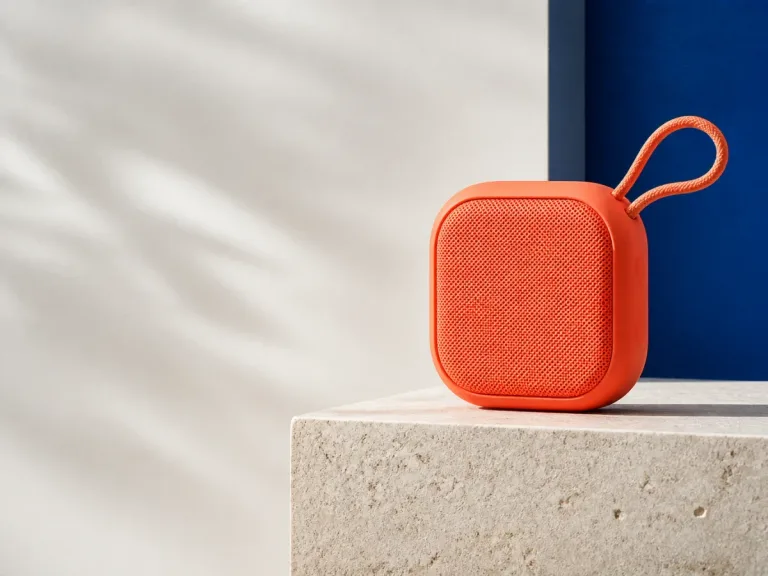
GPT Image 2 low-quality studio image of an unbranded coral speaker

Unbranded Product Direction

The speaker concept preserves clean negative space for page copy, keeps the product centered inside a safe crop, and avoids a logo or watermark. It is useful as an art-direction draft, but product teams should still verify geometry before treating generated details as a real catalog item.

Try Now
GPT Image 2 low-quality creative review workspace with three concept boards

Creative Review Scene

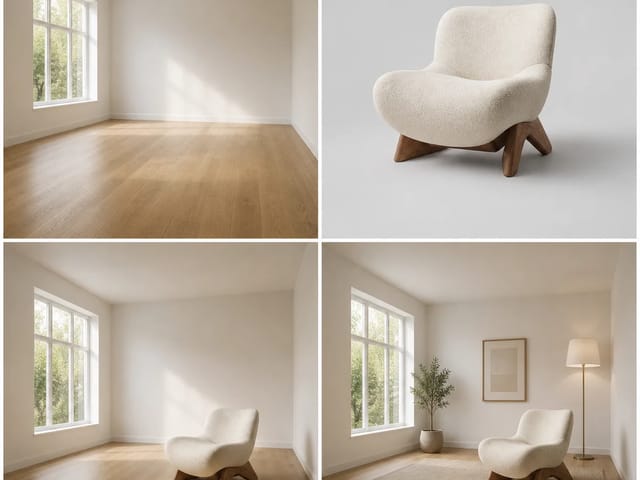
The workspace image shows how a fast draft can establish lighting, palette, and composition before a higher-quality revision. The person faces away from the camera and the pinned concepts contain no protected marks or readable interface text.

Try Now

How to Use the Lite Preset Without Losing Control

Treat low quality as an intentional review stage, then spend more only when the direction deserves it.

1. Name the Asset’s Job

Start with one job: a campaign poster, product hero, storyboard frame, social concept, UI mockup, or reference-guided edit. Describe the subject, environment, palette, lighting, camera distance, and safe space. Put any required visible wording in the prompt exactly and keep it short. The low tier is valuable for testing whether the composition and instruction hierarchy work; it does not remove the need to inspect spelling, anatomy, product geometry, or factual details.

Draft a Focused Prompt
Editorial prompt result from the GPT Image 2 Lite preset

2. Choose the Frame Before Generating

NanoPic exposes three practical aspect ratios: 1:1 for square cards, 3:2 for landscape assets, and 2:3 for portrait covers. Choose the destination before submitting rather than forcing a finished image into an unrelated crop. The examples on this page were created at 3:2, then their marketing cards were cropped to 4:3 only after the subject and safe margins were checked on desktop and mobile.

Use the 3:2 Draft
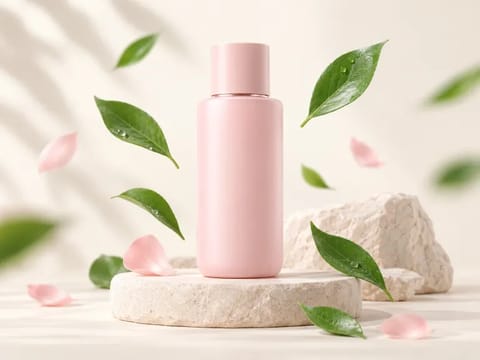
Product image with safe space planned before GPT Image 2 generation

3. Review, Then Escalate Selectively

Open the finished media rather than judging a thumbnail. Check the focal point, readable text, hands and faces, lighting continuity, brand safety, and whether the composition leaves room for its real destination. Keep Low while the result is exploratory, and switch to Medium or High only when the direction is ready for refinement.

Review a Real Output
Reviewing GPT Image 2 draft concepts before a higher-quality pass

Controls and Review Limits

The interface keeps the supported choices beside the generator so you can review the task before submission.

Prompt and Settings Review

Before submitting, review the selected model, scene, quality, aspect ratio, output format, moderation, and final prompt in the real generator. Keep the task focused and change only one major direction at a time so the result is easier to evaluate.

Output and Background Choices

Choose WebP, PNG, or JPEG and use automatic or opaque background handling. This preset does not promise transparent background generation. Output handling stays within the options shown in the generator instead of presenting unsupported resolution or transparency controls.

Moderation and Human Review

The preset starts with automatic moderation, and platform rules still apply if advanced controls change. Generated media can contain spelling, anatomy, factual, or brand errors. Downloading an image does not replace consent, rights clearance, product verification, or a final human review for high-stakes publishing.

Compare Adjacent NanoPic Image Workflows

Use the same-page quality control when you want a stronger GPT Image 2 pass, or compare other model families when the brief calls for different controls.

GPT Image 2 Lite FAQ

Clear answers about the preset name, selected model, controls, and practical review workflow.

Is GPT Image 2 Lite an official OpenAI model?

No. OpenAI publishes GPT Image 2 with the model ID gpt-image-2. GPT Image 2 Lite is NanoPic’s descriptive name for a draft-focused preset on that model, not a separate OpenAI checkpoint or API ID.

Which model does the generator actually select?

The visible selector uses GPT Image 2. NanoPic records the selected model with the task and does not submit gpt-image-2-lite as though it were a separate model.

What does the GPT Image 2 Lite API keyword mean here?

People searching for GPT Image 2 Lite API often want a lightweight draft workflow. On NanoPic, that intent maps to GPT Image 2 with quality set to Low. It does not mean a separate official Lite API exists.

What should I confirm before generating?

Review the selected model, scene, quality, aspect ratio, output format, moderation, and final prompt in the generator. The visible controls are the authoritative place to confirm the request.

Can I edit an existing image?

Yes. Switch to image-to-image, upload one or more supported references, and explain what should change and what must remain stable. NanoPic uses the references with the selected GPT Image 2 workflow.

Which settings are supported?

NanoPic exposes 1:1, 3:2, and 2:3 aspect ratios; low, medium, high, and auto quality; PNG, JPEG, and WebP output; automatic or opaque backgrounds; and automatic or lower moderation. Transparent backgrounds are not supported on this route.

Create a GPT Image 2 Lite Draft

Start with GPT Image 2 on Low, review the full output, and raise quality only when the concept is ready for a more refined pass.