



Save up to 73% on plans

Creen AI Image Generator
Sign In
Public VisibilityAllow this result to appear in public inspiration surfaces.
Credits required:—

Creen AI Image Generator

Nano Banana 2

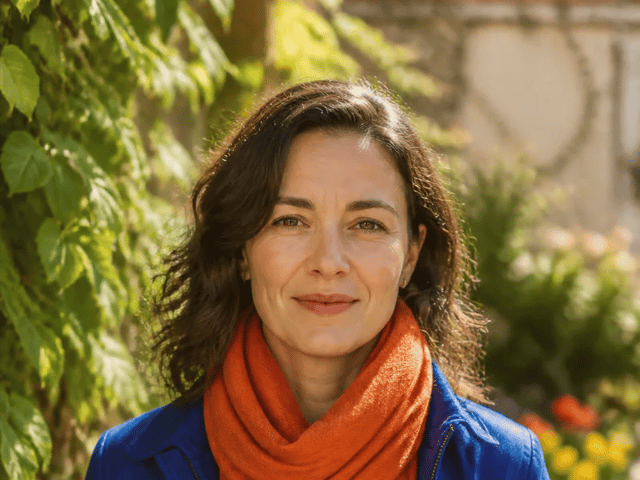
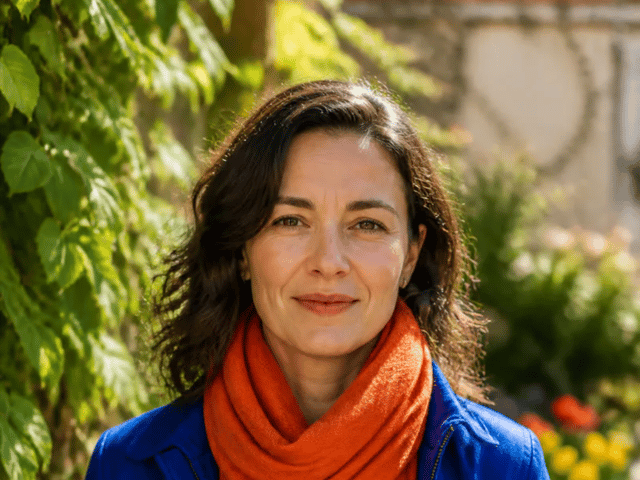
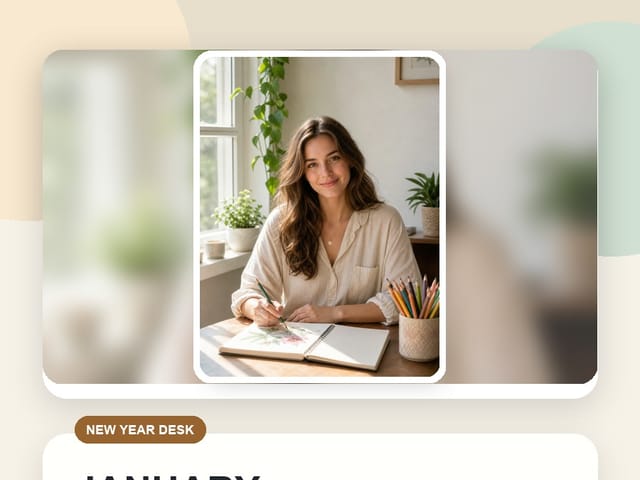
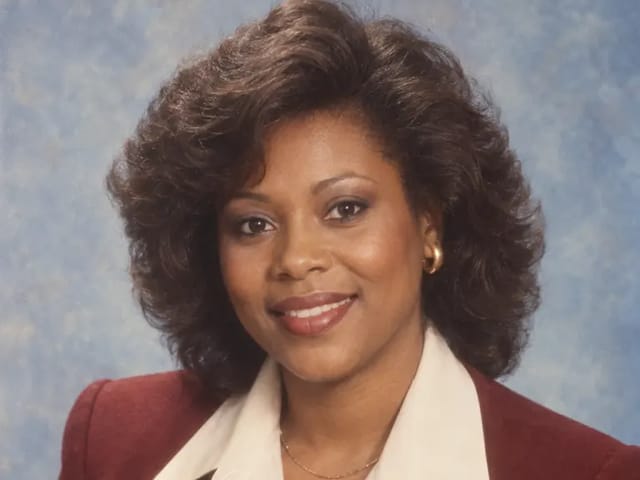
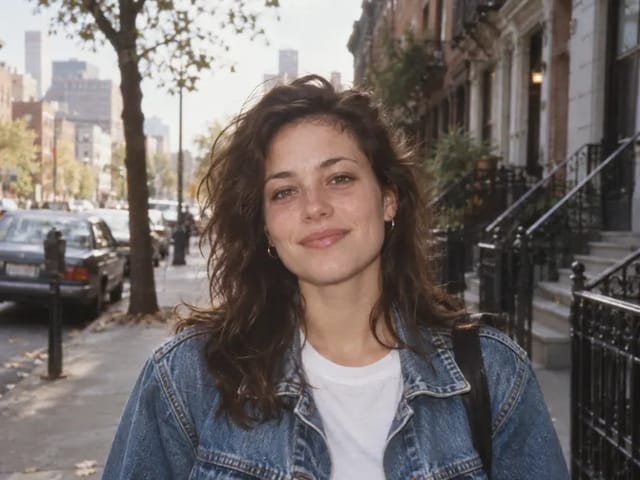
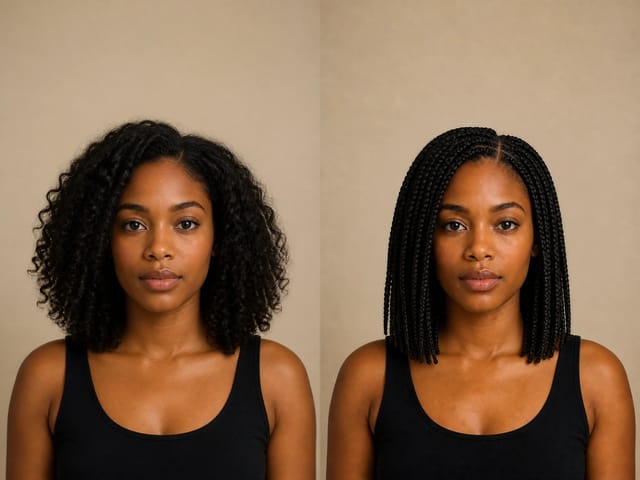
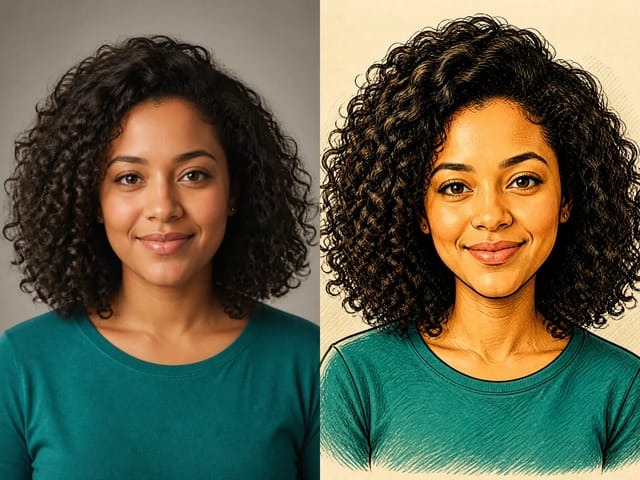
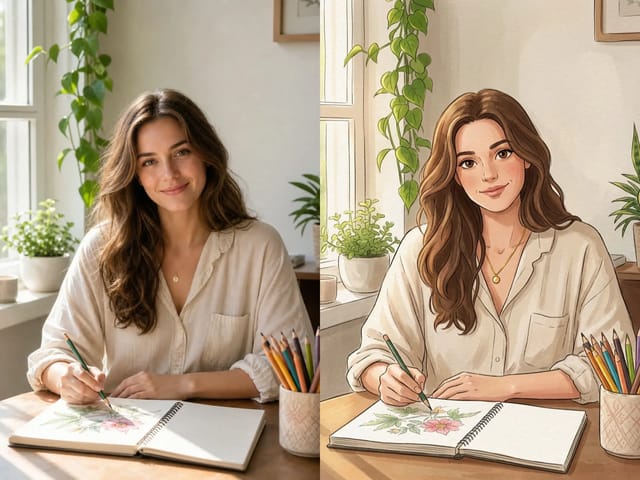
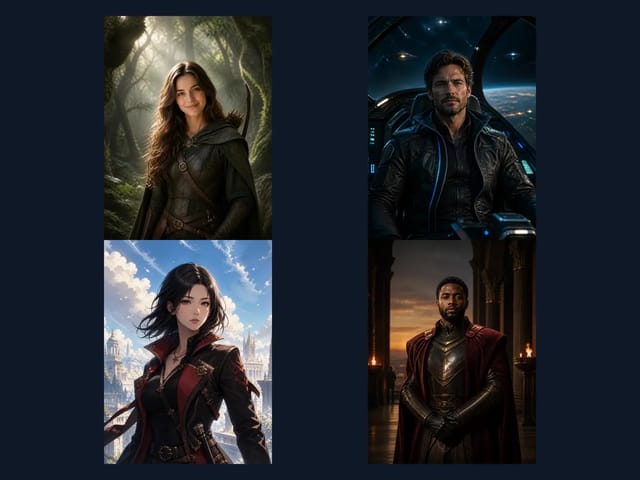
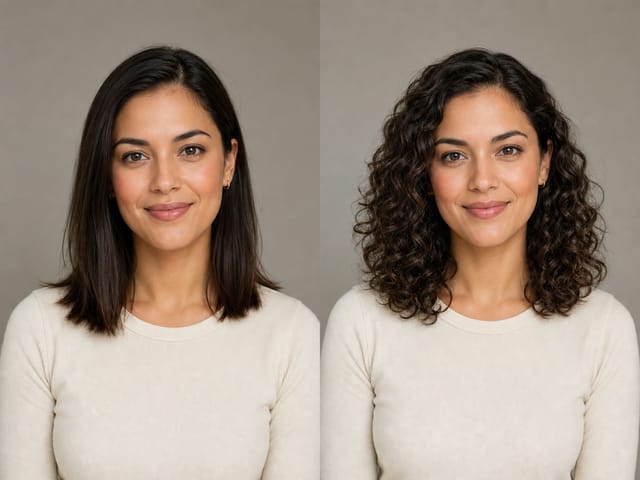
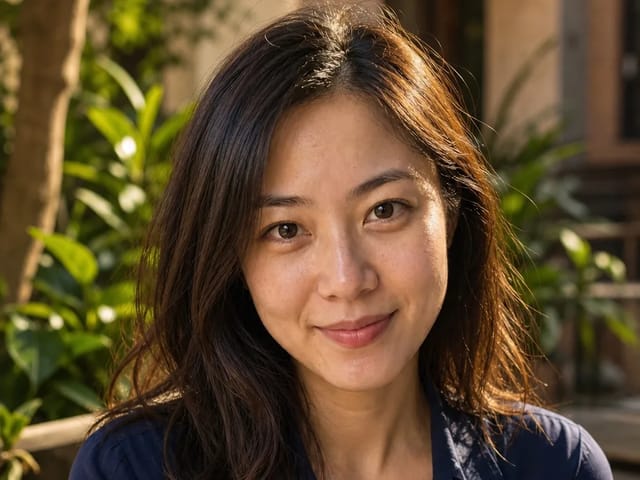
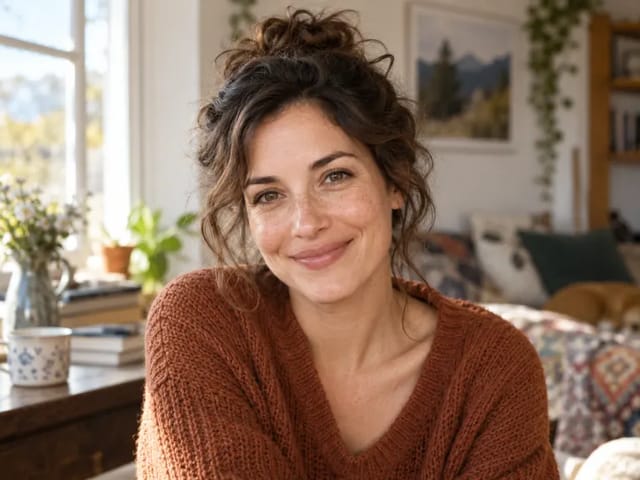
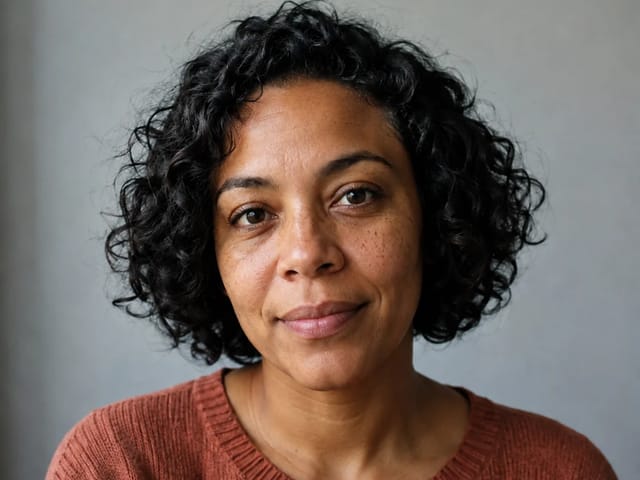
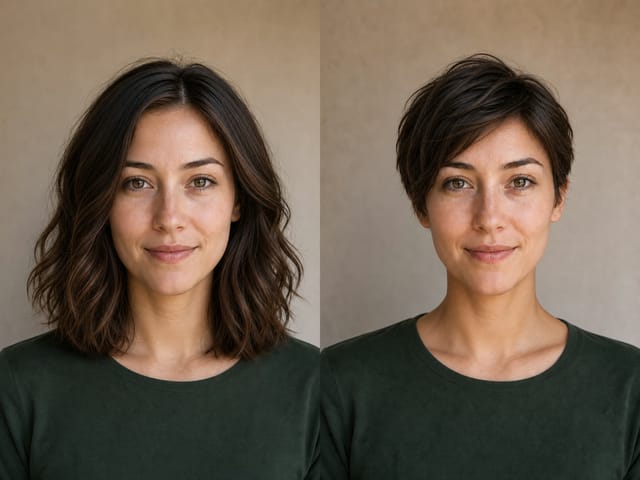
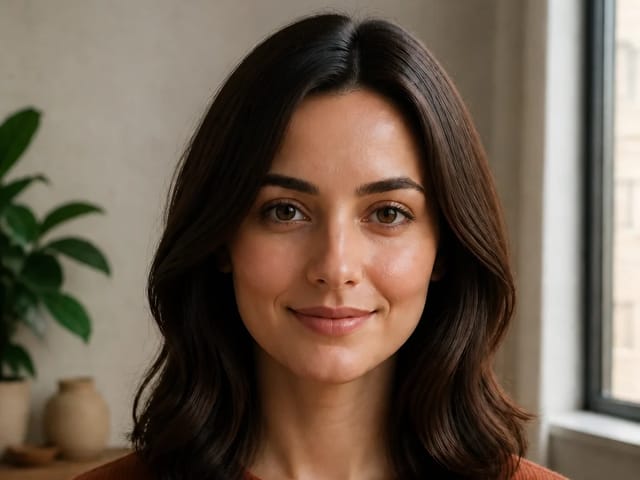
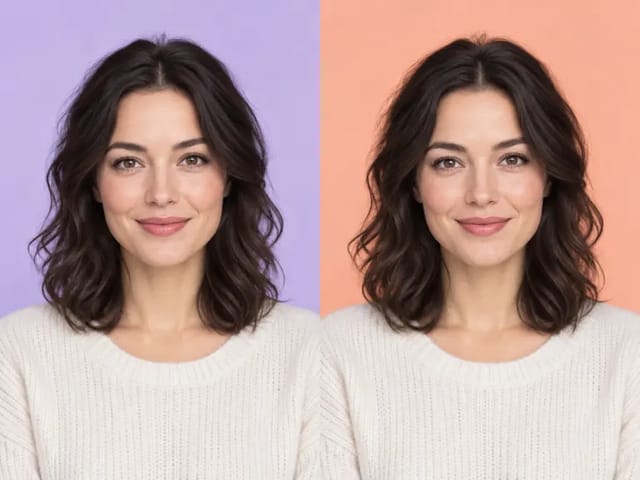
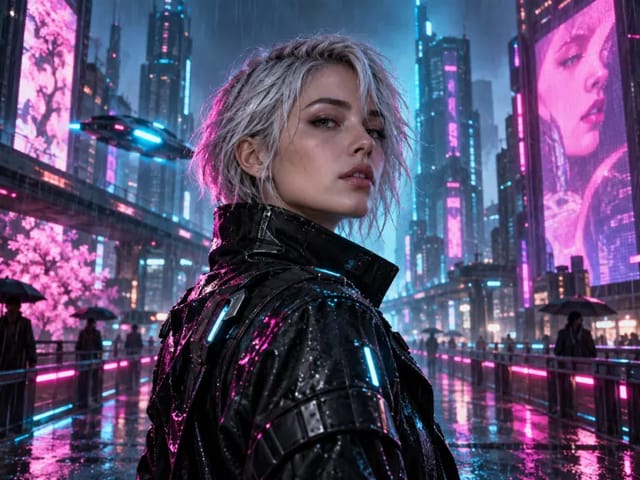
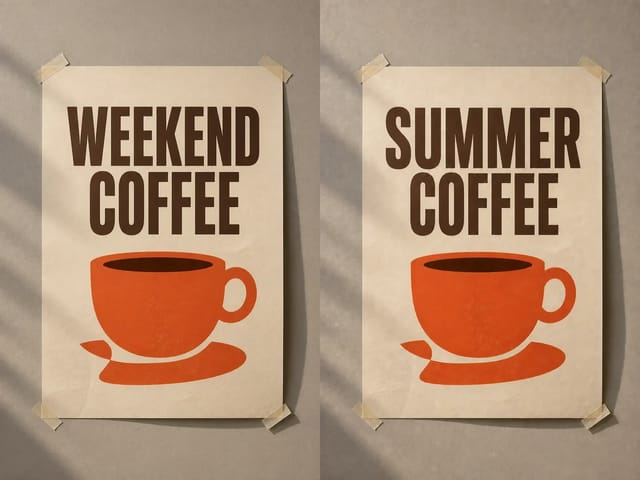
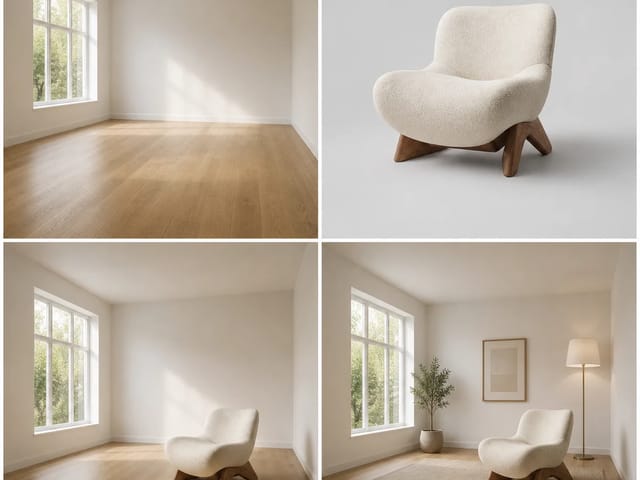
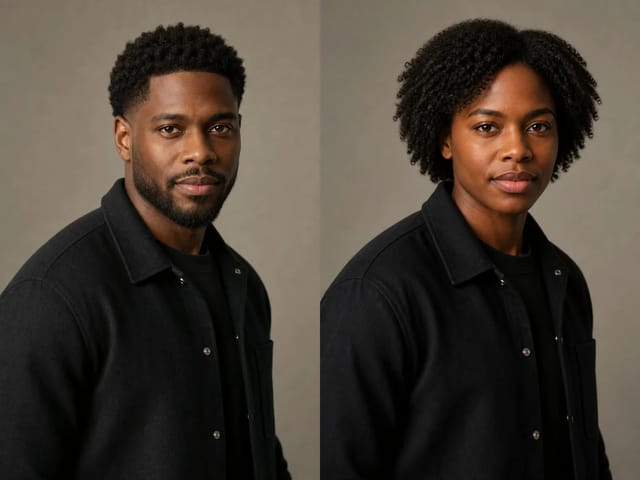
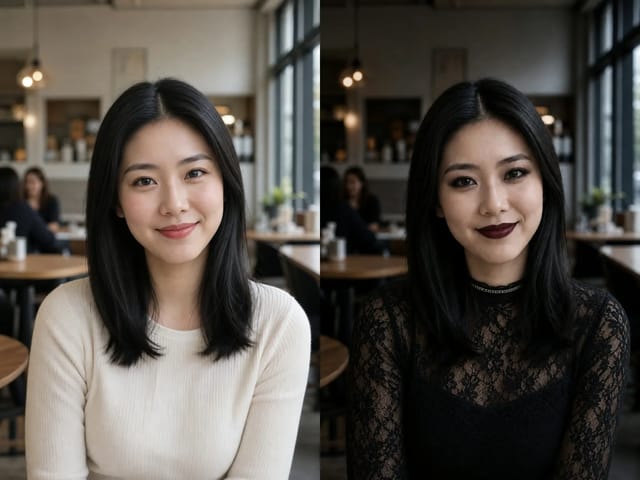
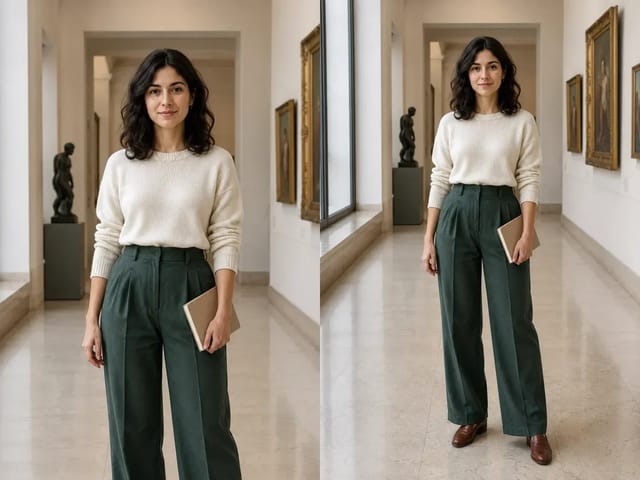
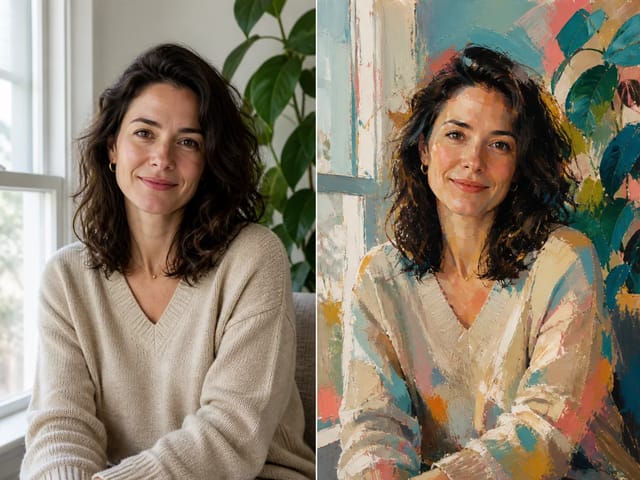
Portrait of a woman with curly dark hair by a café window in warm late-afternoon light

AI output preview

Portrait of a woman with curly dark hair by a café window in warm late-afternoon light

1/4

More AI Image Models & Effects

Make Better Creen AI Pictures, Step by Step

Five practical stages take you from a blank idea to a finished image you can download and use.

Start with the kinds of pictures you need

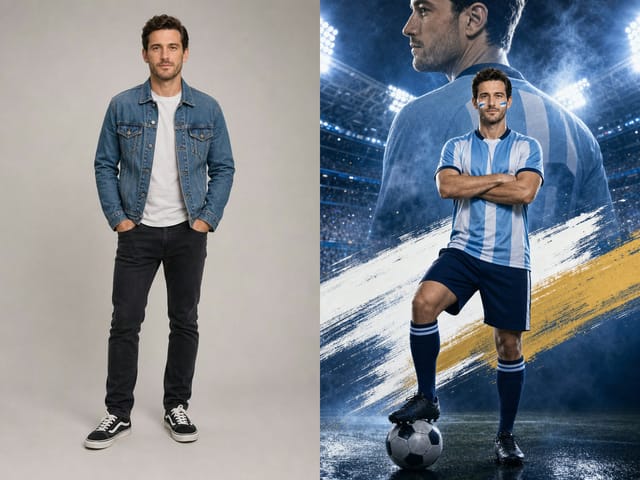
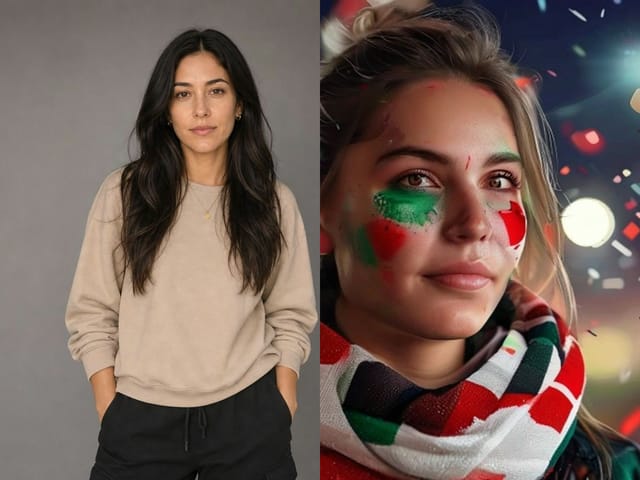
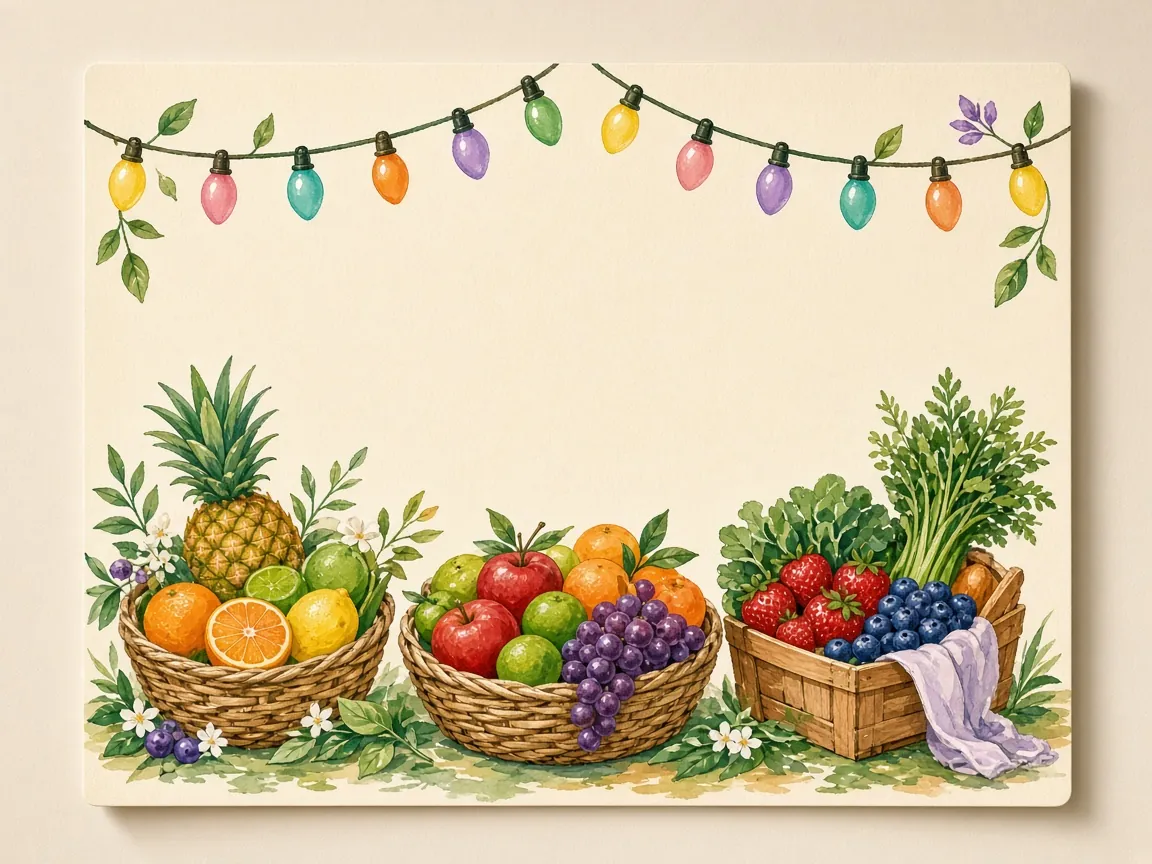
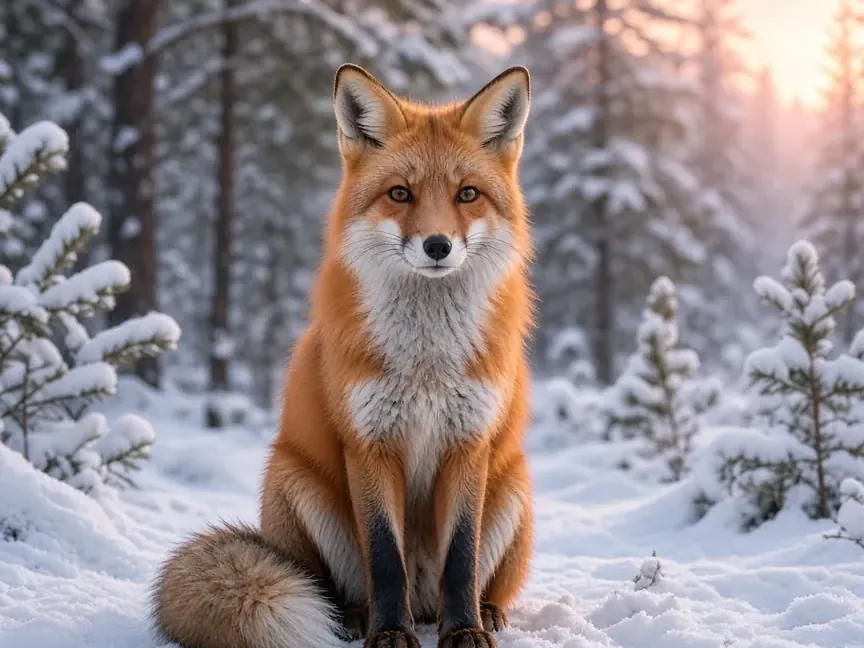
This generator is built for still pictures: posters and flyers with room for your own words, product shots on clean sets, portraits and avatars, illustrations, pixel art and simple diagrams. Name the end use first, then describe the subject, the place and the light in that order. A Creen AI picture aimed at a shop listing needs different framing than one aimed at a story post. Keeping the end use in the first sentence stops the result from drifting into a pretty image you cannot publish.

Start Creating
Start with the kinds of pictures you need

Write one clear sentence in the prompt box

Open the prompt box and write who or what is in the picture, where it sits, the light, the mood and the framing. A product scene, a portrait or a labeled diagram all start the same way: one concrete sentence rather than a long wish list. Make two or three Creen AI versions from that sentence and put them side by side. Keep the strongest one before you change anything else, so later edits have a clear baseline.

Start Creating
Write one clear sentence in the prompt box

Change one word at a time

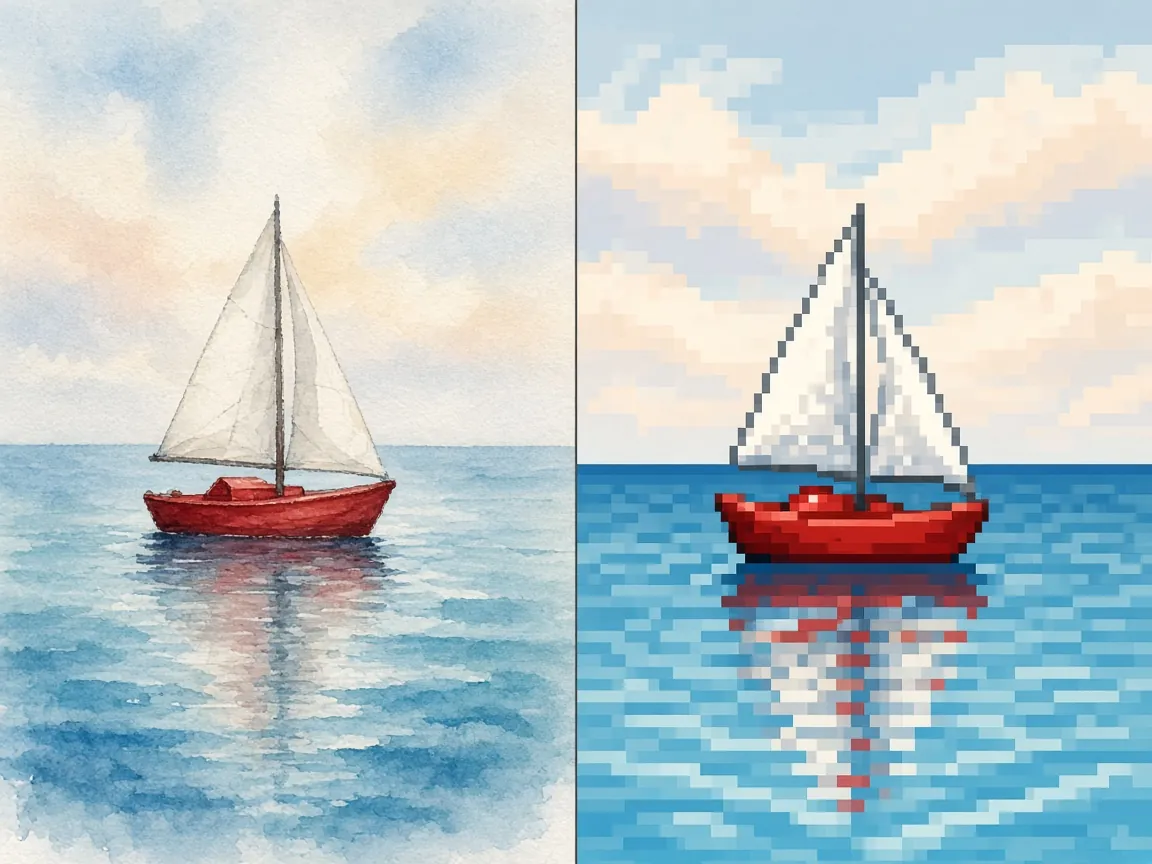
When a Creen AI picture is close but not right, edit a single detail: swap watercolor for pixel art, a busy room for a gray background, or noon sun for soft morning light. Changing one word shows which part of the prompt moved the result. Leave the subject and framing alone until the weak spot is fixed. This habit keeps a good composition instead of starting over from a blank page.

Start Creating
Change one word at a time

Download and put the picture to work

Save the Creen AI image you like and use it in a social post, a slide, an online shop listing or a printed card. Reuse the same style words to make a small matching set so a grid of posts or a product page looks like one family. Keep the winning prompt next to the file name. Next week you can remake a sibling Creen AI picture without guessing which words worked.

Start Creating
Download and put the picture to work

Check faces, hands and on-image text before you share

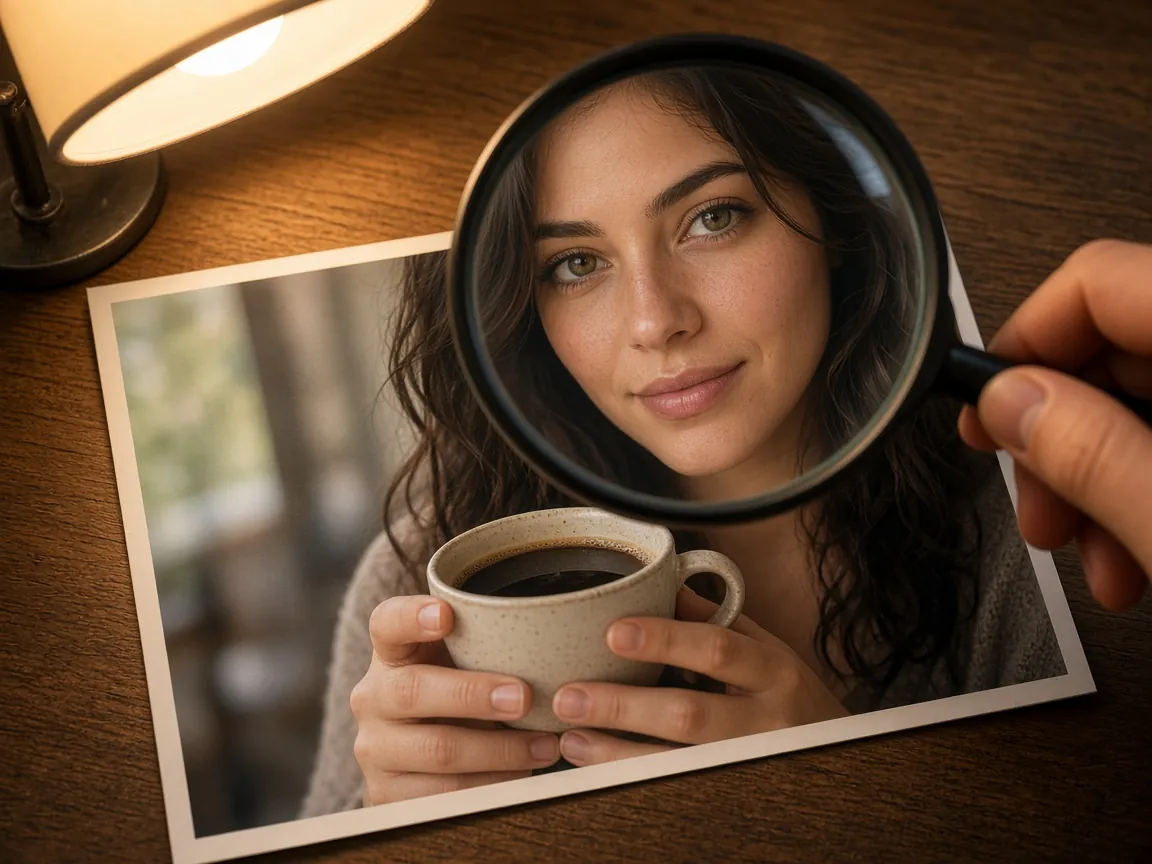
Zoom in on eyes, teeth and fingers; they should look natural and point the same way. If you asked for words on a sign, read them letter by letter and keep on-image text short. Confirm edges where objects meet the table or the sky, and that colors and counts match what you wrote. When two versions look nearly the same, keep the one closer to your plan and discard the rest.

Start Creating
Check faces, hands and on-image text before you share

What Can You Make with Creen AI Image Generator?

Describe the picture in everyday words and download a still image you can share, print or keep improving. People come here most often for these four uses.

Posters and flyers

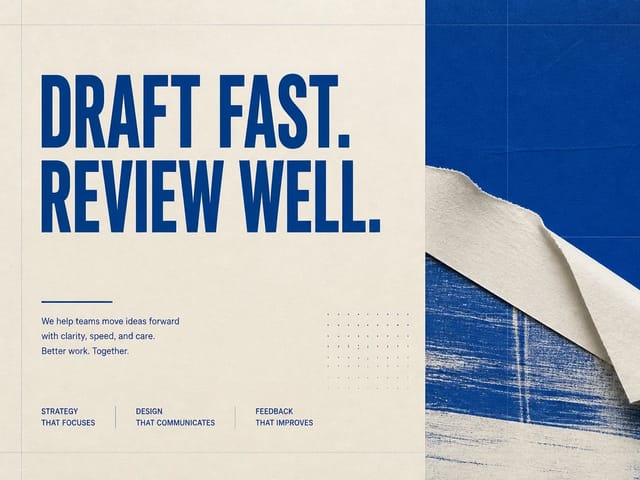
Event posters, sale flyers and announcement cards with a clear focal point and empty space where you can add your own title later.

Product shots

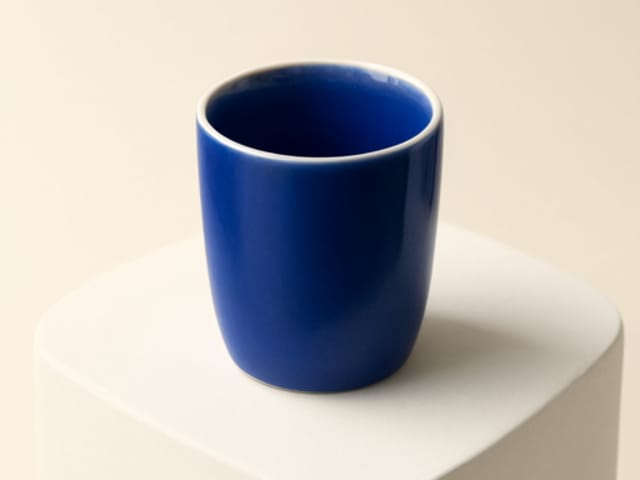
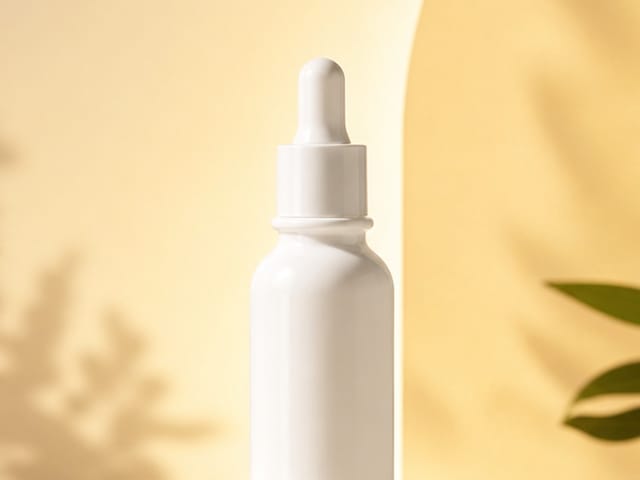
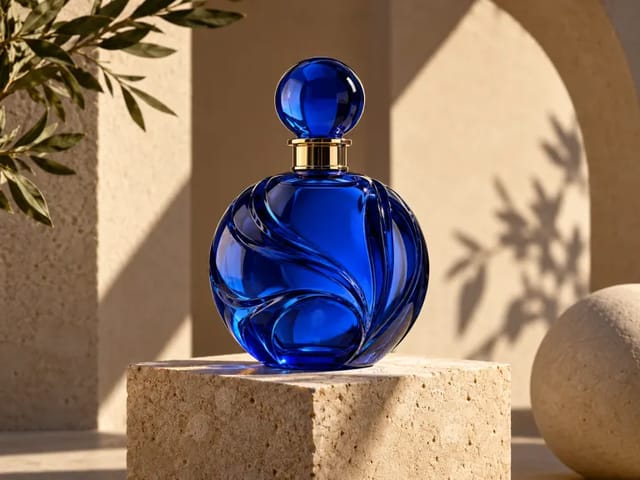
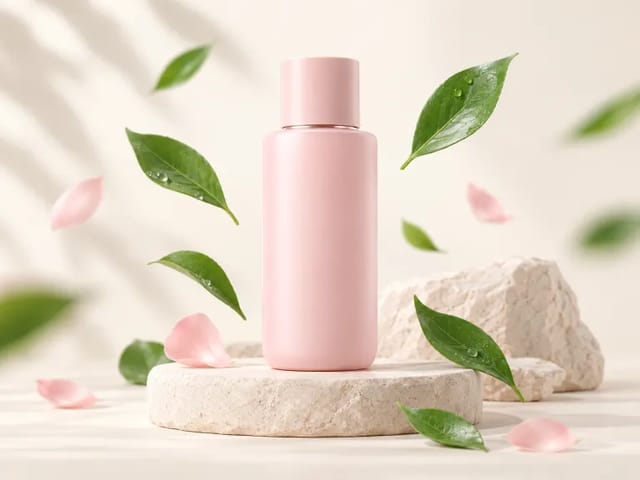
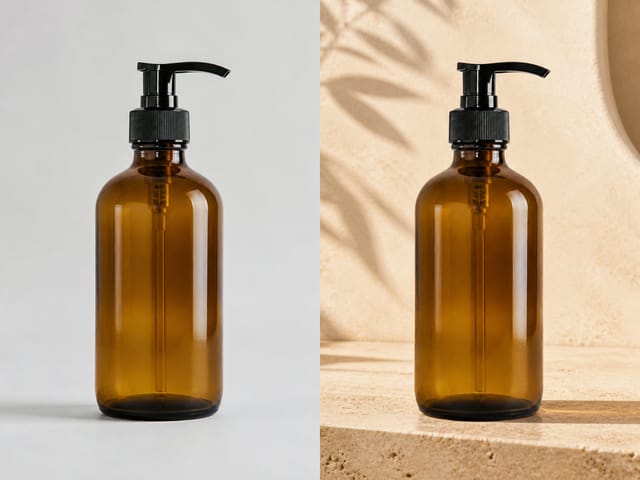
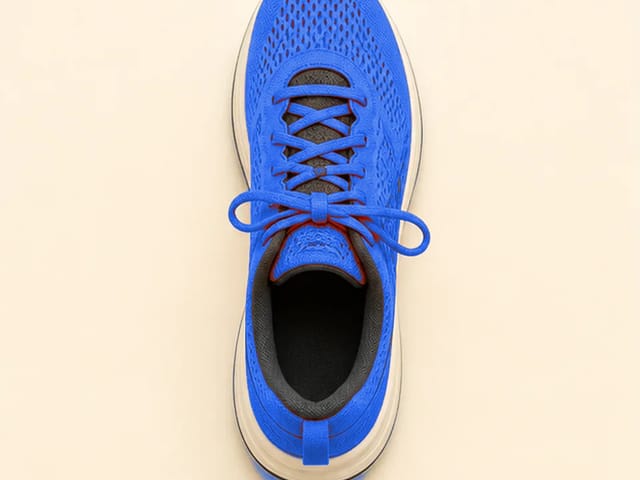
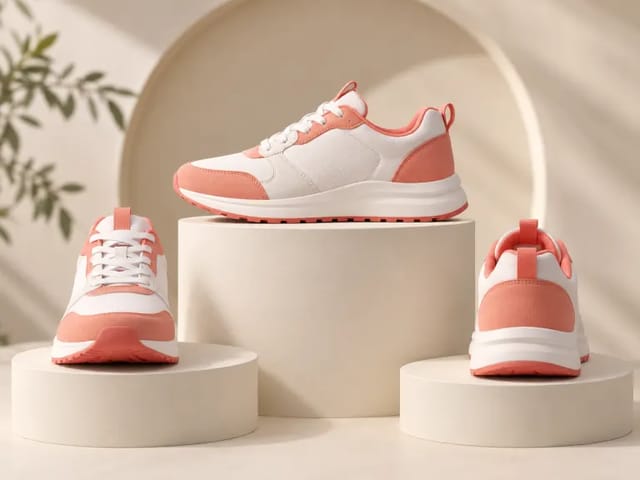
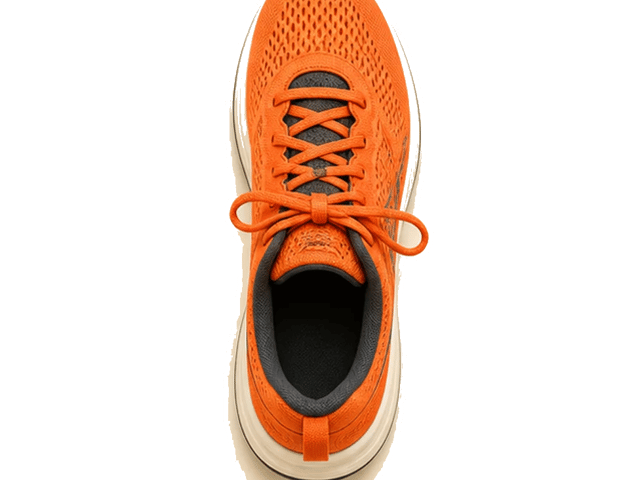
Bottles, shoes, gadgets and handmade goods on marble counters, sunlit podiums or soft studio light that suits the item.

Portraits and avatars

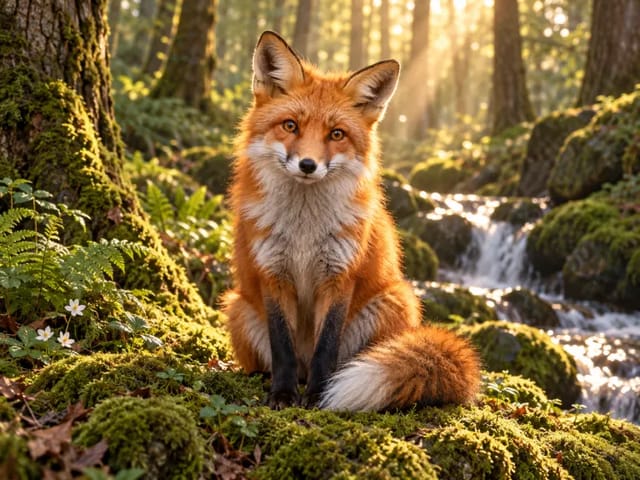
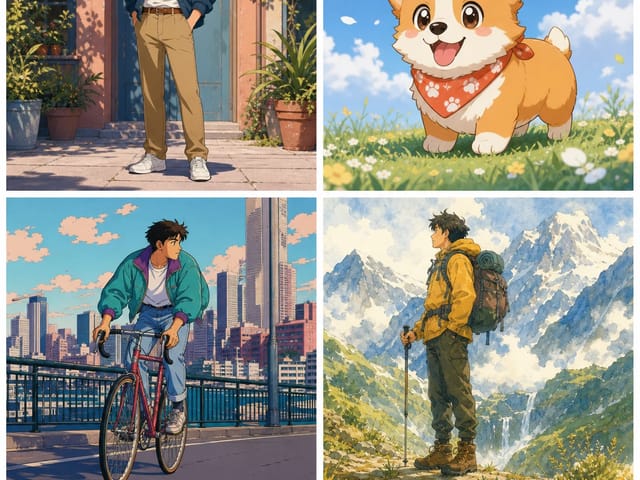
Profile pictures and character portraits in looks that range from photo-real to watercolor, anime or 3D cartoon.

Illustrations and pixel art

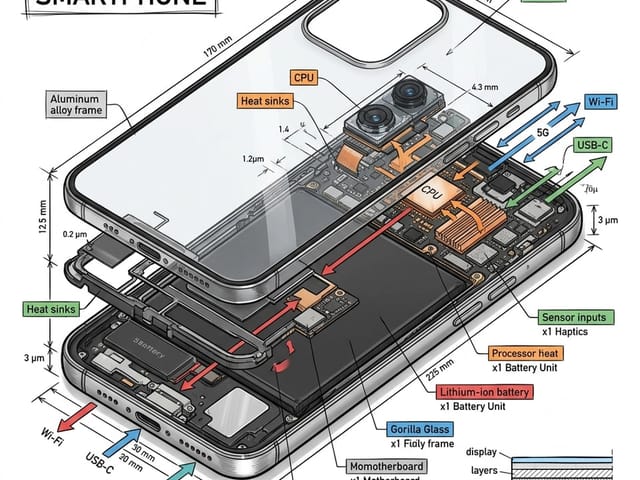
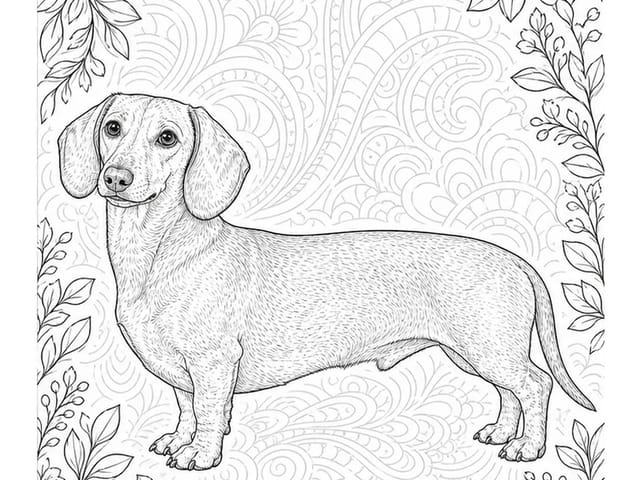
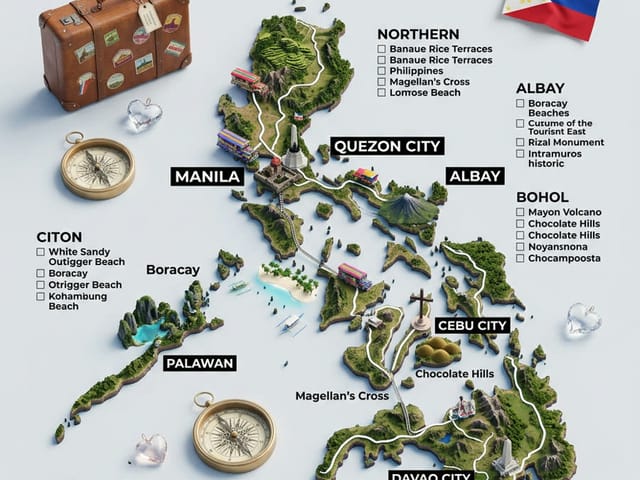
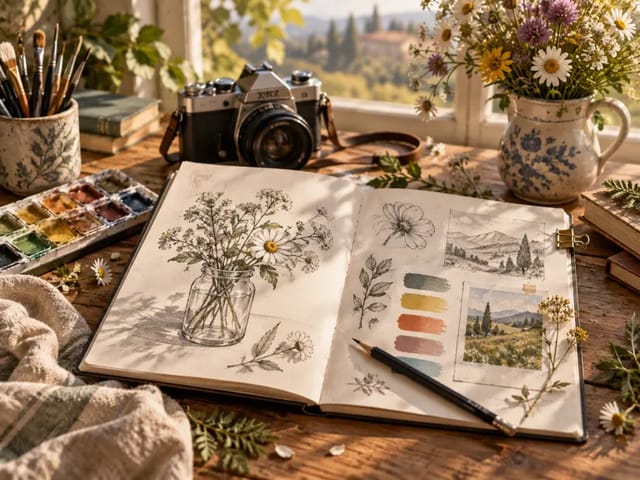
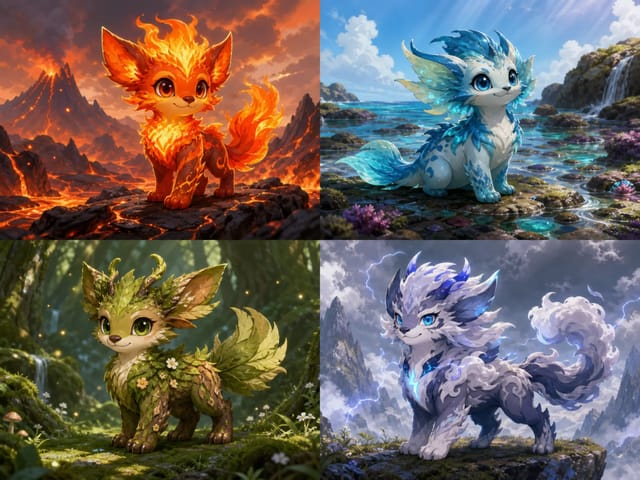
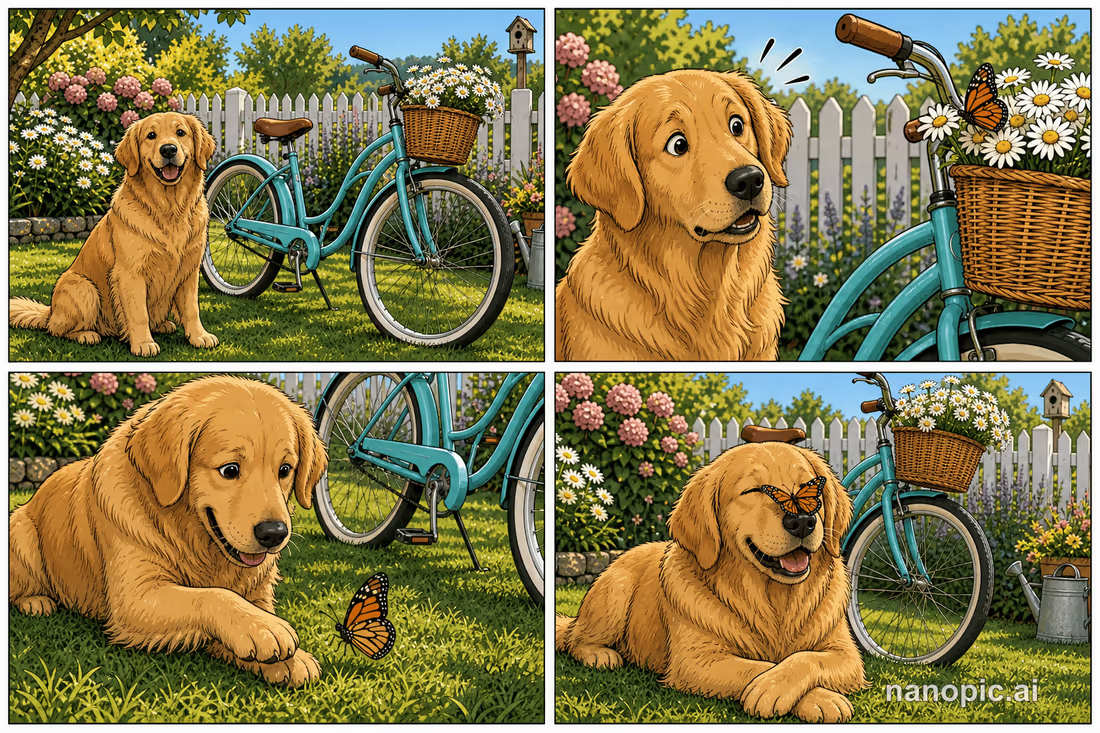
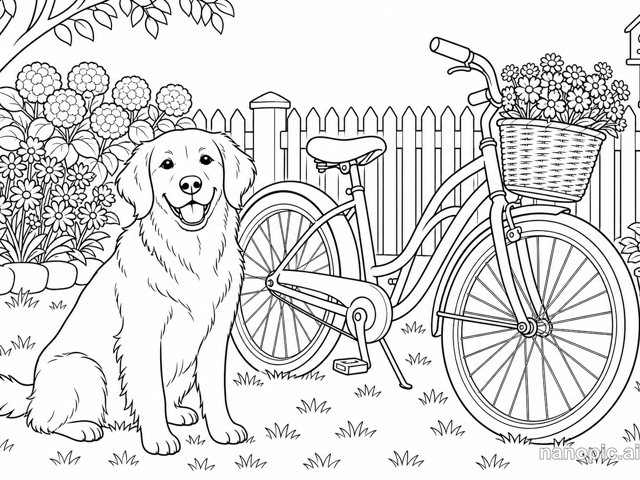
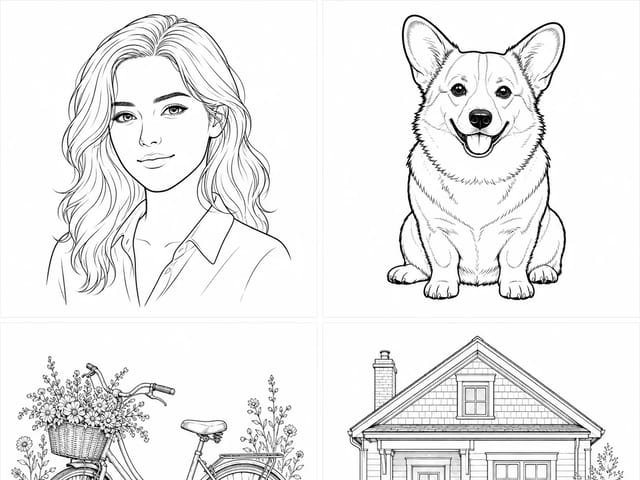
Story scenes, book covers, simple diagrams, pixel-art pets, icons and sticker sheets with clean outlines.

How to Write a Creen AI Prompt That Gets the Picture You Want

A few clear words do more than a long list. Build each prompt from subject to style in this order, and leave out words that do not describe something you can see.

Subject first

Name the main person, animal or object and what it is doing, such as a bottle on a podium or a kitten on a mat.

Then the place

Say where it sits: a sunlit studio, a rainy street at night, a cozy kitchen or a plain light-gray background.

Light and mood

Describe the light the way a photographer would: soft morning light, warm late-afternoon glow or hard noon sun, then add one mood word such as calm or playful.

Style and framing

Finish with the look and framing: photo-real, watercolor or pixel art; close-up, wide shot or top-down. Skip vague praise and use concrete details such as dew on glass.

Where People Use Creen AI Images

Common image projects for posts, shops and personal use.

Social posts and grids

Seasonal scenes, quote backgrounds and matching grids that share one color palette across a week of posts.

Shops and product pages

Styled product scenes and banners that show the item in a setting where buyers can picture it at home.

Cards, blogs and stories

Header images, chapter illustrations, birthday cards, holiday greetings and pet portraits for friends and family.

How to Check a Creen AI Image Before You Use It

A picture can look fine at a glance and still hide small problems. Run these checks on every result before you publish.

Faces and hands

Eyes, teeth and fingers should look natural, with the right count and matching direction.

Text and edges

Read any on-image words letter by letter; check where objects meet the table or the sky.

Match and compare

Confirm color, object count and setting; make two versions and keep the closer one.

Prompt Tips for Better Creen AI Images

Small habits that help every picture you make here.

Lead with the subject

Subject and action first, then place, light and mood.

Keep a style line

Save a style phrase you like and reuse it so a series of images stays consistent.

Say what to leave out

Ask for a plain background, no text or no people when something keeps showing up.

Plan Your Creen AI Image Before You Write

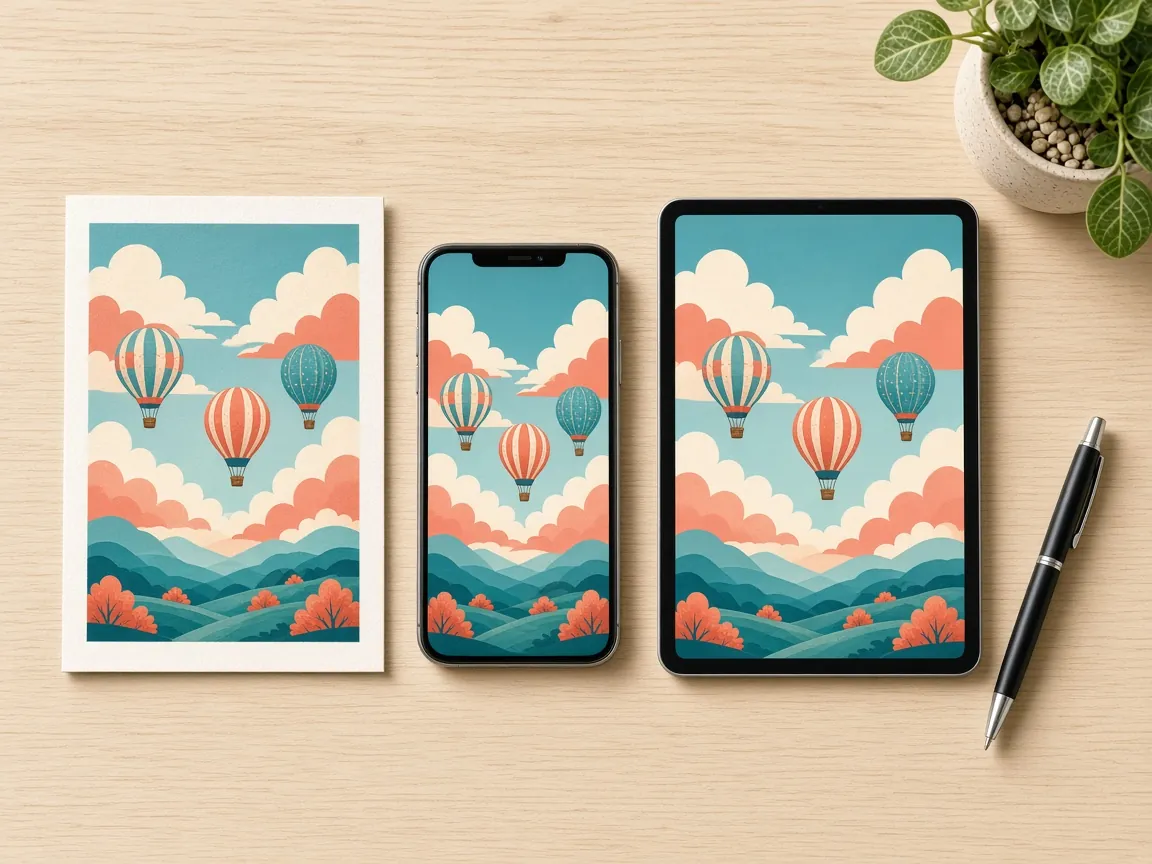
Decide who the picture is for and what viewers should notice first. Pick the frame early: tall for a phone screen, wide for a banner, square for a profile. Write two or three versions, put them side by side and keep the one that matches your plan, not the busiest one. Note the goal, the frame and the winning prompt together so next week you can remake a matching picture.

More NanoPic Image Tools

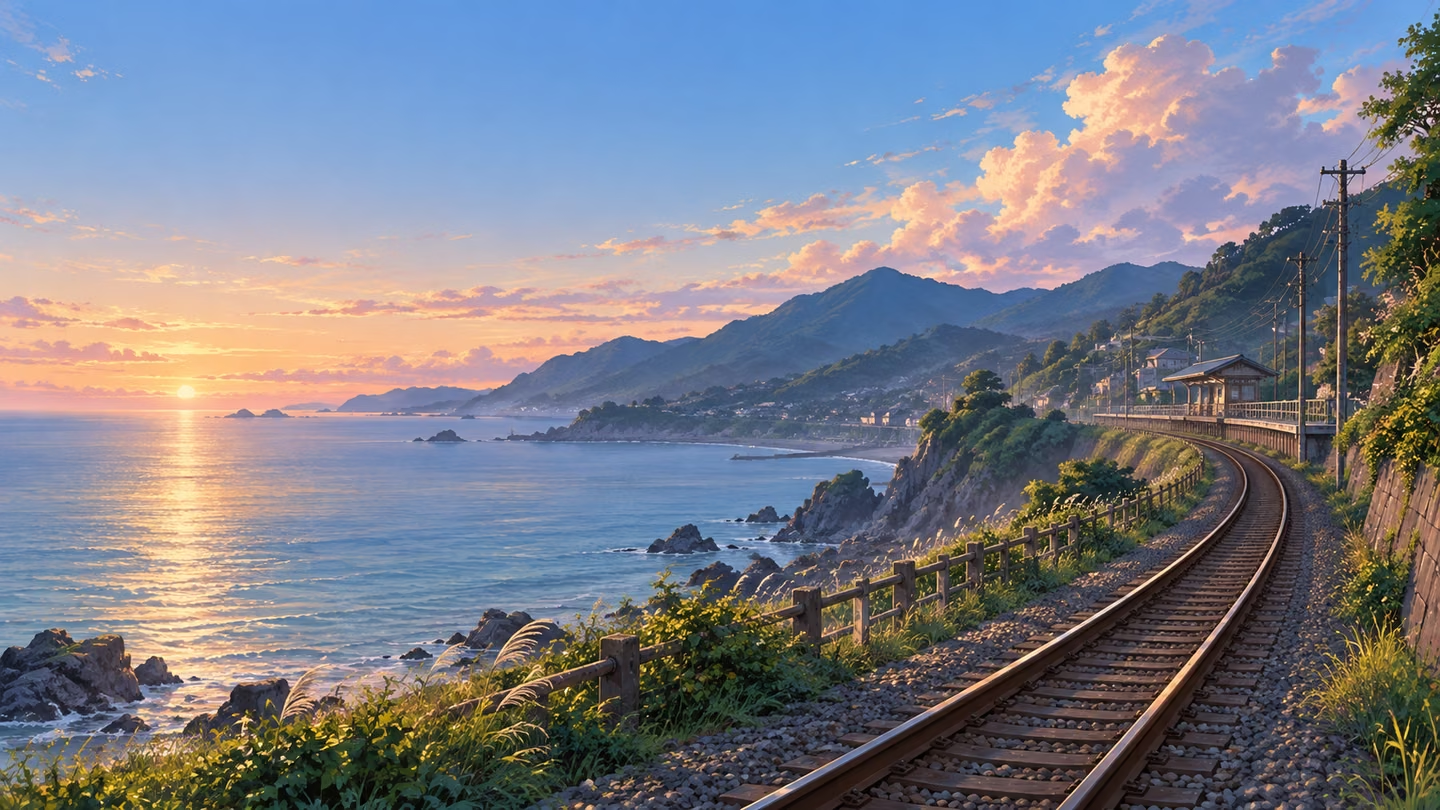
AI Image Generator — thematic cover illustration

AI Image Generator

Turn any idea into an image.

Open Tool
Photo Effects

Photo Effects

Ready-made looks for portraits and products.

Open Tool
AI Product Hero Image Generator

AI Product Hero Image Generator

Styled scenes for product pictures.

Open Tool
AI Pixel Art Generator

AI Pixel Art Generator

Retro pixel-art pictures from a description.

Open Tool

Creen AI FAQ

What is the Creen AI Image Generator?

A NanoPic browser tool that turns a written description into a still picture: posters, product shots, portraits, avatars and illustrations.

Is this the official Creen AI?

No. NanoPic is not affiliated with Creen AI.

Is Creen AI safe to use?

Keep full names, addresses and phone numbers out of prompts, and read the privacy policy and terms before you start.

Do I need the Creen AI app or an apk?

No. It runs in any mobile or desktop browser. If you install an app elsewhere, use only the App Store or Google Play.

What kinds of Creen AI images can I make?

Posters, product shots, portraits, avatars, illustrations, pixel art, icons and diagrams from a written description.

Can I start from my own photo?

Right now the generator works from words. Describe the person, product or place in detail to get close to what you have in mind.

How long should a Creen AI prompt be?

One to three sentences is usually enough: subject, place, light and style.

Can it put words on the image?

Yes, short titles or slogans work best. Check spelling and add longer text in your own editor.

How do I get the best Creen AI image?

Make two or three versions, keep the closest one, then change one word at a time until it looks right.

Make Your Next Creen AI Image

Write a sentence in the Creen AI Image Generator, compare a few versions and keep the picture you like best.

Related tools

FLUX Kontext Multi Image

FLUX Kontext Multi Image

FLUX Kontext Multi Image Generator combines 2 to 4 references into one coherent image. Assign each source a role, choose a canvas, and review the result.

Open tool
Qwen Image Generator

Qwen Image Generator

Qwen Image Generator creates images from prompts and edits references. Use Qwen Image 3 or Pro, choose your canvas, and review downloadable visual drafts.

Open tool
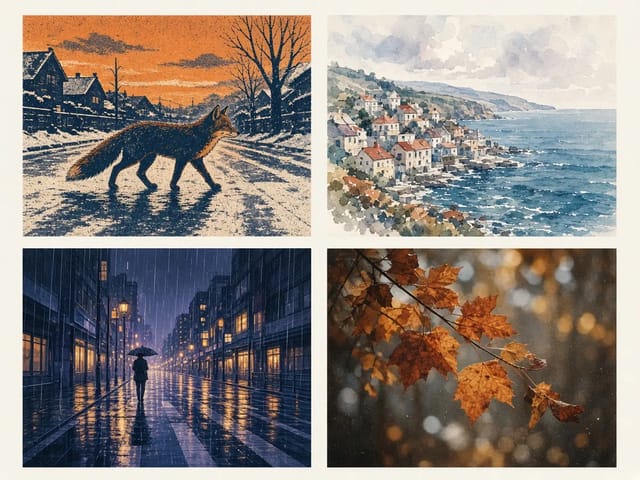
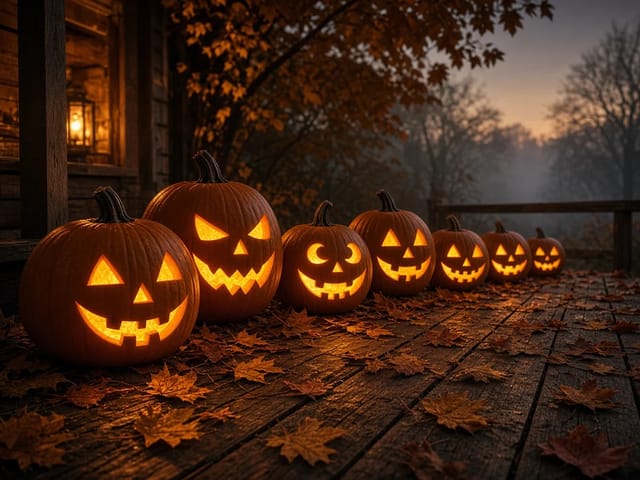
Krea 2 style grid: screen-printed fox, watercolour seaside town, anime rainy street and film-grain autumn leaves

Krea 2 AI Image Generator: Styles, Prompts & Tips | NanoPic

Krea 2 is a style-led AI image generator from Krea AI, built to keep each visual style distinct and carry a chosen look steadily across images.

Open tool
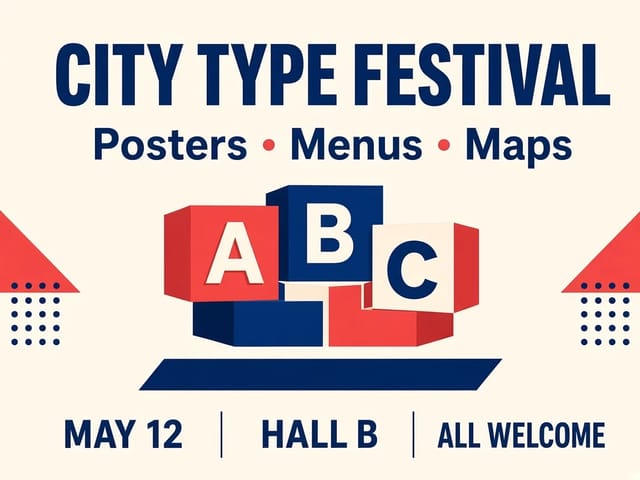
Text-and-layout poster reference image: "City Type Festival" headline, "Posters · Menus · Maps" subheading and three labeled info columns

MOSS Image ComfyUI: Clear Text & Layout Images | NanoPic

MOSS Image ComfyUI runs the open-weights MOSS-Image model in ComfyUI to render clear English and Chinese text and place each element where you want it.

Open tool