



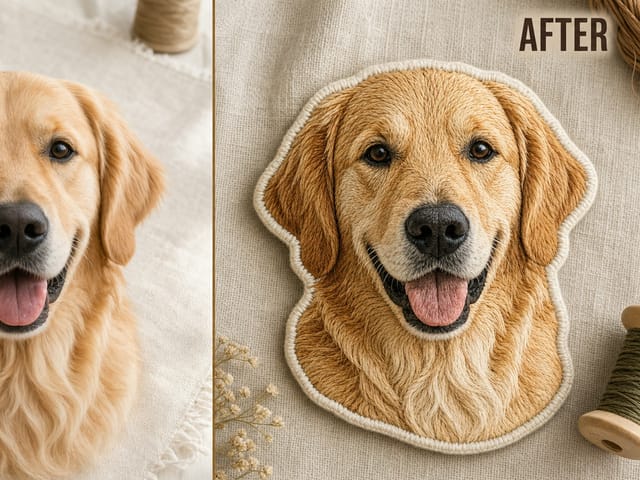
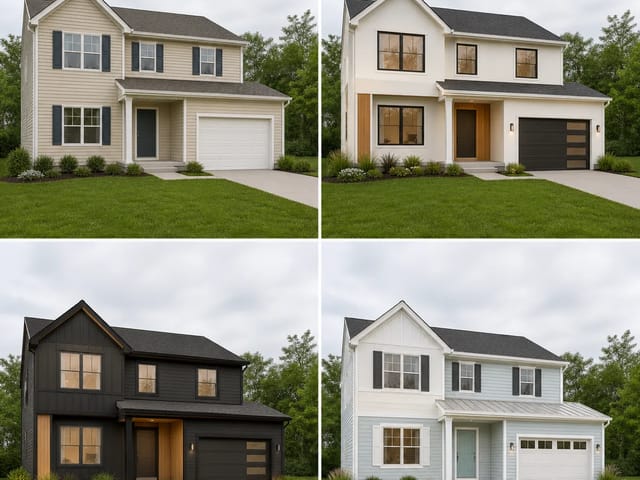
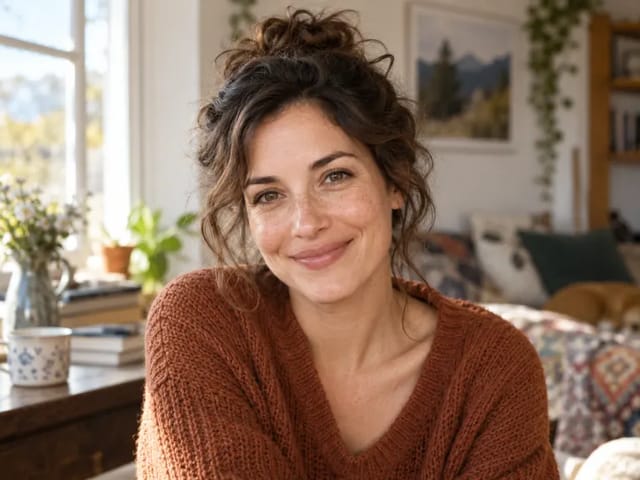
AI Image Reimagine: Restyle a Photo with AI
Sign In

AI Image Reimagine: Restyle a Photo with AI

Upload one portrait, product, room, pet, or scene image. The editable prompt is already filled with a practical creative direction that says both what should change and what should remain recognizable. Replace it with your own setting, mood, lighting, palette, season, or styling notes, then generate through NanoPic’s real Nano Banana 2 image-to-image workflow.

Choose a tested visual direction or keep the editable prompt and write your own.

Upload an Image*
Try a Source Image

333 / 800

Public Visibility
Copy Protection
Credits required:-

AI Image Reimagine: Restyle a Photo with AI

Image

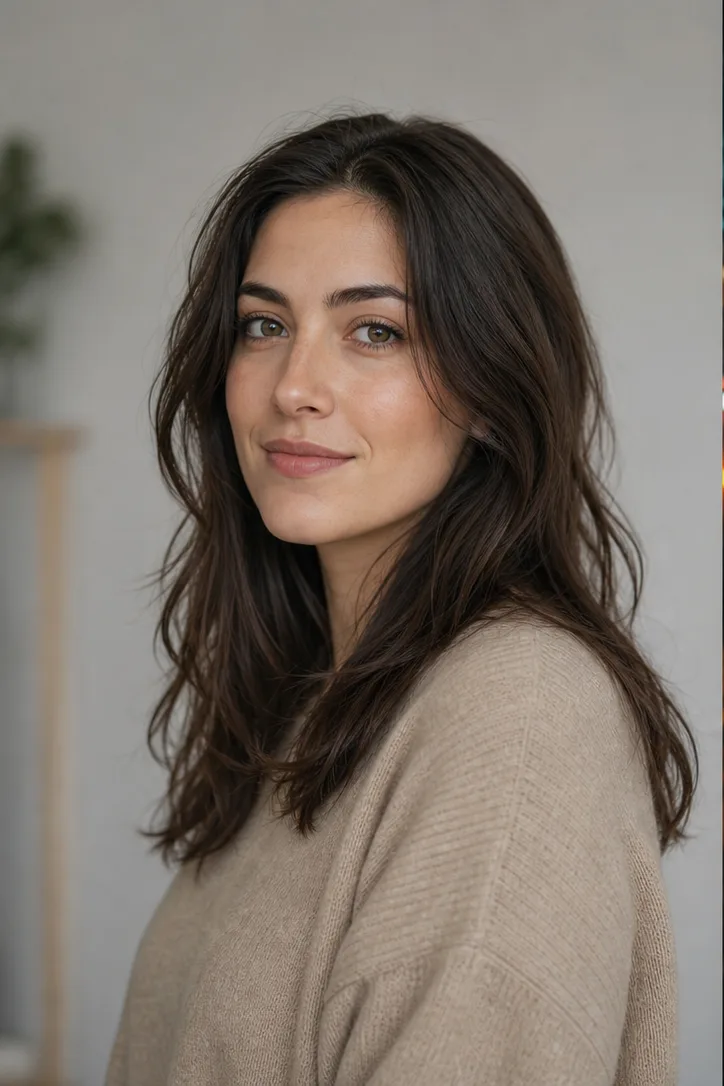
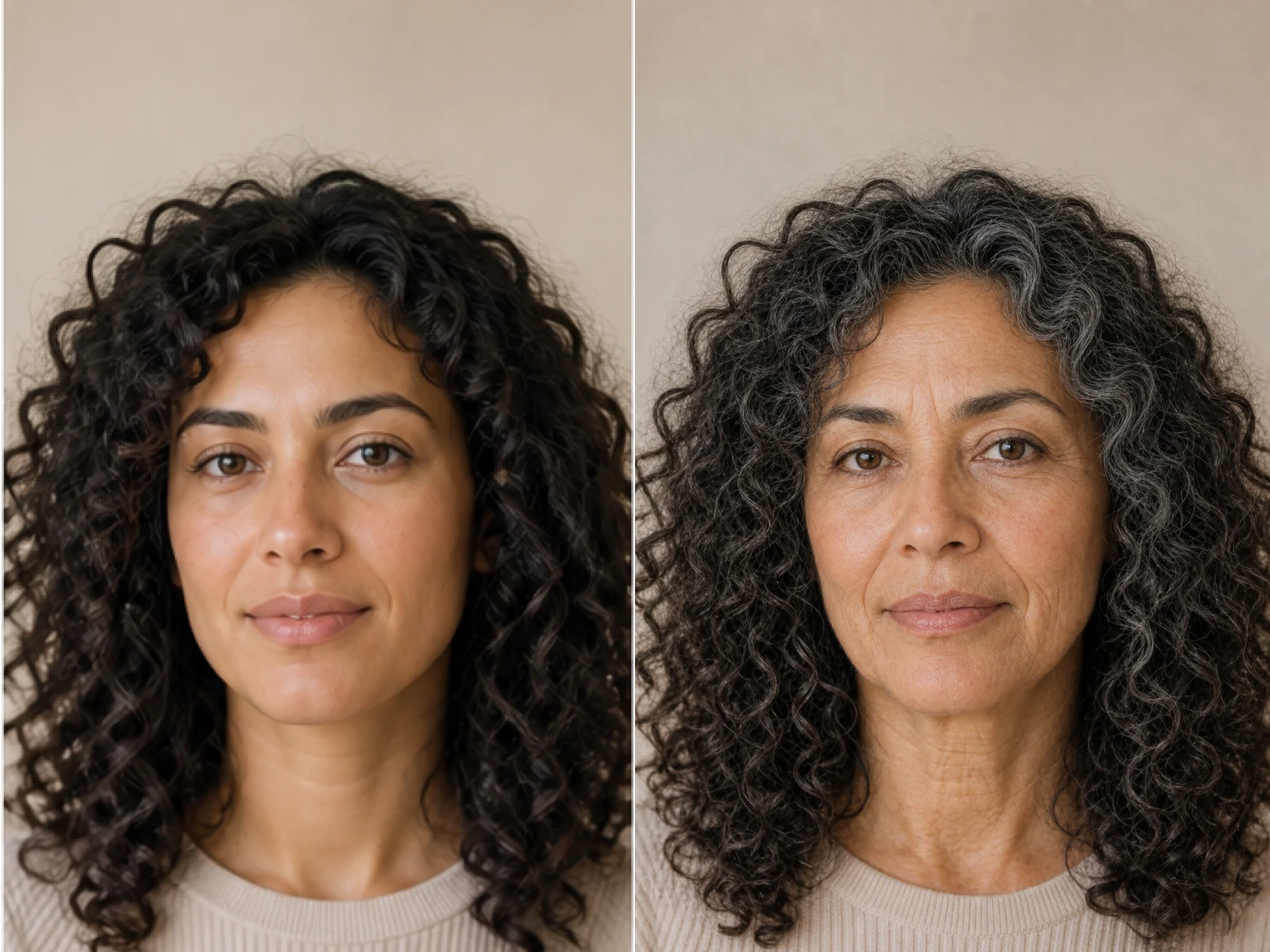
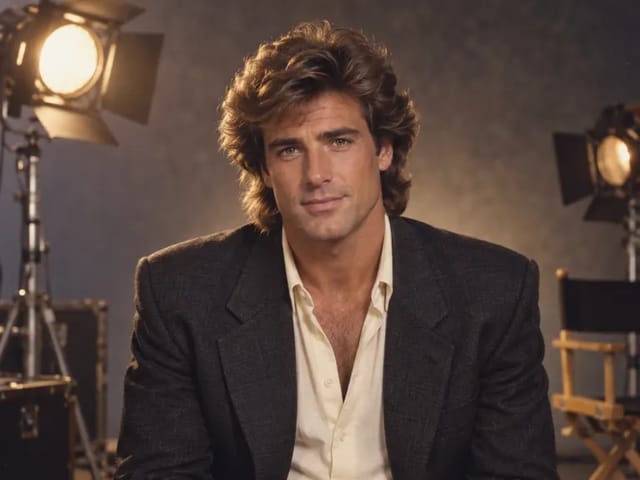
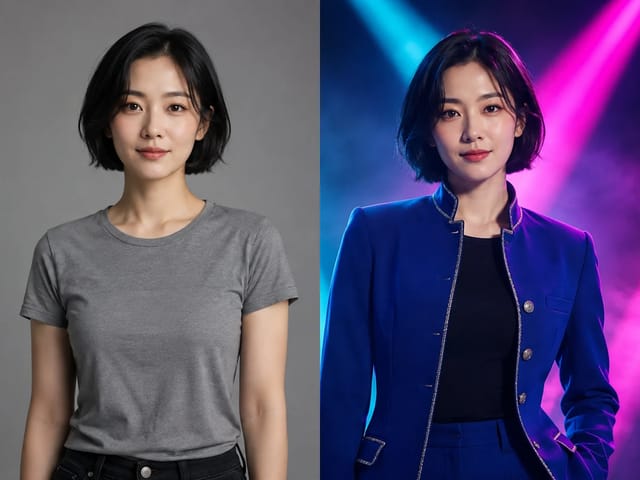
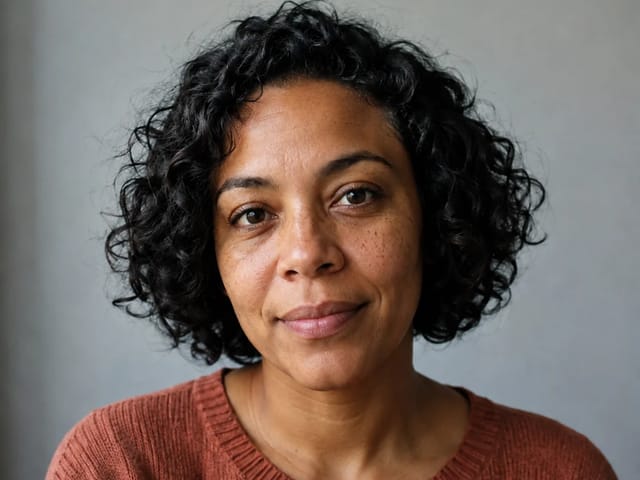
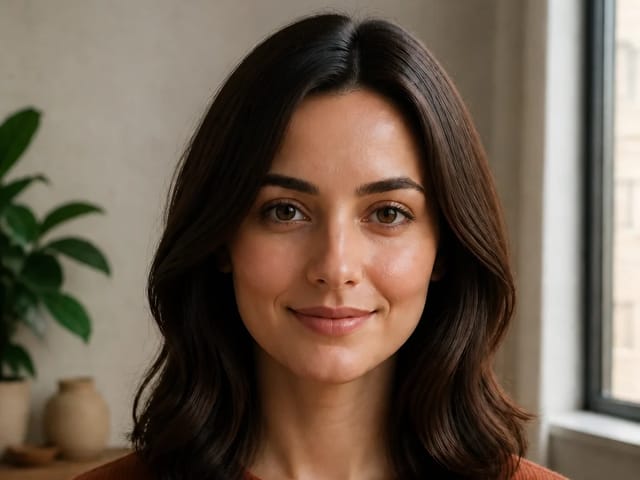
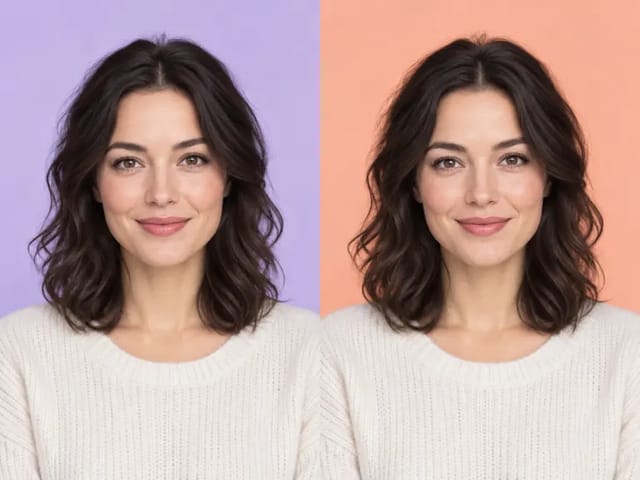
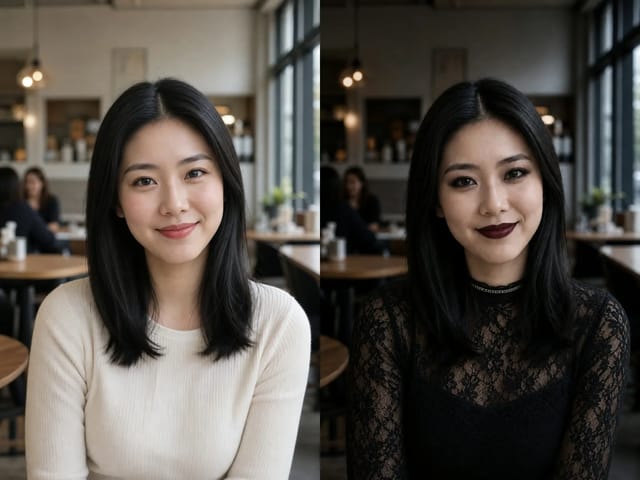
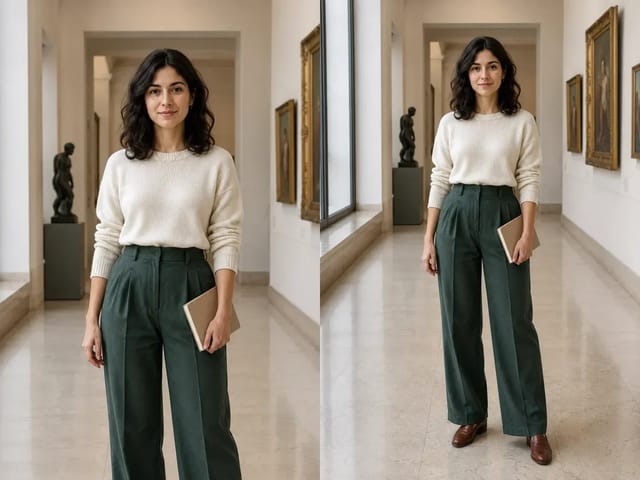
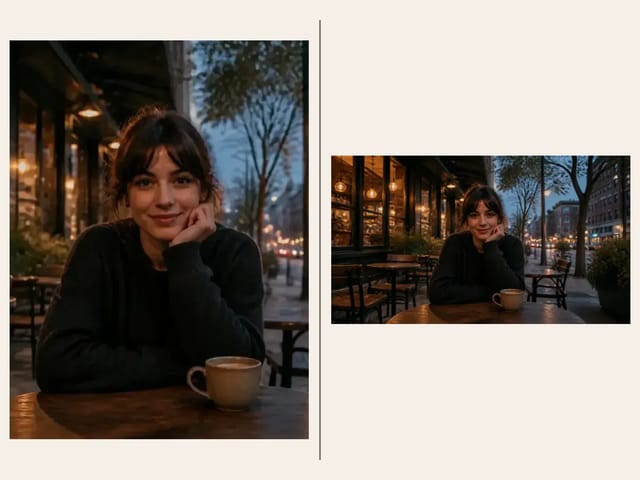
Fictional adult portrait in a neutral room before AI reimagine
Source
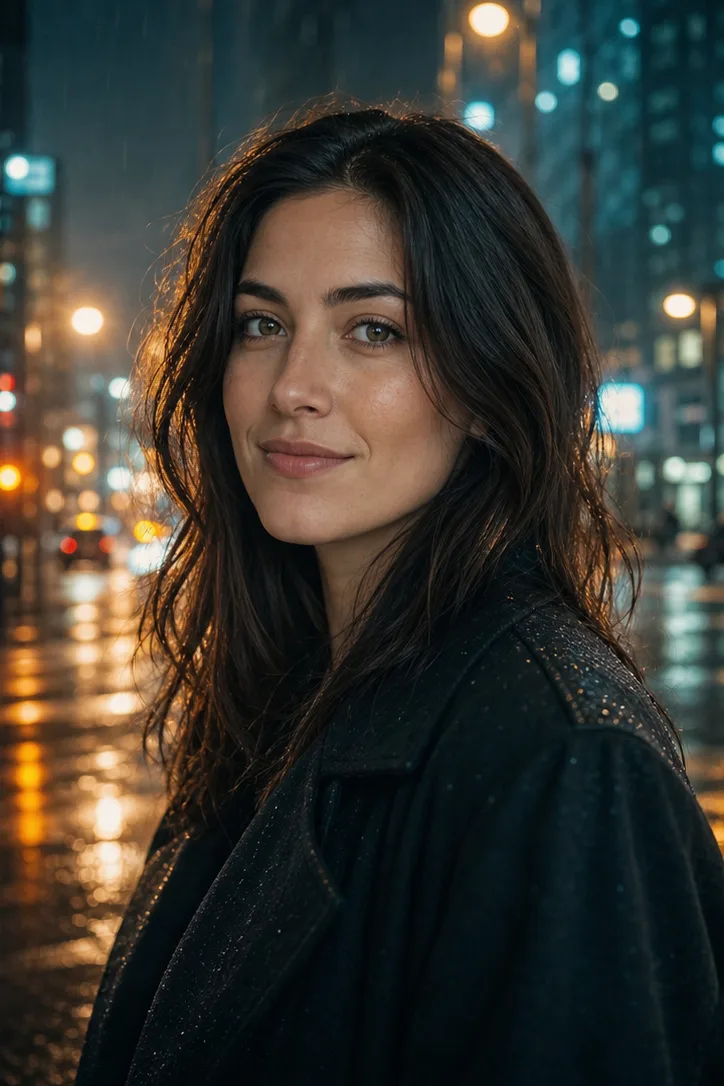
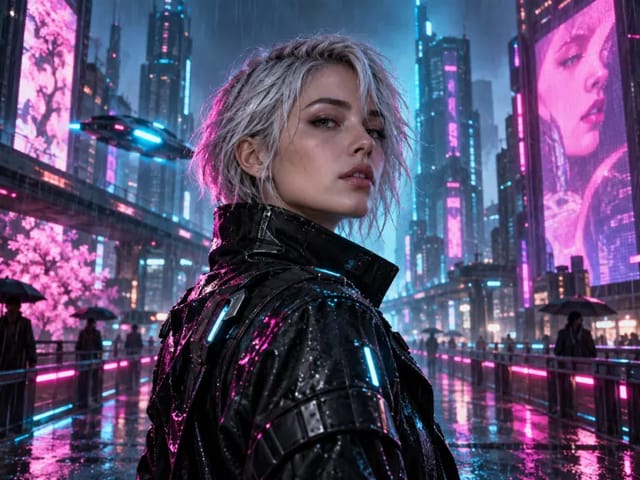
Fictional portrait reimagined as a rainy cinematic night editorial
Reimagined
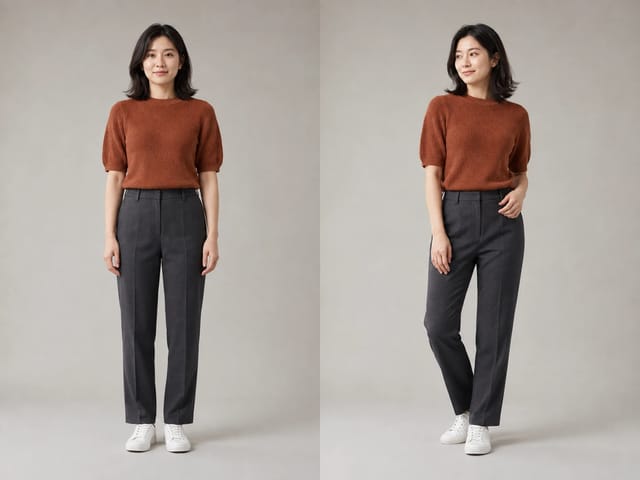
Before and after comparison of a neutral portrait reimagined as a cinematic night scene

Change the Creative Direction Without Starting from a Blank Canvas

Text-to-image generation is useful when you want a completely new composition. AI image reimagine is different: your upload supplies a subject, object, room, or scene that already matters, while your prompt supplies a new direction. You might move a portrait from a plain room into a rainy city, turn a simple product shot into a botanical campaign, warm up a rental interior, or place a pet portrait at the coast. The model uses the source as a reference, but generation is interpretive. Faces, hands, logos, tiny text, patterns, and object geometry can still vary. Treat each output as a draft to compare with the source, refine with precise notes, and review before personal, commercial, or factual use.

Real Before-and-After Directions You Can Adapt

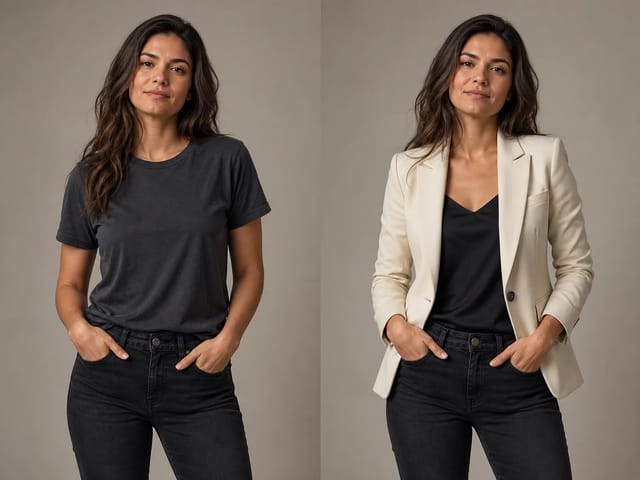
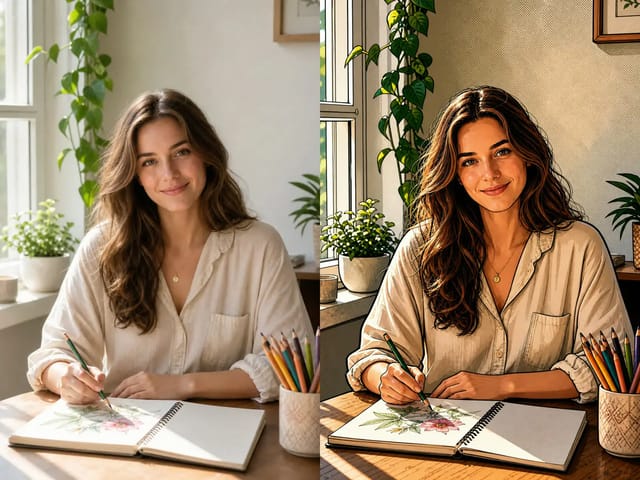
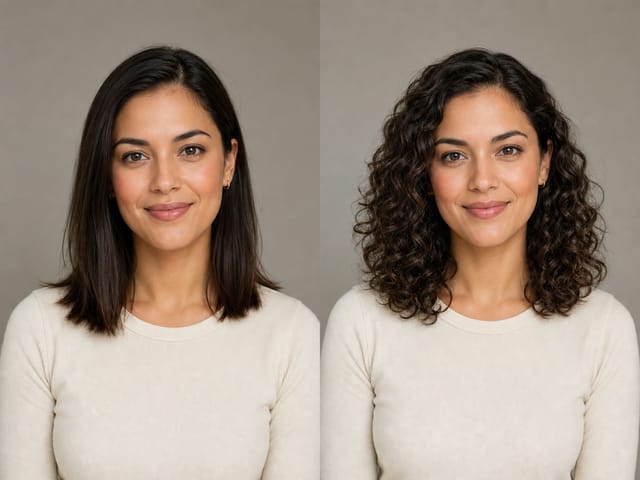
These original examples were created as paired source and generated images for this page. They show the kinds of controlled changes that are easier to describe when a prompt separates what should move from what should stay.

Portrait: Neutral Room to Cinematic Night

The source has a readable face, complete hair, relaxed shoulders, and simple light. The direction changes the environment, wardrobe tone, color palette, and practical lighting while asking the model to keep facial structure, pose, hair, and natural proportions stable. For your own portrait, name two or three identity cues that matter most instead of relying on a vague instruction such as “make it dramatic.”

Try a Portrait
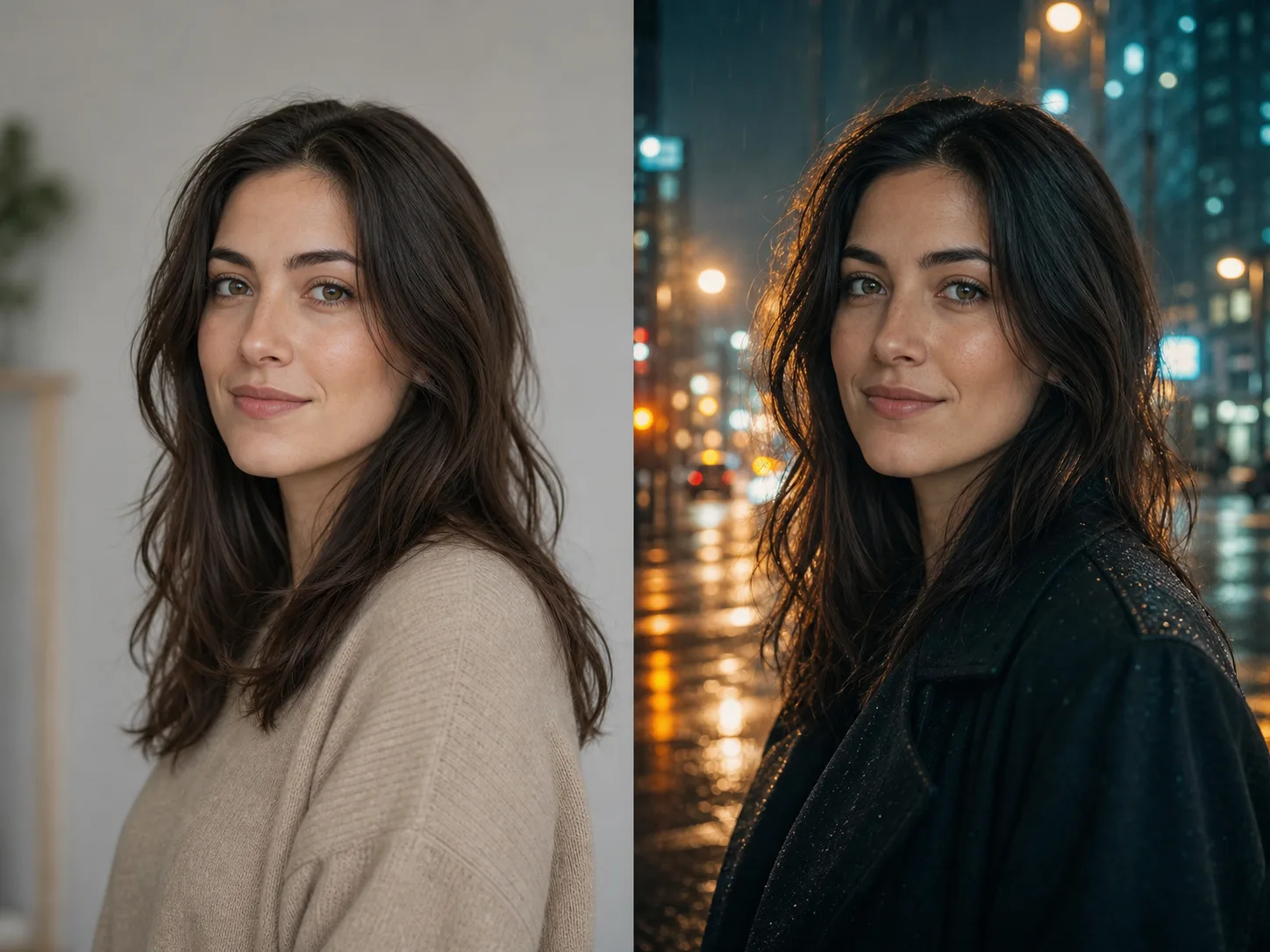
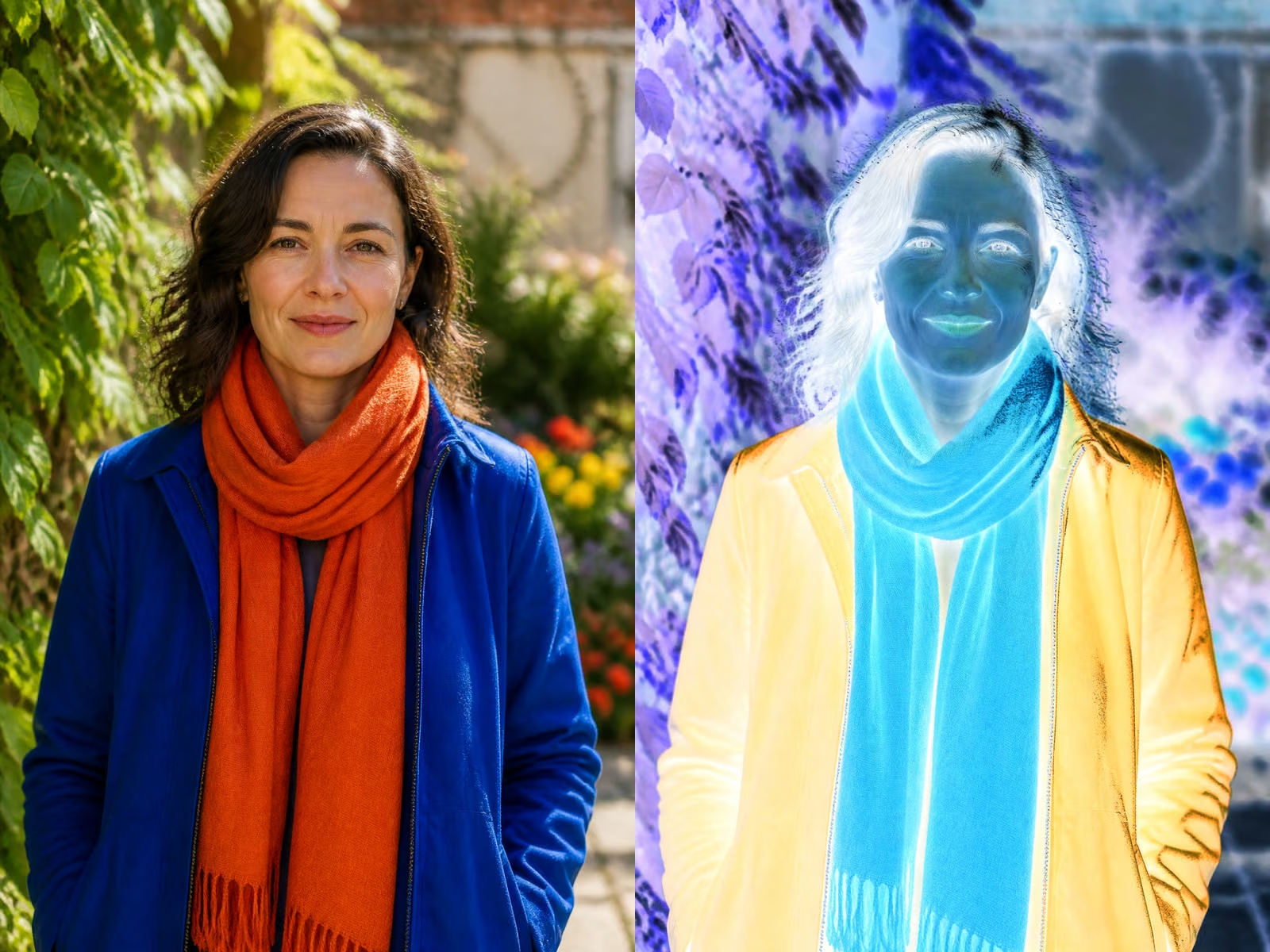
Neutral portrait and cinematic rainy-night result shown side by side

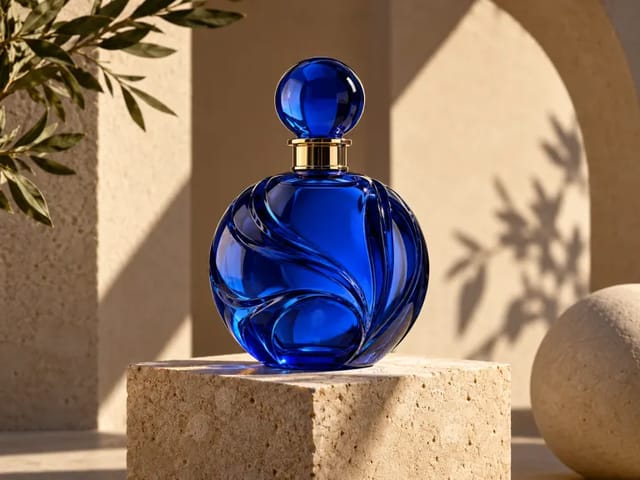
Product: Plain Bottle to Botanical Campaign

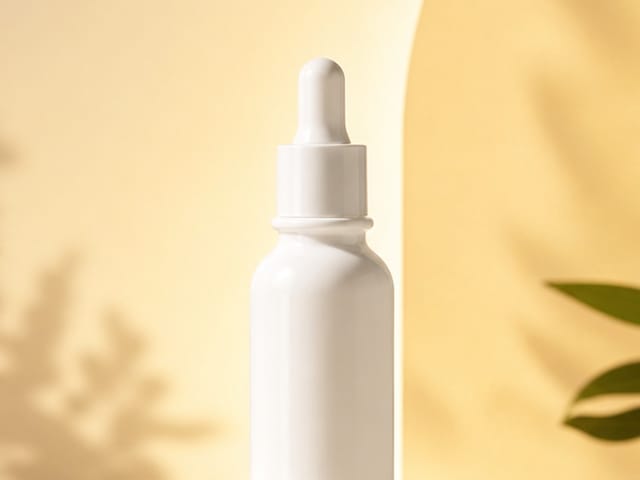
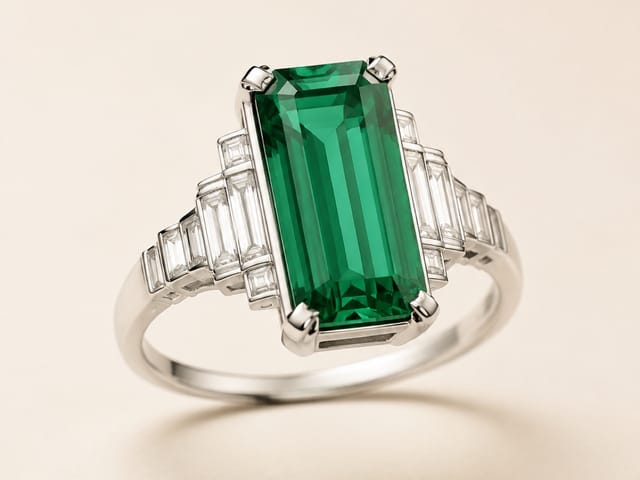
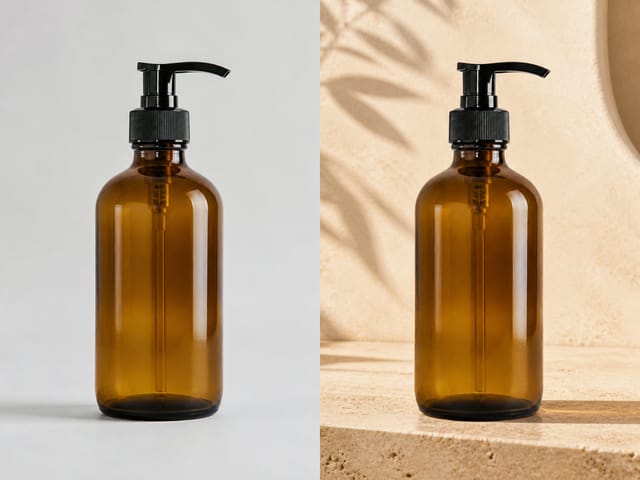
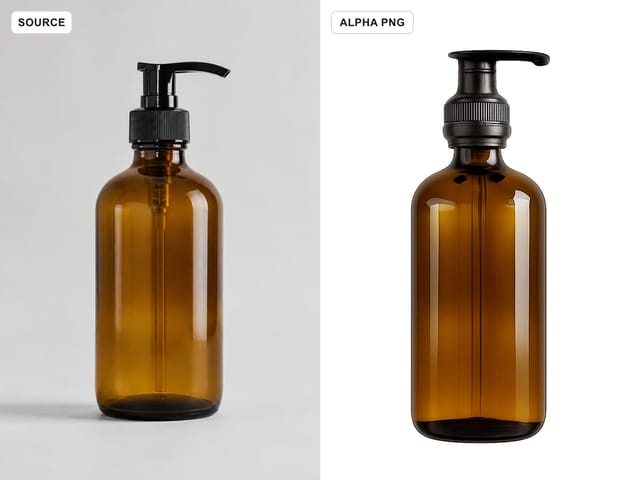
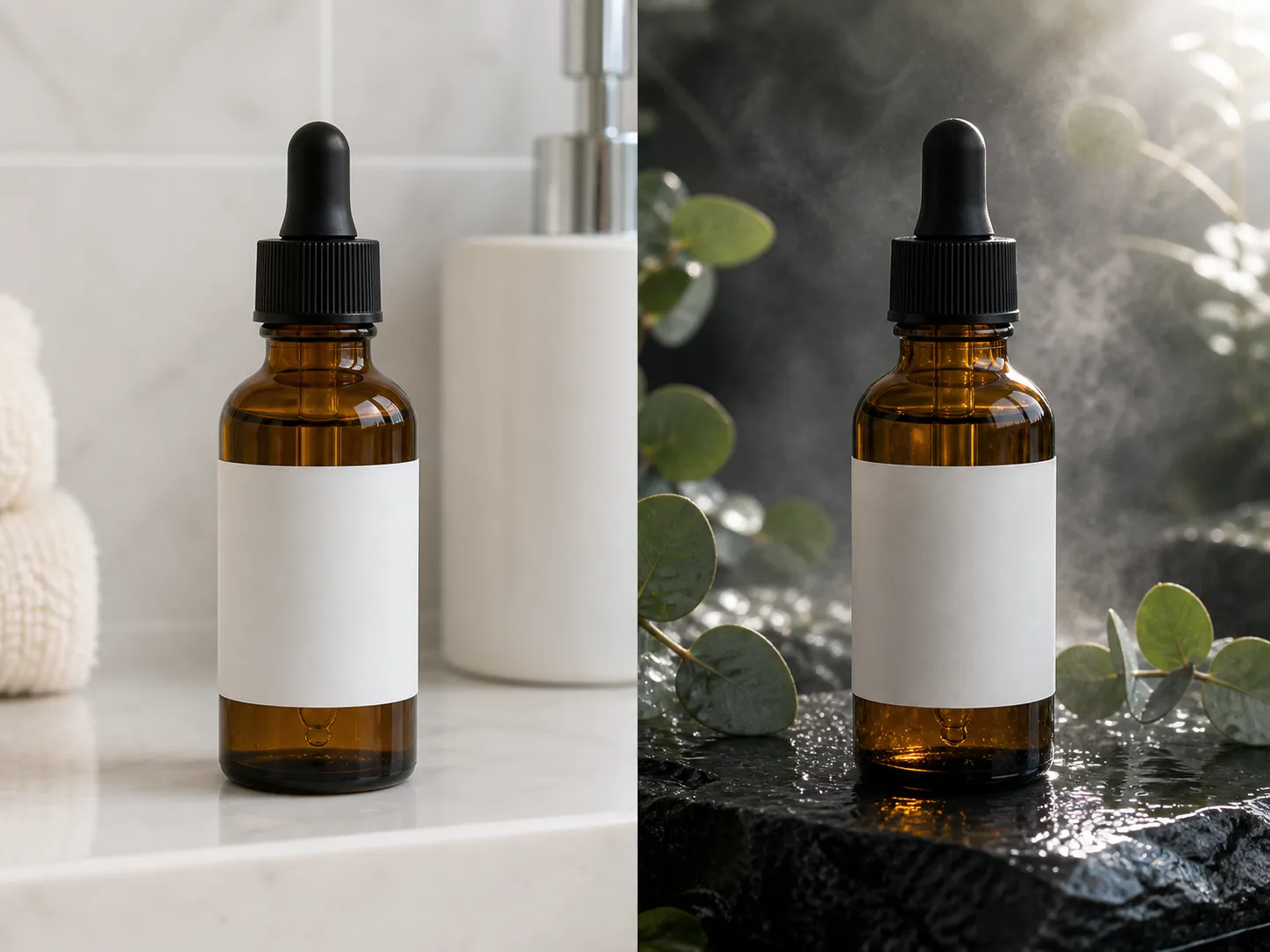
The new scene adds wet stone, greenery, reflected light, and mist while the prompt protects the bottle silhouette, amber glass, cap, blank label area, and camera angle. Product reimagining works best when the source is sharp and the requested surface, lighting, background, and mood are specific. Always check packaging, legal copy, proportions, and brand details against the original before publishing.

Restyle a Product
Plain amber bottle and botanical campaign result shown side by side

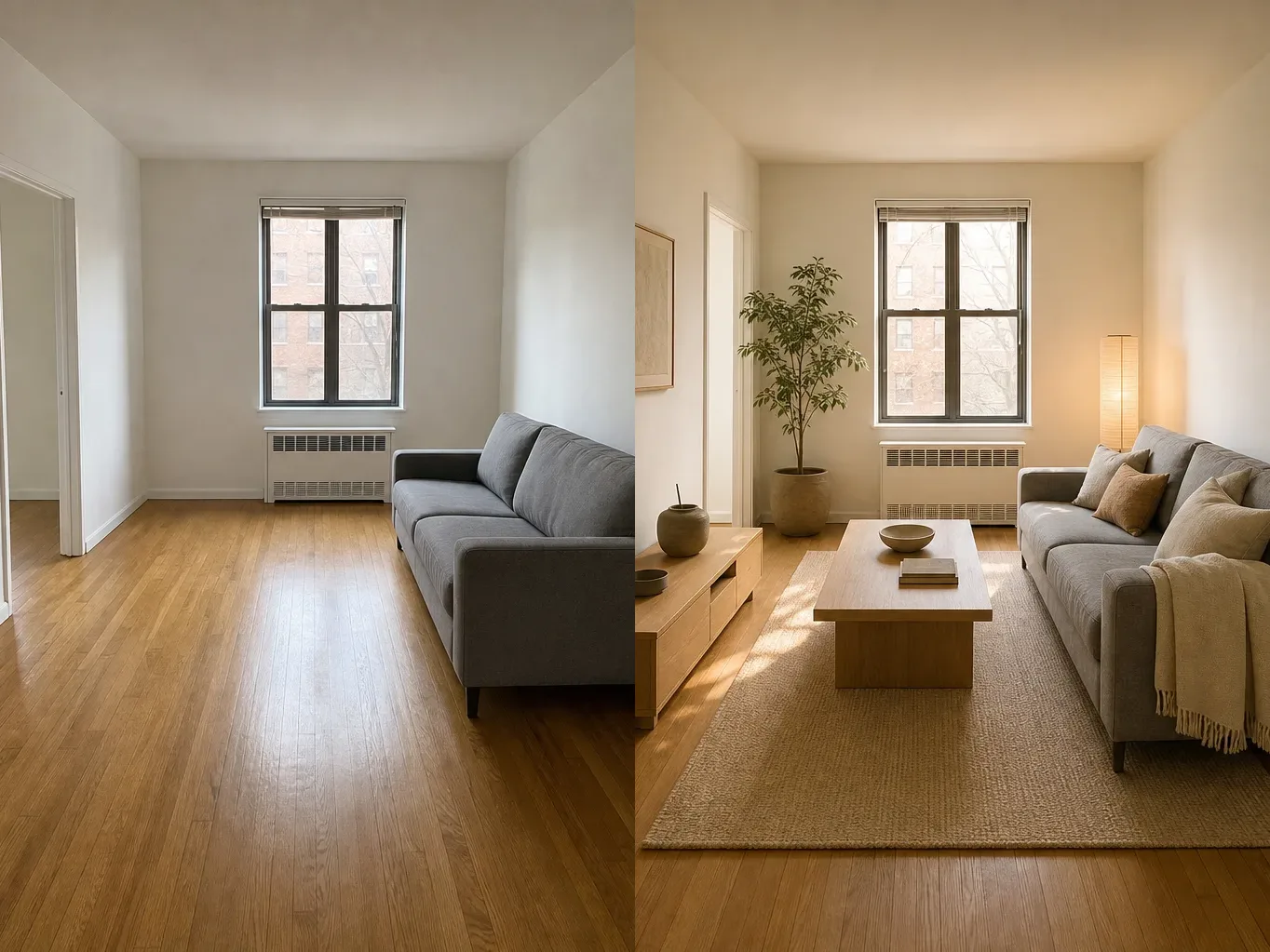
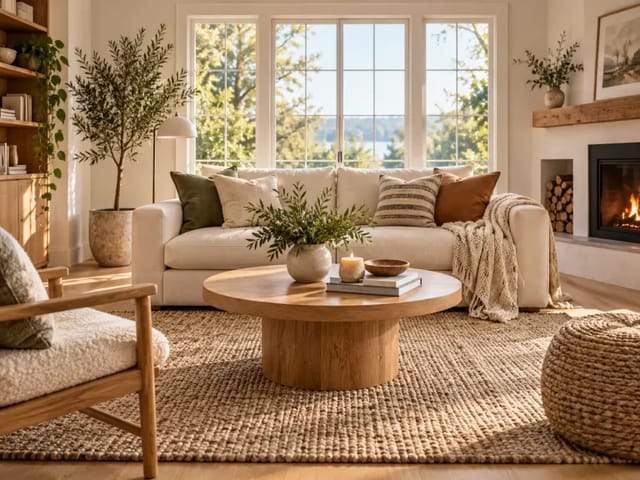
Interior: Rental Room to Warm Japandi

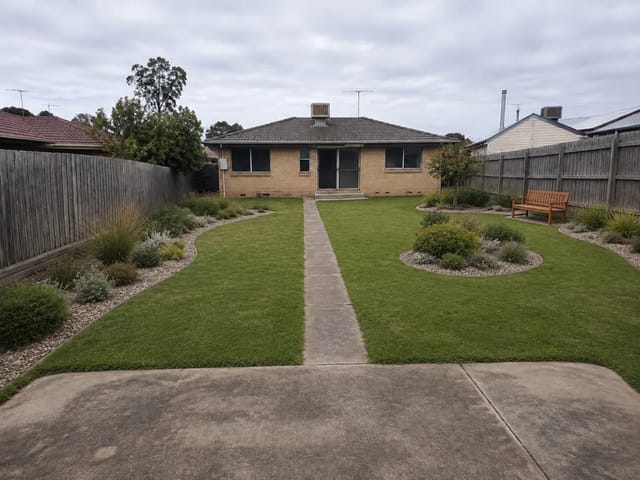
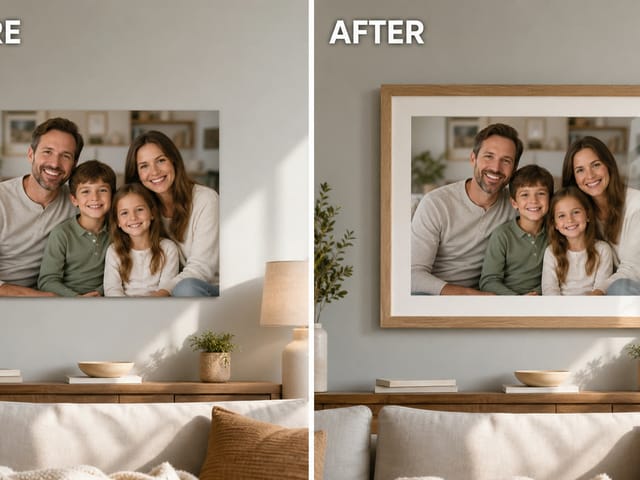
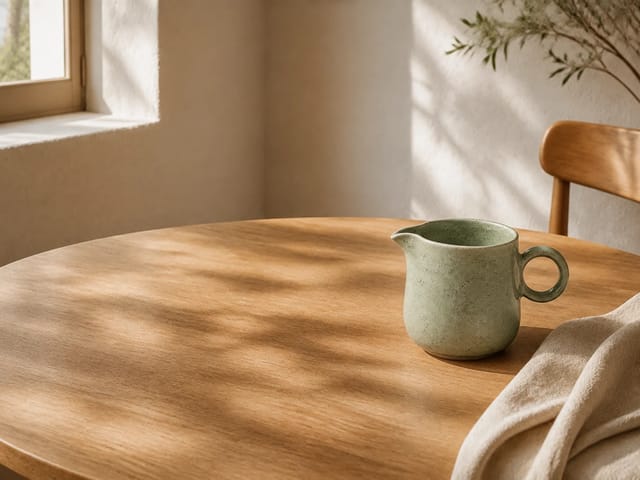
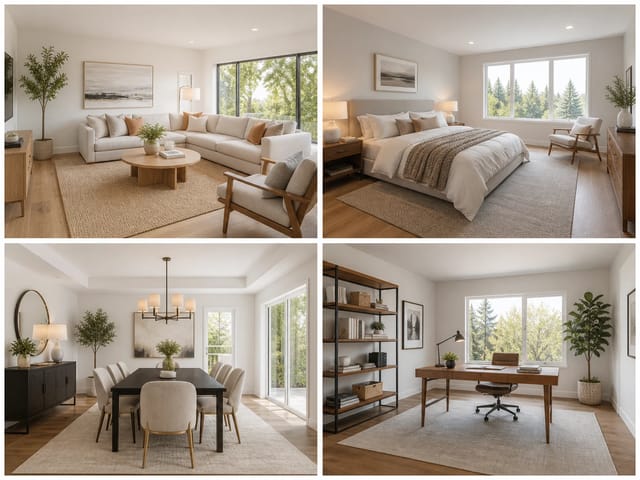
An interior prompt can protect architecture and layout while changing materials, decor, atmosphere, and light. This example keeps the camera perspective, window, sofa footprint, and broad furniture positions, then introduces warmer wood, restrained textiles, plants, and softer daylight. It is a concept visualization, not a construction plan or guarantee that real products will fit the measured room.

Reimagine a Room
Plain rental living room and warm Japandi concept shown side by side

A Practical Image-to-Image Workflow for Directed Restyling

The page uses one real reference-image route, an editable prompt, and visible comparisons so the creative brief remains understandable from upload through review.

Your Source Image Leads

Upload one clear image rather than describing the original from memory. The model receives the actual portrait, product, room, pet, or scene as its visual reference.

The Prompt Is Already Editable

A complete direction is prefilled in the real prompt box. It asks for a new setting and mood while protecting the main subject, pose, shape, proportions, and key foreground details. Edit every word before generating.

Flexible Output Shape

Keep Auto to follow the source or choose a supported square, portrait, landscape, wide, or vertical ratio. The production route is locked to its reviewed 1K PNG configuration.

Visible Source-to-Result Review

Before-and-after previews keep the original beside the generated image. Compare identity, object shape, composition, hands, text, and important details before downloading or refining.

How to Reimagine an Image with AI

A useful result comes from a clear reference, a bounded creative direction, and a deliberate review loop.

1. Upload One Readable Source

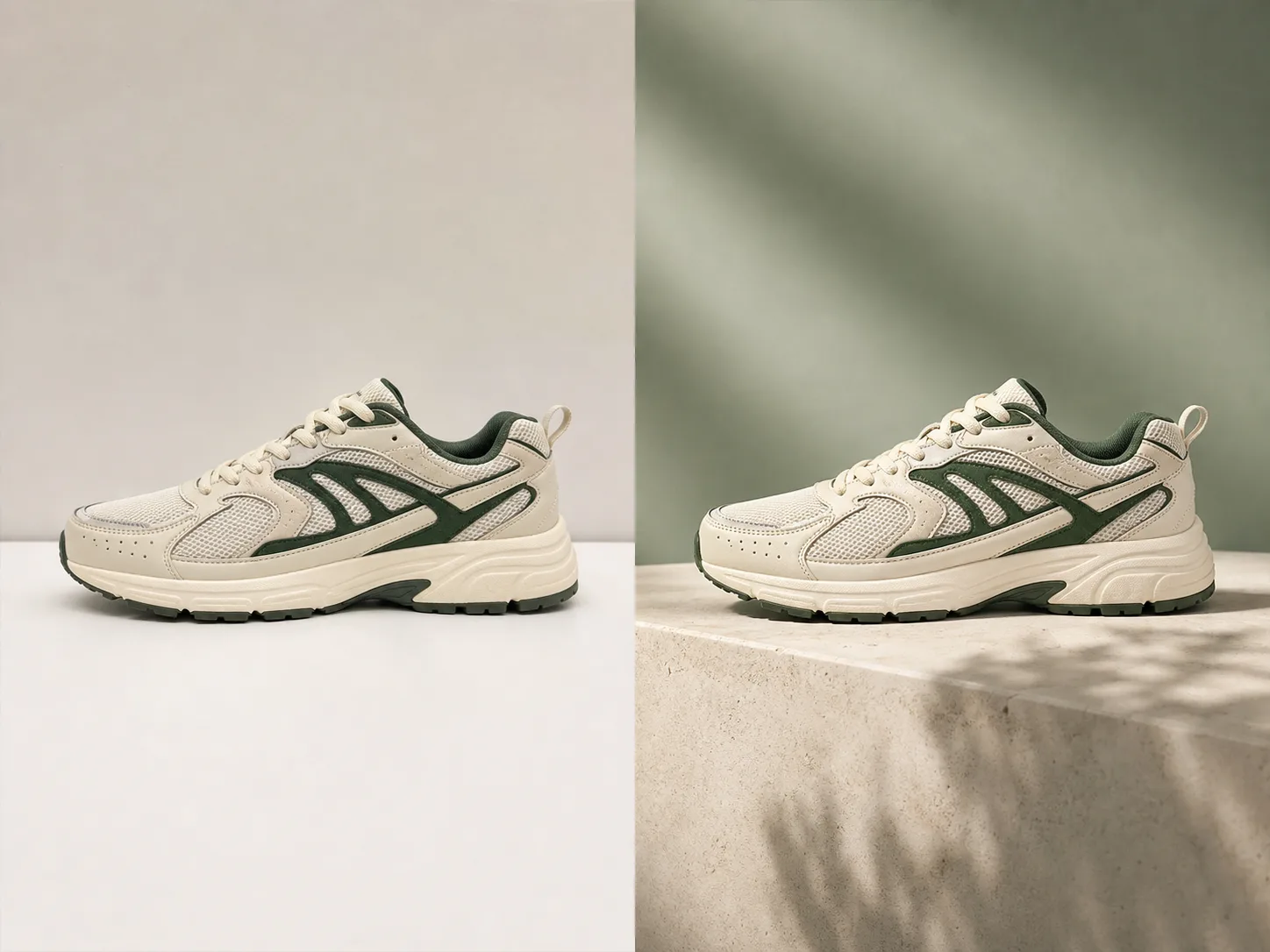
Choose an image where the subject or object is large enough to inspect. For portraits, keep the face, hair, hands, clothing, and important accessories visible. For products, use a sharp silhouette and readable materials. For rooms, show the architectural lines and furniture you want to retain. Heavy blur, severe crops, tiny faces, hidden product edges, or mixed collages force the model to invent more information.

Upload a Source
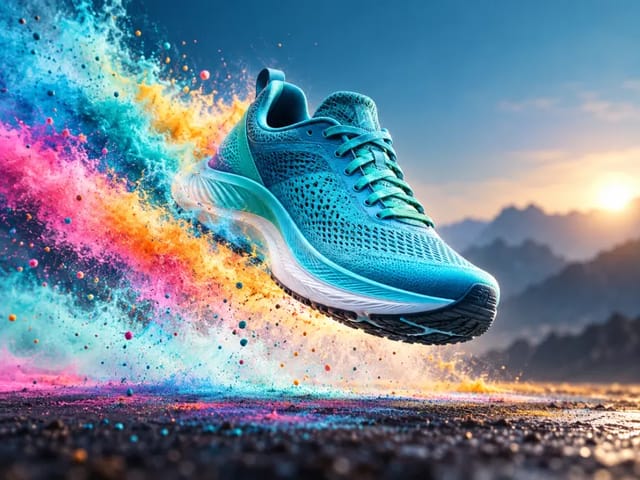
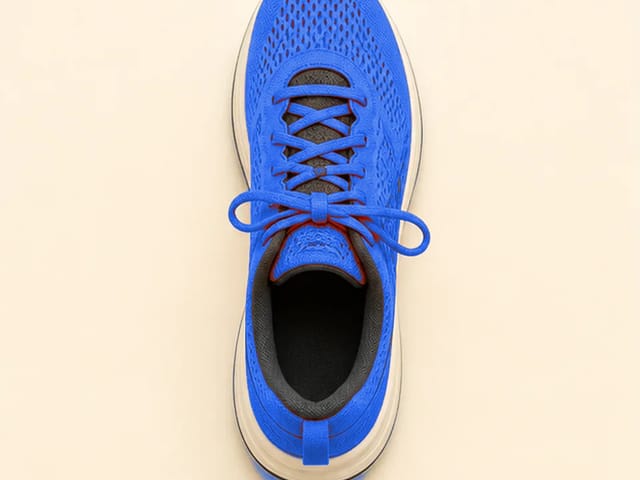
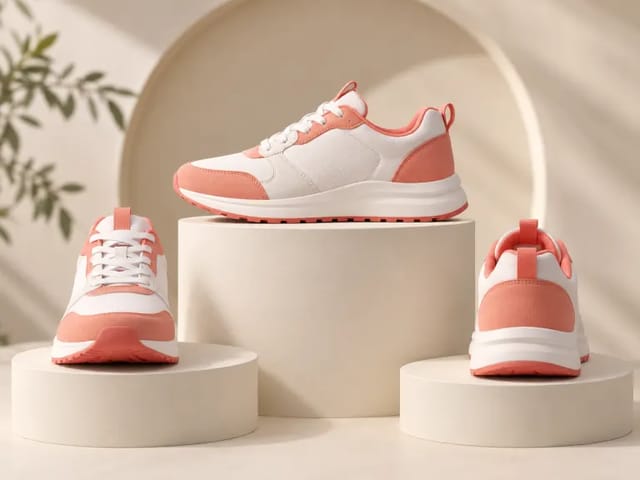
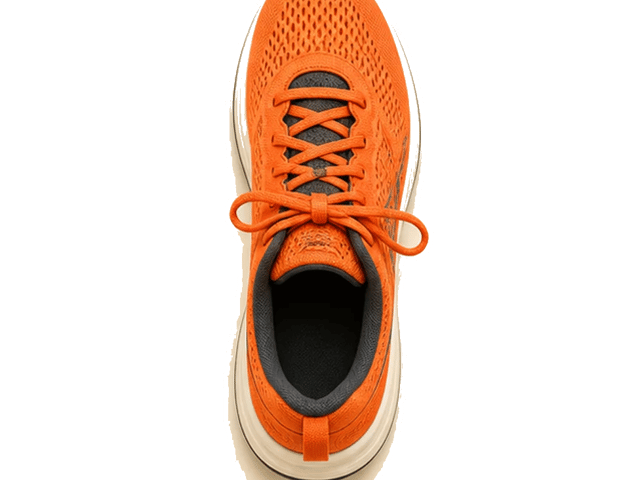
Clear running shoe source and restyled campaign output

2. Describe Change and Protection Separately

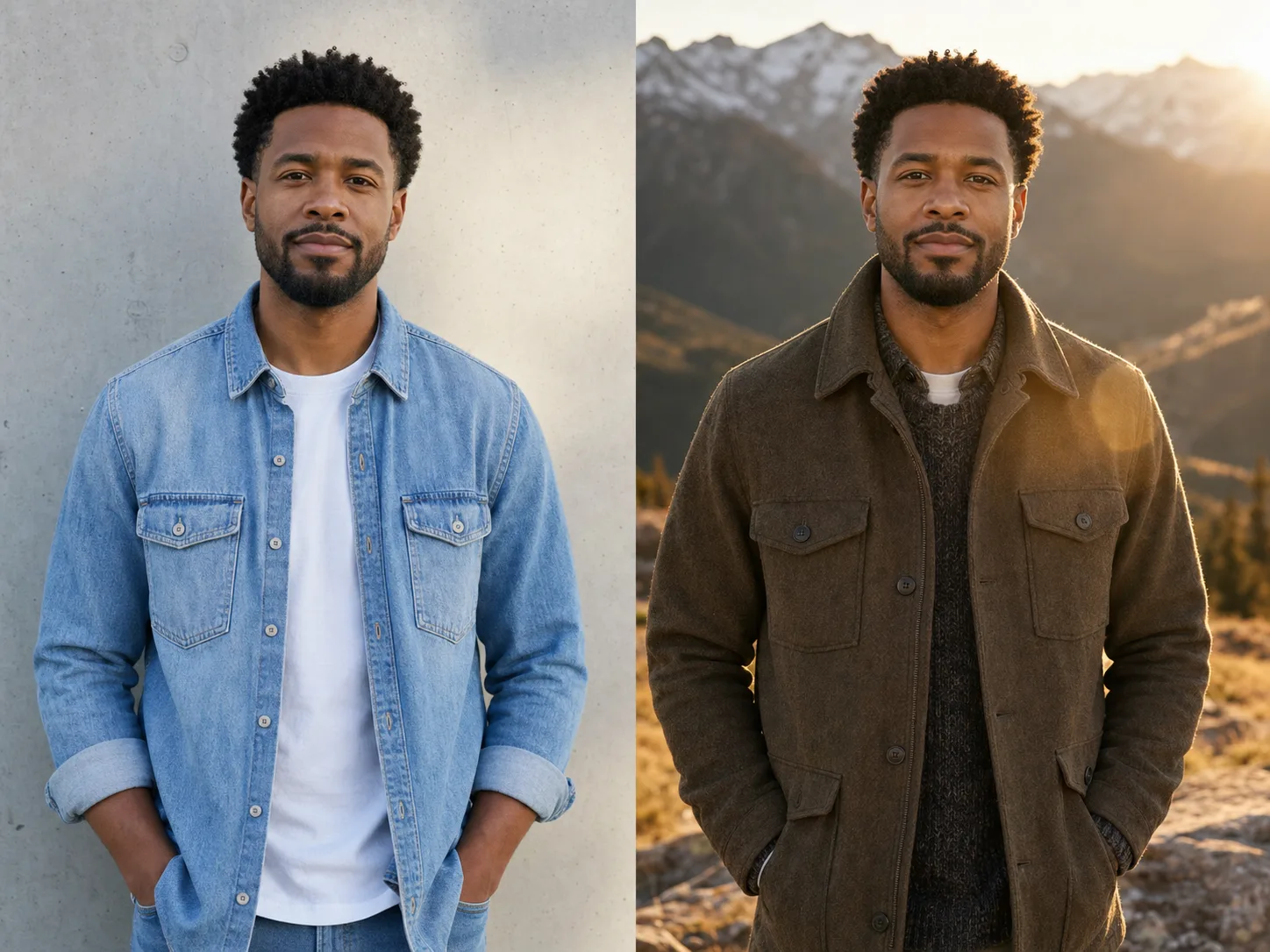
First name the requested changes: environment, season, style, palette, lighting, mood, materials, wardrobe direction, or time of day. Then name the elements to protect: face, pose, hair, product silhouette, label area, furniture footprint, window position, pet markings, or camera angle. Avoid conflicting style lists. One coherent direction gives the model a clearer hierarchy than a long pile of adjectives.

Edit the Prompt
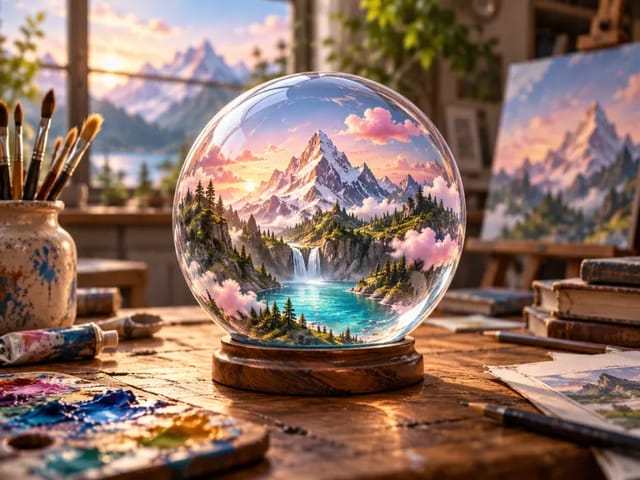
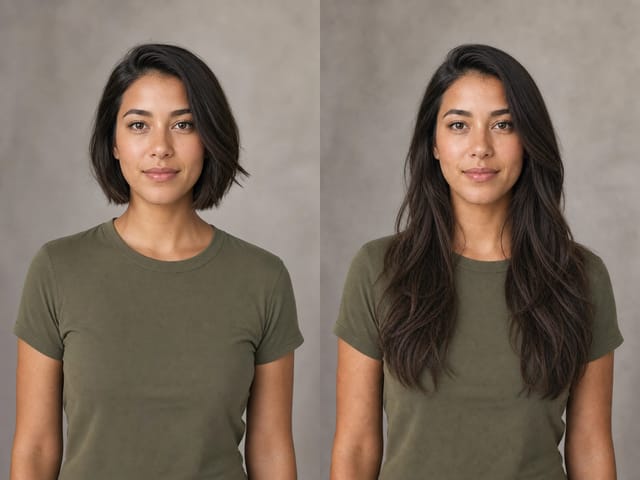
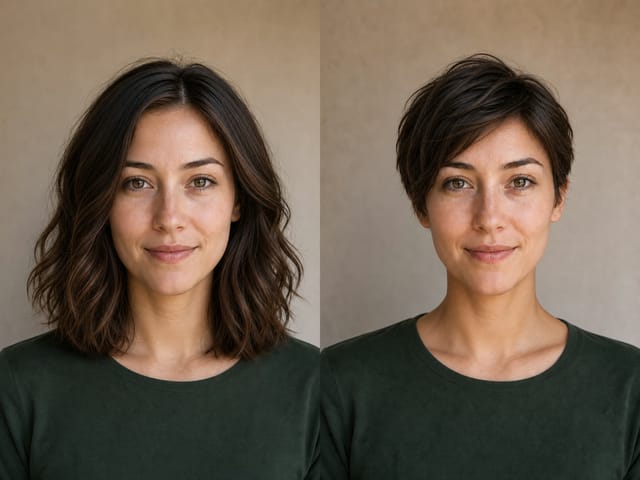
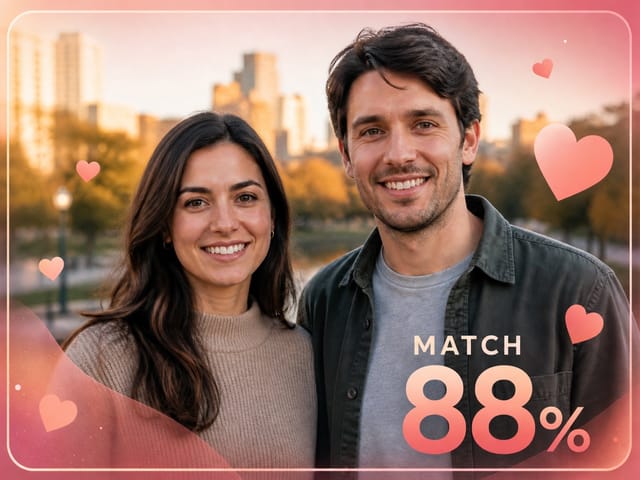
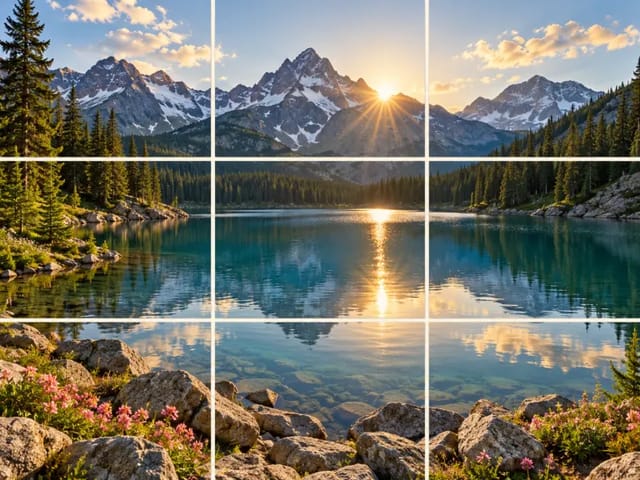
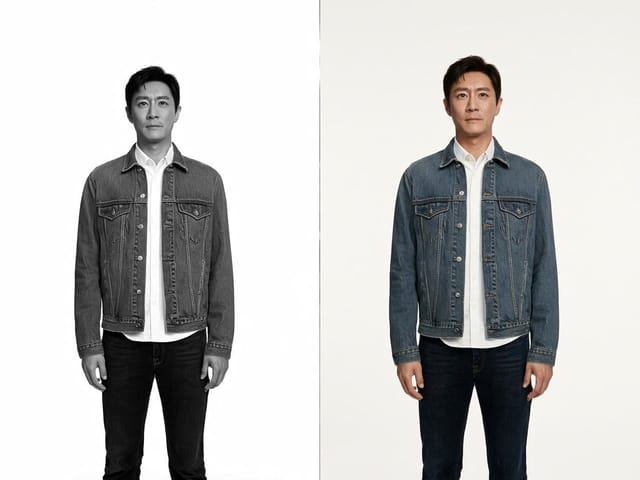
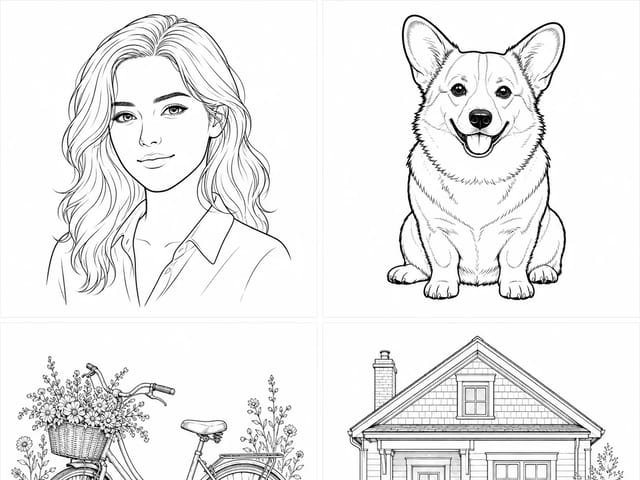
Plain portrait and golden alpine editorial direction compared side by side

3. Generate, Compare, and Refine

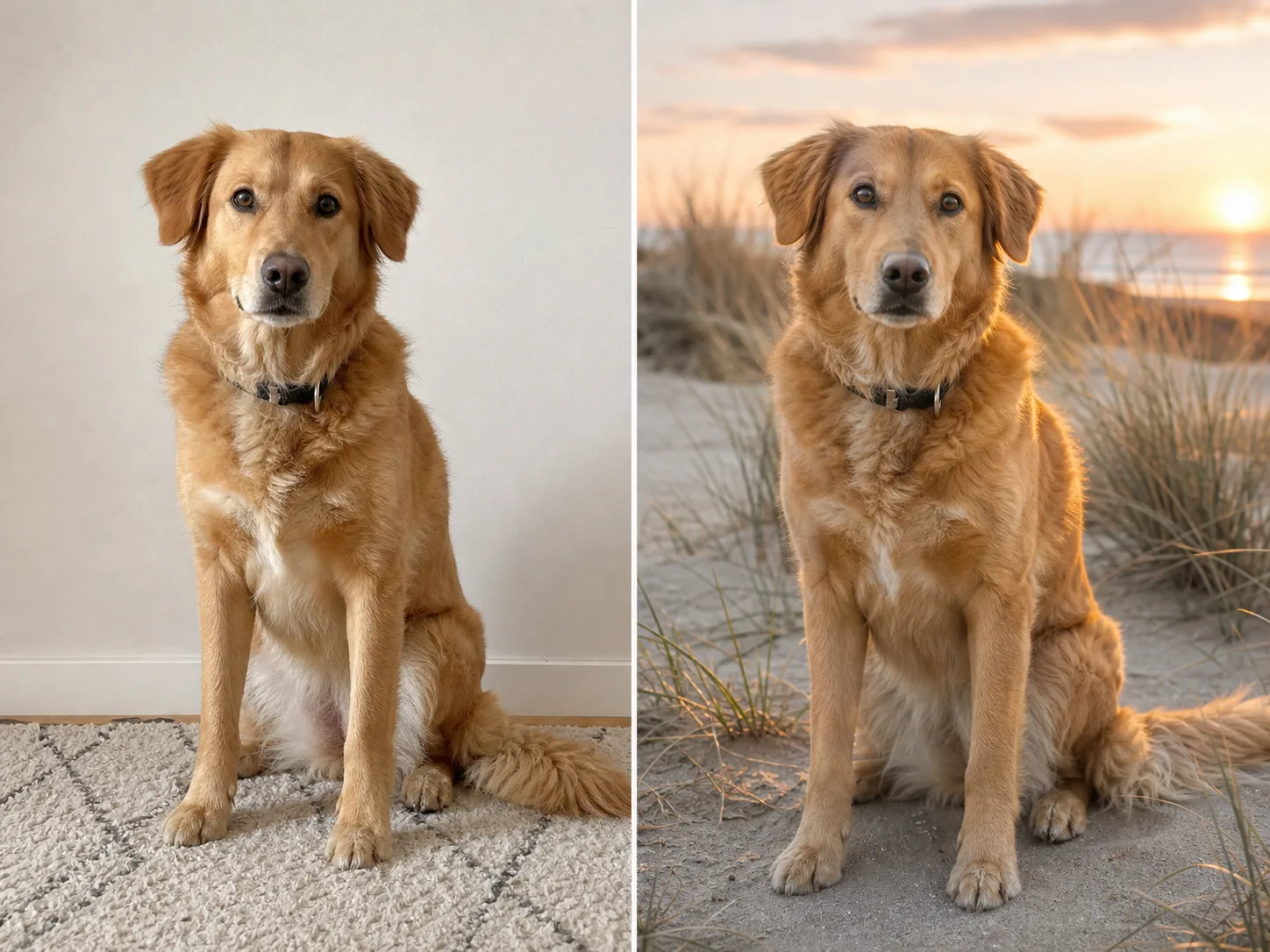
Inspect the result at full size. Check whether the person remains recognizable, the product still matches its real geometry, room lines remain plausible, hands and limbs are natural, and text has not changed. If one detail drifted, reuse the source and add a concise correction such as “keep the original shoe sole” or “retain the same window position.” A new generation can vary, so save only the version that passes your review.

Generate and Review
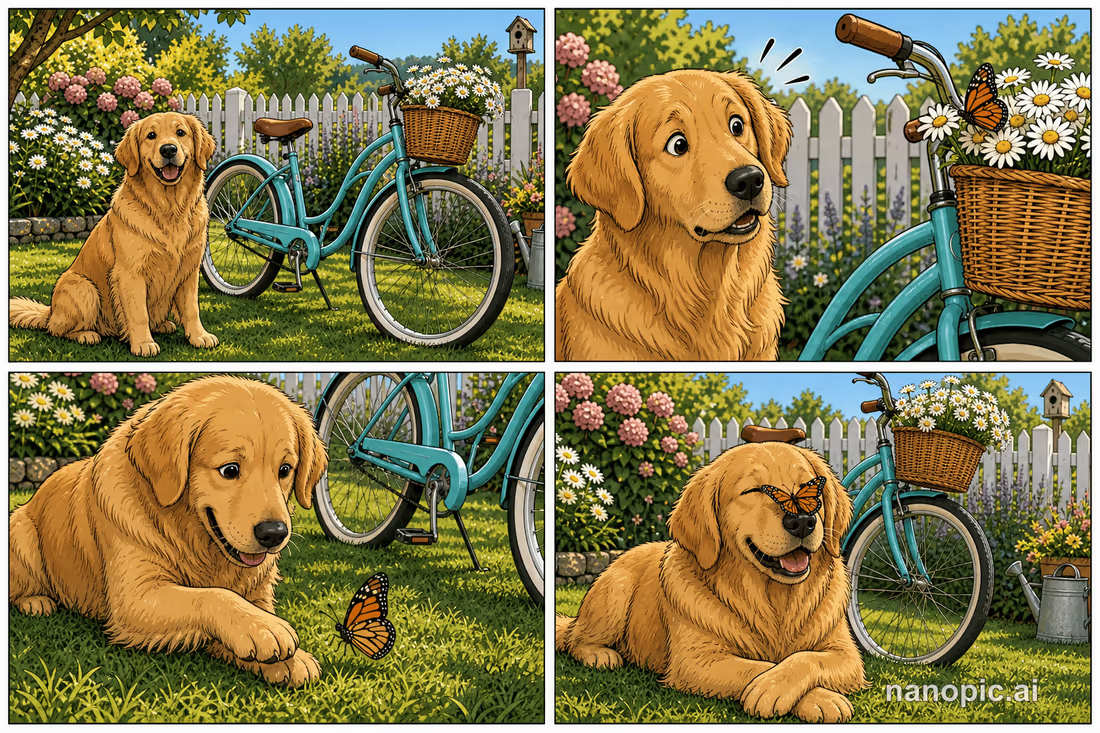
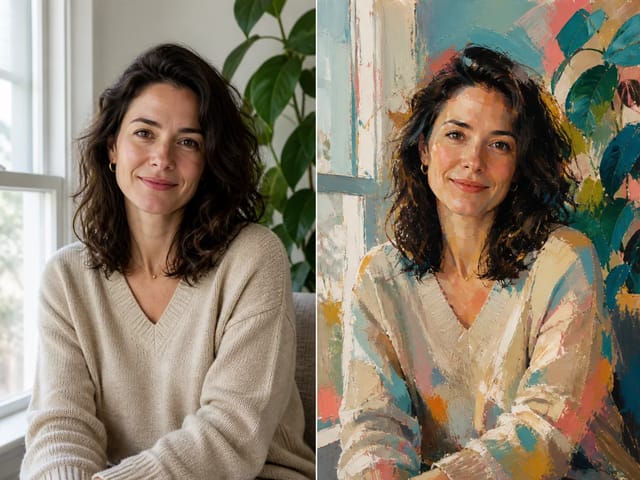
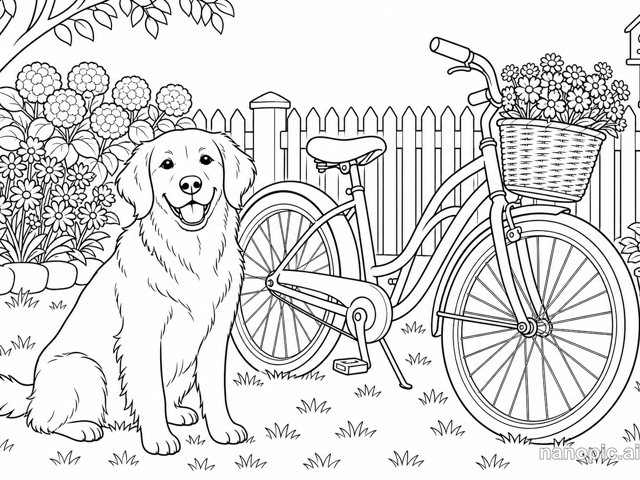
Indoor dog portrait and coastal sunrise result compared side by side

Ways to Use AI Photo Reimagine

The same reference-image workflow can support several safe creative tasks when you keep the intended use and review standard clear.

Portrait Editorial Concepts

Explore a new location, season, wardrobe mood, or lighting treatment while asking the model to retain the person’s recognizable features and pose. Review every face before sharing.

Product Campaign Directions

Place an unbranded or owned product into a stronger campaign environment. Check packaging, shape, color, fasteners, controls, and label text against the source.

Room Style Visualization

Compare broad interior moods before buying materials or furniture. Treat the image as inspiration rather than a measured floor plan, engineering drawing, or product-availability claim.

Pet and Keepsake Scenes

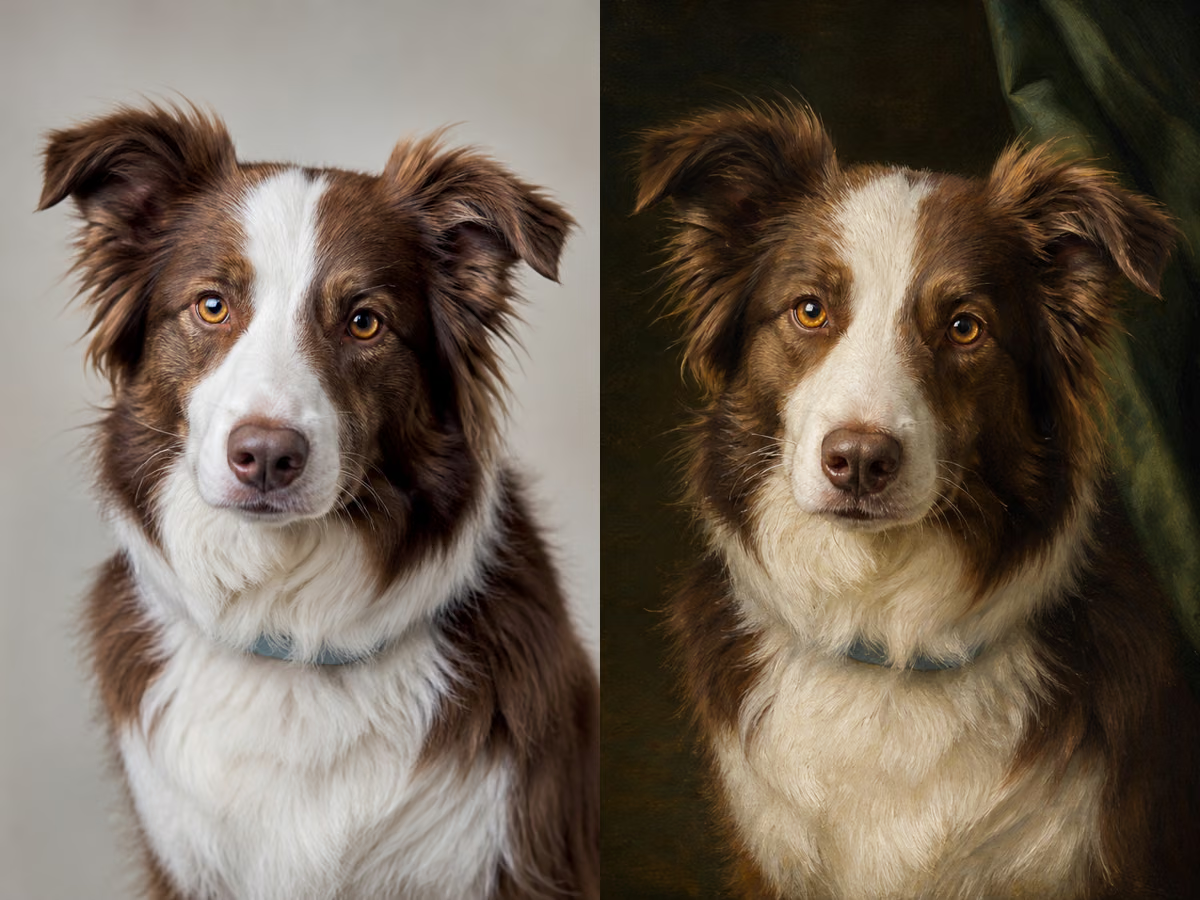
Move a clear pet portrait into a seasonal or travel-inspired environment while protecting coat color, markings, face shape, ears, collar, and pose.

Social Creative Exploration

Create alternative art directions for posts, thumbnails, and mood boards. Add exact headlines, prices, dates, or calls to action later in a design tool.

Preproduction Mood Boards

Test lighting, palette, set dressing, and atmosphere before a real shoot. Keep the source and prompt with the output so collaborators can see what was generated.

What AI Image Reimagine Can—and Cannot—Do

This is a generative image-to-image tool. Clear boundaries help you choose the right workflow and avoid treating an attractive draft as factual proof.

Reference-Guided, Not Pixel-Locked

The source guides the result, but the model redraws pixels. Identity, hands, small accessories, patterns, room measurements, and product geometry can change and require human review.

No Local Mask or Layer Stack

This page accepts one reference image and a text direction. It does not expose selective brush masks, object layers, vector paths, or a reversible professional editing timeline.

Not a Text or Logo Typesetter

Tiny packaging copy, logos, signs, dates, and typography may be altered or invented. Add legally or commercially important text after generation in a dedicated design editor.

Credits and Review Still Apply

Generation uses the credit amount shown in the live interface. Available starter credits, watermark behavior, and account limits follow NanoPic’s current product settings; this page does not promise unlimited use.

AI Image Reimagine FAQ

Answers about prompts, source images, identity variation, products, rooms, output settings, credits, and responsible use.

What does AI image reimagine mean?

It means using an existing image as a visual reference while asking a generative model to redraw it in a new setting, mood, style, season, lighting treatment, or campaign direction. Unlike text-to-image generation, the upload supplies an existing subject and composition to guide the result.

How do I reimagine an image with AI on NanoPic?

Upload one source image, edit the prefilled prompt so it names both the changes and the details to protect, choose an optional starting look and output ratio, then select Reimagine Image. Compare the generated result with the original before downloading or refining.

Will AI photo reimagine keep the same person?

The source and prompt can guide recognizable facial structure, hair, expression, pose, clothing cues, and natural proportions, but exact identity is not guaranteed. Generated faces and small details can drift. Use a sharp source, state the important identity cues, and review the result carefully.

Can I restyle a product photo with AI?

Yes, you can ask for a new surface, background, lighting setup, palette, or campaign mood while protecting the product silhouette, materials, controls, fasteners, and camera angle. Generated packaging text, logos, geometry, and color still require comparison with the real product before commercial use.

Can this tool redesign a room accurately?

It can create a useful visual concept for a new interior mood while referencing the room’s perspective and broad layout. It is not a measured design, building plan, safety assessment, or guarantee that shown furniture and materials exist or fit. Verify dimensions and feasibility separately.

What should an AI image reimagine prompt include?

Name the environment, time of day, mood, palette, materials, lighting, and style you want. In a separate sentence, name the face, pose, product shape, room lines, pet markings, camera angle, or foreground objects that should remain stable. One coherent direction is usually easier to control than several competing styles.

Does NanoPic support masks, layers, or batch versions here?

No. This page exposes one uploaded reference, one editable text direction, optional tested looks, and one generated result at a time. It does not provide selective brush masks, layered editing, or a batch-variation interface.

Which output ratios are available?

The current template supports Auto plus 1:1, 2:3, 3:4, 4:5, 4:3, 16:9, and 9:16. The reviewed route uses its 1K PNG configuration. Choose a ratio that gives important faces, hair, products, furniture, or props enough room.

Is AI Image Reimagine unlimited or completely free?

No unlimited-use promise is made. The live generator shows the credits required for the current model and options. Starter credits, account limits, payment, and watermark behavior depend on NanoPic’s current product configuration, so check the interface before generating.

Give an Existing Image a Clear New Direction

Upload one readable source, edit the prompt to separate creative changes from protected details, and review the result beside the original.