




Save up to 73% on plans

Crreo AI Video Generator
Sign In

Crreo AI Video Generator

Write what happens in one scene, choose the frame shape and resolution, then generate a short AI video you can watch and download. Crreo AI style story ideas work best here when you start with one subject, one action and one camera move.

Public VisibilityAllow this result to appear in public inspiration surfaces.
Credits required:—

Seedance 2.5

AI output preview

More AI Video Models & Effects

What is the Crreo AI Video Generator?

The Crreo AI video generator on NanoPic turns a written scene into a short moving clip. Crreo AI is known for script-driven story videos, and many story and explainer creators already have a script, a channel idea or a storyboard waiting to be filled. Here you work one shot at a time: describe who is in the frame, what they do, where it happens and how the camera moves, and the generator returns a clip that follows those words. That makes Crreo AI style planning practical for opening hooks, scene drafts, mood shots and product moments. You can test a visual direction before you commit to a longer edit, keep the shots that work and join them in your own editor. No filming, no actors and no software to install. Everything runs in the browser, and every Crreo AI clip you keep can be downloaded as a video file.

How to Make a Video with Crreo AI on NanoPic

Three steps take you from a line of script to a clip you can review.

1. Write one scene from your script

Pick a single moment from your story or script and describe it in plain words. Say who is in the shot, what they are doing, where it takes place and what the light looks like. A good Crreo AI scene line reads like a short film direction: an old historian walks between tall bookshelves holding a lantern while the camera slowly pushes in. You only need text to start; an image is optional when you want a specific look to carry into the clip.
2. Choose the frame and resolution

Decide where the clip will be posted before you generate. Use 9:16 for Shorts, TikTok and Reels, 16:9 for YouTube and presentations, and 1:1 for square feeds. Pick the resolution that suits the final use, so you do not have to crop or rebuild the scene later. Keeping the same frame across a series makes your Crreo AI shots feel like parts of one story.

3. Generate, review and download

Press generate and watch the result from start to finish. Check faces, hands, small props and anything that must stay readable. If one detail misses, change only that part of the description and run the scene again rather than rewriting everything. When the clip looks right, download it and place it in your editor next to the other scenes from the same script.

Turn Crreo AI Story Ideas into Scene Clips

Four ways creators use short generated clips to build out script-driven videos.

Break a script into visual scenes

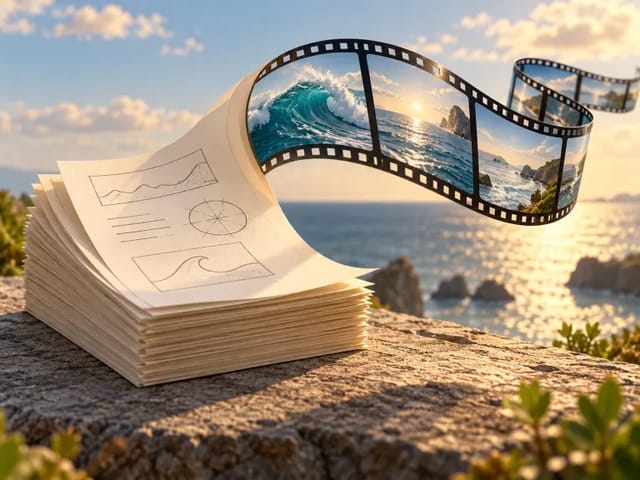
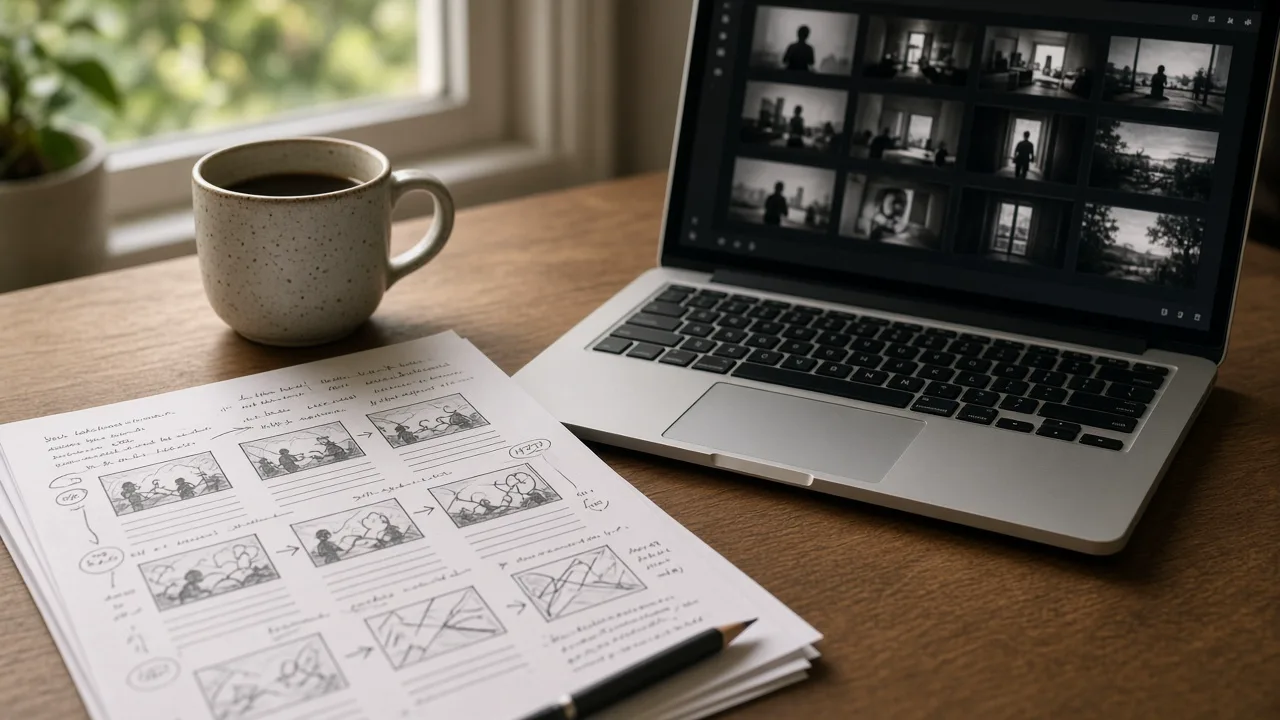
A long script is easier to film when you treat it as a list of moments. Read through your outline and mark each place where the viewer should see something change: a new location, a character entering, a key object, a shift in mood. Turn each mark into one Crreo AI scene description and generate it on its own. You end up with a clean set of shots that match the order of your story, and you can reshoot any single moment without touching the rest.

Start creating
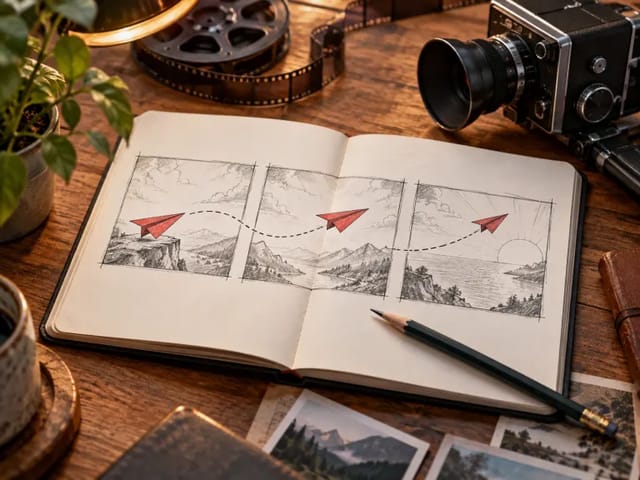
Printed script with storyboard sketches next to a laptop

Bring a story character to life

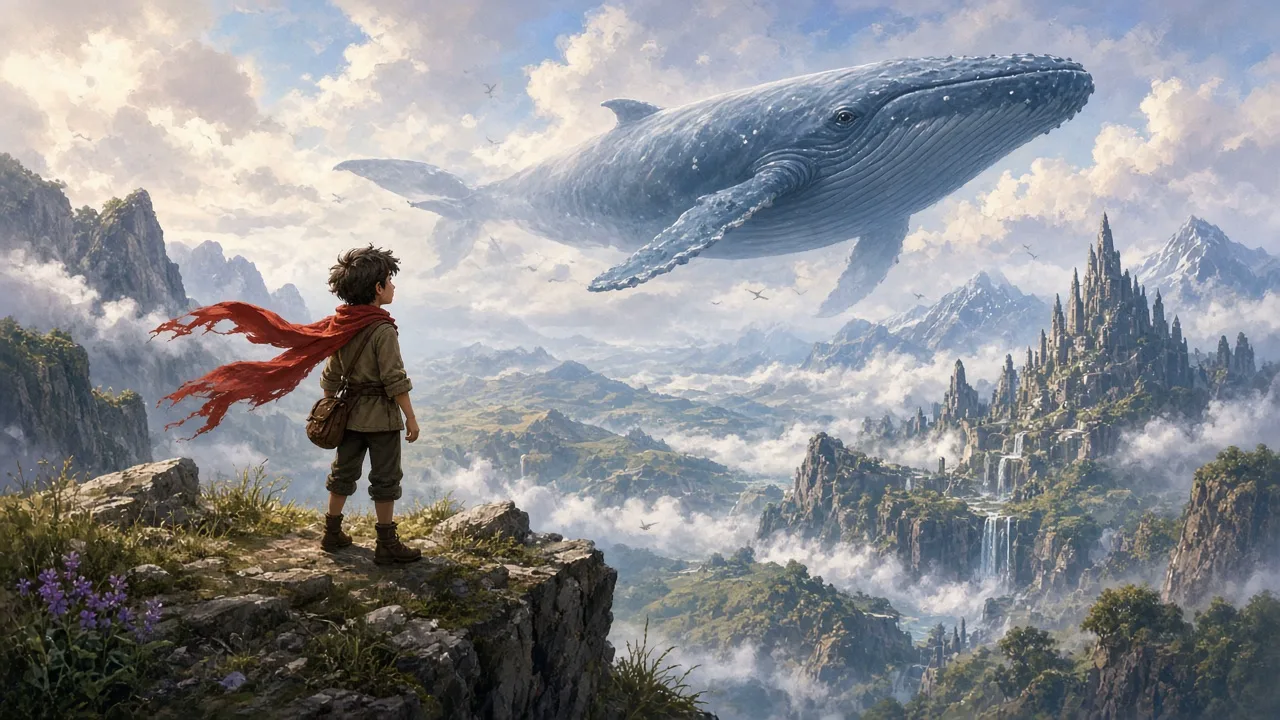
Story and explainer channels often need the same character to appear again and again. Describe the character with fixed details such as hair, clothing colour, age and one signature item, and repeat that wording in every Crreo AI prompt. A young explorer in a red scarf standing on a cliff while a whale drifts over a misty valley is a strong single scene, and the same description can carry the explorer into a forest, a village or a storm in the next clip. Consistent wording keeps the look steady across the series.

Start creating
Young explorer in a red scarf watching a flying whale over a misty valley

Make product and mood close-ups

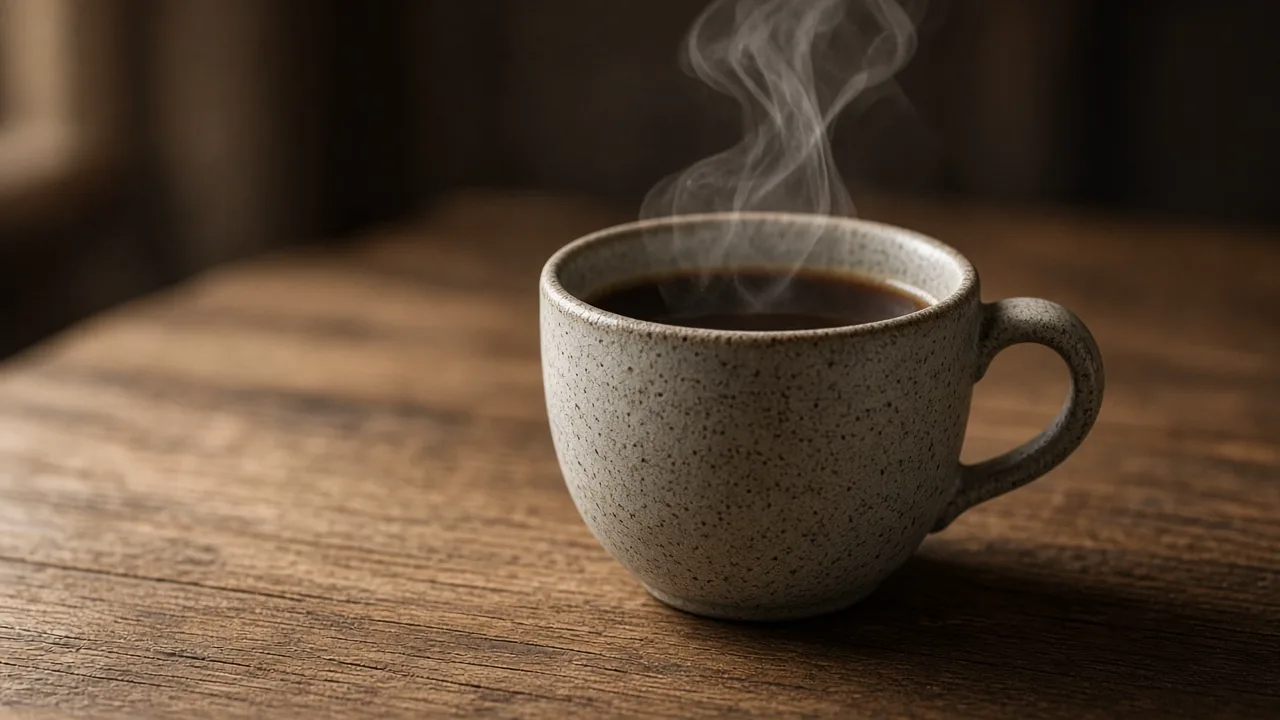
Not every shot needs a character. Close-ups add texture between story beats and work well for product teasers. Describe the object, the surface it sits on, the light direction and a single slow camera move, for example steam rising from a ceramic cup on a wooden table in soft side light. These quiet Crreo AI shots fill gaps in an edit, open a video with atmosphere or give a sponsor segment a polished look without a studio.

Start creating
Ceramic coffee cup with steam on a wooden table

Line up clips into a longer edit

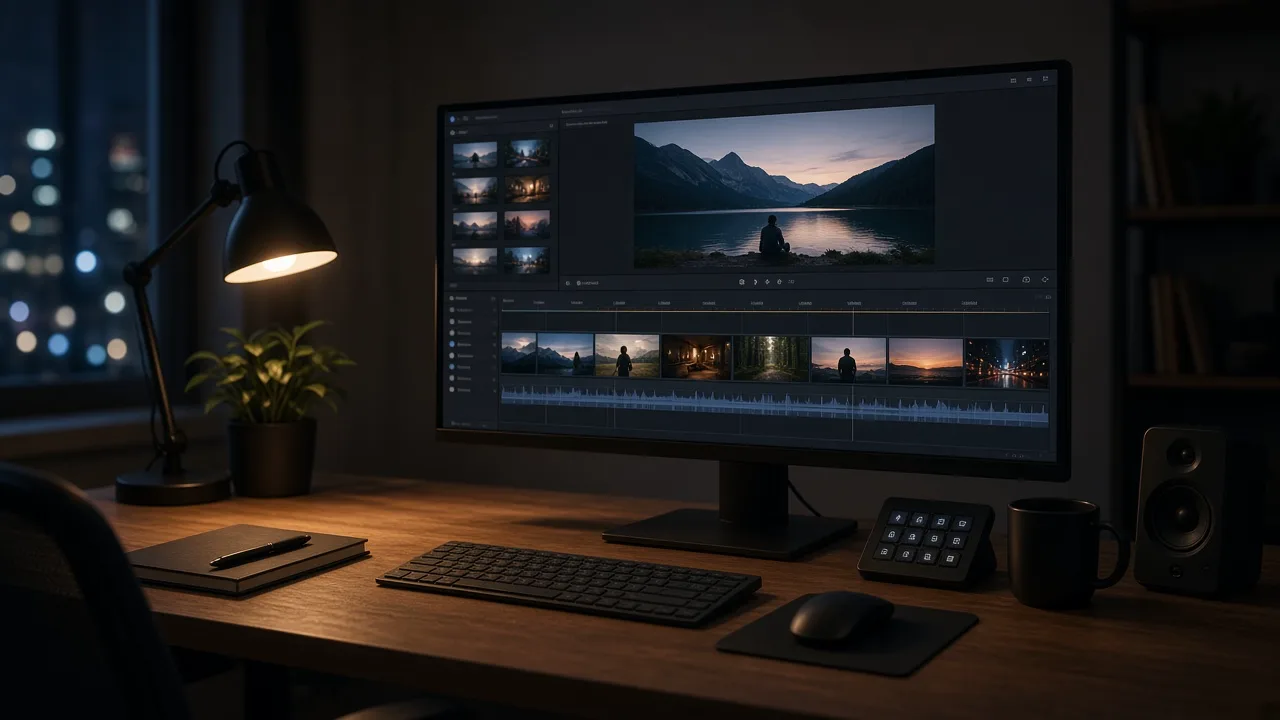
Once you have several scenes, bring them into your video editor and place them on the timeline in story order. Keep the same style words, such as cinematic, warm light or painted animation, in every Crreo AI description so the clips cut together smoothly. Add captions and titles in the editor, then watch the sequence as a viewer would. If one shot breaks the flow, regenerate just that scene with a small wording change and swap it in.

Start creating
Editing timeline with several short clips lined up in order

Writing Tips for Better Crreo AI Clips

Small changes in wording usually matter more than starting over. These habits keep each Crreo AI clip clear and easy to reuse.

One action per scene

A dog leaps into a lake works better than a dog runs, jumps, swims and shakes off. Split busy ideas into several scenes and join them later.

Name the style early

Say realistic, cinematic, 3D animation, anime or painted storybook at the start of the line so the look stays the same through the whole clip.

Describe the light

Golden hour, candlelit room, overcast morning or neon reflections set the mood and reduce random colour shifts between shots.

Give the camera one job

Choose a slow push-in, a tracking shot, an orbit or a still frame. One clear camera move keeps motion smooth and easy to cut.

Keep text in frame short

Signs, labels and screens read best with a word or two. Add longer titles later in your editor.

Crreo AI Video Generator FAQ

What is the Crreo AI video generator?

It is a browser tool on NanoPic that turns a written scene description into a short AI video clip. You describe the shot, choose the frame and resolution, then watch and download the Crreo AI result.

How do I use Crreo AI on NanoPic?

Write one scene in plain words, pick 9:16, 16:9 or 1:1, generate, then review the clip. Change one detail at a time if you want a new version.

Can it turn a whole script into one finished video?

It works scene by scene. Split your script into moments, generate a clip for each, and join them in your editor to build the full story.

Can I keep the same character across clips?

Yes, describe the character with the same fixed details in every Crreo AI prompt. Clothing colour, hair and one signature item help most.

Do I need to upload an image?

No. Text is enough to start. You can add an image when you want a specific look or subject to carry into the clip.

Which frame shapes are available?

Vertical 9:16, horizontal 16:9 and square 1:1, so a Crreo AI clip can fit Shorts, YouTube, presentations or feeds without cropping.

How do credits work?

The credits each render needs show in the generator before you start. If a generation fails, the credits are returned automatically.

Can I download and post my clips?

Yes. Finished clips can be downloaded and used in your own videos, ads and social posts. Check that people and products in the frame are ones you have the right to show.

Where can I check Crreo AI's features and pricing?

See the Crreo AI pricing page at crreo.ai/pricing, which we last checked on 2 November 2026. Features and prices there may change.

Is this the official Crreo AI?

No. NanoPic is an independent site and is not affiliated with Crreo AI.

Ready to Create Your First Crreo AI Scene?

Write one moment from your script, pick a frame and generate a short clip you can review, download and build into your next video.

Related tools

25th Anniversary Video Maker

25th Anniversary Video Maker

Make a short silver 25th anniversary video concept from one or two authorized couple photos. Add names, year, mood, motion, and editor-ready greeting space.

Open tool
Storyboard cover of two fictional adults sharing a hug

AI Hug Video Generator

AI Hug Video Generator turns an authorized photo of consenting adults into a five-second friendly hug. Review faces, hands, clothing and scene throughout.

Open tool
Animate Picture

Animate Picture

Animate a picture into a short AI video. Upload one authorized photo, describe subject and camera motion, review the live credit cost, and generate with Seedance.

Open tool
Birthday Video Maker

Birthday Video Maker

Create a short birthday video concept from one or two authorized photos. Direct the theme, transition, motion, format, and clean space for exact editor-added greetings.

Open tool
Draw to Video: Animate Images with Motion Arrows

Draw to Video: Animate Images with Motion Arrows

Draw to Video lets you add arrows, text and brush strokes to an image, then generate an AI video from your motion guide. Edit, save, create and download.

Open tool
Elon Musk + Sam Altman

Hotel Lobby AI

Turn two photos into a 15-second orange-studio rap duo with MiniMax H3. Explore five actual videos, inspect their inputs and choose your left and right performers.

Open tool
STORM II dance with a lead and coordinated supporting dancers

STORM II Dance AI Video Generator | NanoPic

Create a STORM II dance with your lead photo and an AI-generated motion reference. Add a supporting cast, compare three videos and review your result.

Open tool
AI Cheek Pinch Video Generator

AI Cheek Pinch Video Generator – Pinch Cheeks From One Photo | NanoPic

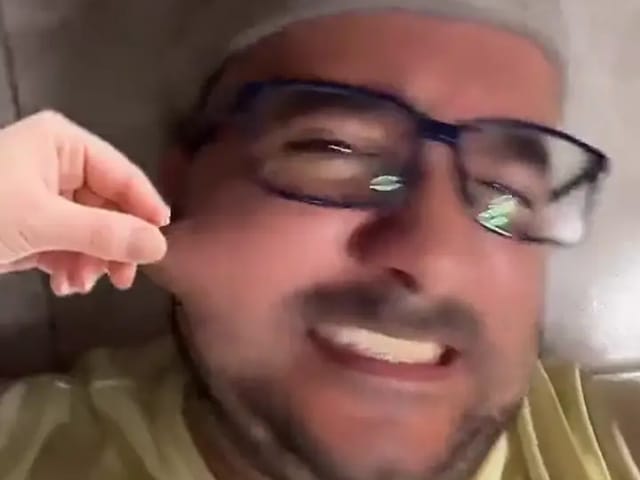
Turn one photo of an adult (with consent) or your pet into an ai cheek pinch video: hands gently squeeze the cheeks and let go. Download and share.

Open tool
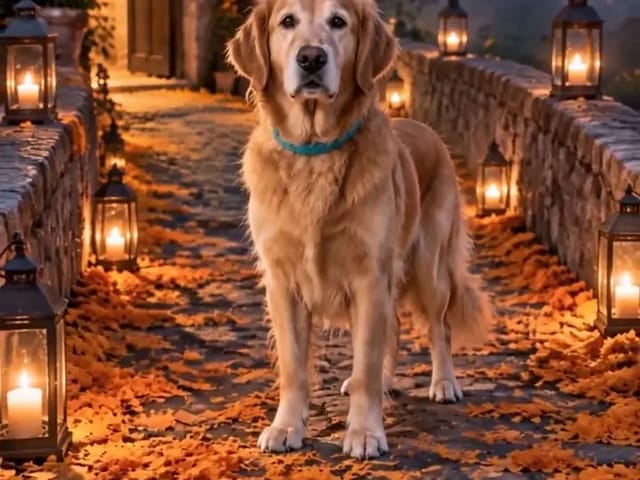
Golden retriever on a marigold memorial path

AI Day of the Dead Pet Video Generator from One Photo | NanoPic

Make an ai day of the dead pet video from one dog or cat photo: warm marigold bridge, vertical 9:16, memorial not horror for keepsakes.

Open tool
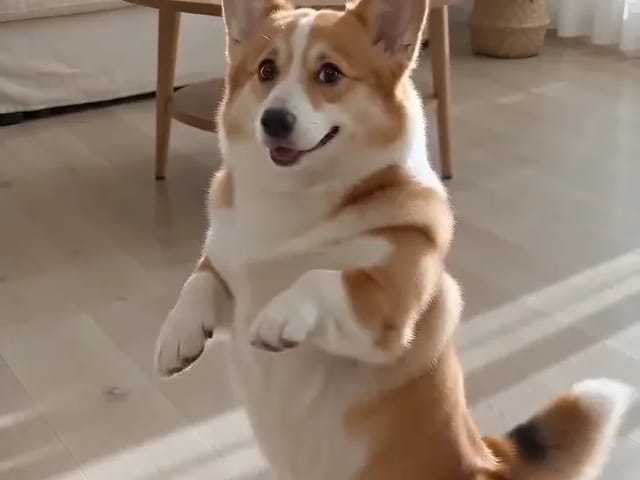
Corgi standing on its hind legs in a living room for an ai dog dance video

AI Dog Dance Generator: Make Your Dog or Cat Dance | NanoPic

Upload one clear dog or cat photo and get a vertical ai dog dance clip: your pet stands up and dances a living-room routine.

Open tool
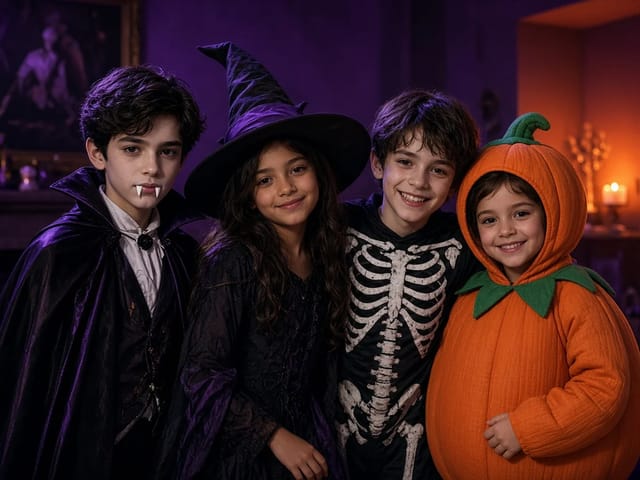
Four children dressed as a vampire, a witch, a skeleton and a pumpkin posing together in a candlelit room

AI Halloween Costume Transformation Video | NanoPic

AI Halloween costume transformation from one photo: pick a vampire, witch, skeleton or pumpkin look and watch your outfit change in smoke in a short video.

Open tool
AI Rap Battle Generator

AI Rap Battle Generator: Two Photos, One Battle Video | NanoPic

Upload two photos and create an AI rap battle video. Each side takes a turn in a short widescreen clip you can review before posting.

Open tool

AI Zombie Trend Video Generator from Two Photos | NanoPic

Make the AI zombie trend video from two photos: one person turns, the other lowers the weapon for a hug, then a warm memory. Vertical 9:16, no gore.

Open tool
Cover still for anijam ai video maker

Anijam AI Video Maker Online | NanoPic

Use anijam ai video maker on NanoPic: upload one authorized photo, describe motion in plain words, review credits, and check every frame before sharing.

Open tool
Birthday Rap Video

Birthday Rap Video Maker from a Photo | NanoPic

Make a birthday rap video from one clear photo: a fixed studio rap reference drives lip motion in a vertical clip. Add a name and review.

Open tool
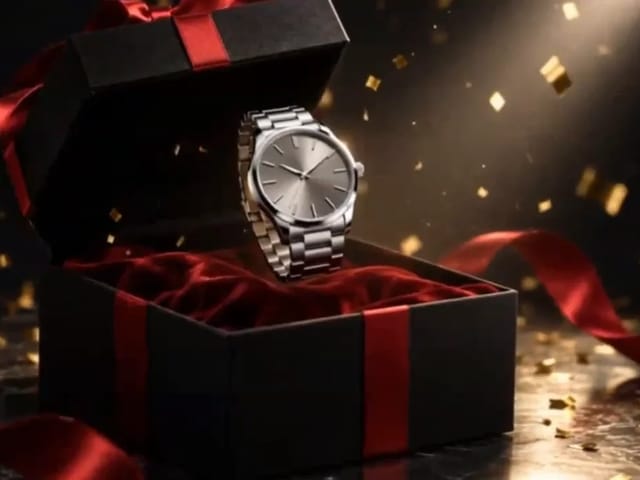
Silver watch in an open black gift box with red ribbon and gold confetti, Black Friday product clip

Black Friday Video Maker: Product Photo to Sale Clip | NanoPic

Black Friday video maker: upload one product photo and get a promo clip with seasonal lighting and a slow camera move, ready for your sale text.

Open tool
Silhouette of a witch riding a broomstick across a full moon over a misty forest

Broom Riding AI - My Ride Is Here Broom Video | NanoPic

Broom Riding AI puts you on a flying broom beside a moving car in the My Ride Is Here trend. Upload one photo, get a 10-second clip and add your own sound.

Open tool
Bulin 47 AI

Bulin 47 AI Video Generator: Your Photo in a Street Freestyle

Turn one photo into a Bulin 47 AI freestyle clip: shoulder rolls, a cheering friend and a laughing crowd under red lights, in vertical 9:16.

Open tool
Burning Bridges AI Video Generator

Burning Bridges AI: One Photo Party Video | NanoPic

Make a Burning Bridges AI video from one photo: toast, hand to heart, point at the camera, then turn in a vertical chandelier party clip.

Open tool

Check One Check Two AI Video Generator | NanoPic

Make a check one check two AI video from one photo: you lean into the lens and shout the mic check over a night crowd. Vertical MP4, ready to post.

Open tool
Dancer bouncing her shoulders on a city sidewalk

Dame Hombro AI: Shoulder Dance Video From a Photo | NanoPic

Make a Dame Hombro AI shoulder dance video from one full-body photo: knee bounces, shoulder pops and a lean-in, in a vertical 9:16 clip.

Open tool
Diss Track Generator

Diss Track Generator: Friendly Roast Rap Video from a Photo | NanoPic

Make a playful diss track video from a clear photo and a few inside jokes. Keep it friendly, review the roast, and share only with consent.

Open tool