
















Wan 3.0 Prime Generator
Sign In

Wan 3.0 Prime Generator

Enter a prompt, choose your video settings, and generate a clip.

CreditsCost

Wan 3.0 Video Prime

AI output preview

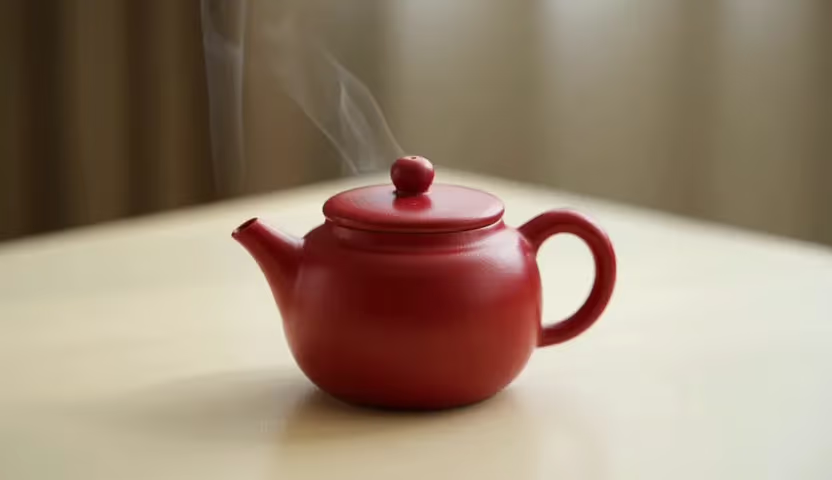
A small red ceramic teapot on a cream table, subtle steam drifting upward, fixed camera, soft daylight, no lettering.

Red ceramic teapot with subtle steam generated by Wan 3.0 Video Prime

Explore a Scene Through Deliberate Variations

Wan 3.0 Prime is another way to explore a moving idea in the Wan family. On NanoPic, use a text prompt, a first frame, or image references to shape a short continuous scene. The useful question is not whether a name sounds more advanced, but whether the resulting movement fits your idea. Begin with a small motion study, watch it carefully, and decide what to change next. Prime does not remove the need for clear direction or thoughtful review.

Directing with Wan 3.0 Prime

Build a clear shot around the text, image, and output controls in the workspace.

A Wan Variant for a Clear Creative Brief

Choose Wan 3.0 Video Prime in the generator when you want to explore this variant with your own prompt. It supports the same 2–30 second duration range and 480P, 720P, and 1080P output choices shown here for Wan 3.0. Keep a simple brief so you can identify what the output does well and what needs adjustment. Rendering time and visual quality vary by request; the page does not promise a fixed waiting time or a superior result for every scene.

From a Still Image to an Intended Movement

A first frame is useful when you have already found the look of a scene. Tell the model what to animate while preserving the important visual anchors: a character's clothing, a window frame, or the shape of a vase. First and last frames can guide a planned beginning and ending. Choose images that can plausibly connect. A request to change the subject, background, viewpoint, and lighting at once gives the model many more opportunities to depart from your intended direction.

Small Drafts Before Larger Creative Decisions

The starter setup is two seconds at 480P, 16:9, with audio disabled. Use that small frame of time to check one motion before deciding whether the scene needs more room. You can choose a longer duration or a different supported output size for another draft. Do not use extra seconds as a substitute for a clear ending. A scene that reaches one purposeful finishing state often feels more complete than a longer clip full of unrelated movement.

How to Use the Wan 3.0 Prime Generator

Start with one intended action, review the whole result, and revise with a purpose.

1. Decide What Should Stay the Same

List the two or three visual anchors you want to preserve, such as the object color, table position, and light direction. Then name the one thing that moves. This makes it easier to distinguish useful variation from drift. For a scene with a lantern beside a window, the curtain might lift while the lantern and wall remain still. If you change both the setting and the action between attempts, you lose a helpful point of comparison.

2. Give the Shot a Simple Time Shape

Describe the action in a beginning, movement, and finish that fit the chosen duration. A leaf rises slightly and settles; a beam of light moves across a wall; steam curls upward while the camera holds still. Avoid a list of cuts or separate locations. This workspace is directed around a single generated clip rather than a multishot editing timeline. Make separate clips when your idea needs clearly different scenes.

3. Review a Prime Result, Not a Label

Check that Wan 3.0 Video Prime is selected before generating. The preview here is an actual two-second 480P text-to-video result from that model, created with a red teapot prompt and audio off. Watch the steam, object edges, and camera stability to see what the request produced. Judge your own result in the same way. A model label or a polished thumbnail cannot show whether the full motion is coherent.

4. Keep the Variation You Understand

If you prefer a result, note why: a calmer camera, a better silhouette, or a more readable finishing pose. Use that observation to refine the next prompt. When comparing with standard Wan 3.0, keep the prompt, duration, resolution, and framing aligned. The two results can differ even when the instructions match, so compare the completed clips rather than treating the exercise as a guaranteed repeatable benchmark.

Wan 3.0 Prime Prompt Ideas

These are suggested directions to adapt, not additional generated examples.

Steam, Light, and a Stable Camera

Begin with the editable teapot prompt, then try changing only the light: A small red ceramic teapot on a cream table, subtle steam drifting upward, fixed camera, soft evening light, no lettering. Compare the mood while checking whether the handle and spout stay readable. This kind of restrained variation teaches you more about the direction of a scene than adding several effects, objects, and camera moves at once.

A Paper Object with One Moving Detail

Try: A folded yellow paper boat rests in a shallow bowl of water; small ripples gently rock the boat, fixed close camera, bright window light, clean background, no text. Watch the folds and the contact between paper and water. If the boat changes shape or starts moving too far, simplify the action and reduce the number of simultaneous effects. A physical boundary gives you a useful detail to inspect throughout the video.

A Planned Frame-to-Frame Finish

Use opening and closing images with the same setting and subject scale. Then write: Preserve the room, colors, and camera angle. The curtain slowly opens toward the position shown in the final frame, revealing the same window behind it. Keep the movement gentle and continuous. Similar visual anchors support a more intelligible transition. Review the spaces revealed during motion because the model must generate details that were not visible in the starting image.

Put a Moving Shot to Work

Open the standard Wan page when you want another interpretation of the same continuous shot. Keep your creative brief stable, then choose between actual outputs based on the movement and framing you need.

Variations for an Illustration Project

Explore how a finished illustration might feel with a small amount of movement. Keep the original artwork nearby during review and check linework, character shape, and color relationships. A breathing motion, drifting cloud, or moving patch of light can be enough. Do not assume the model will preserve every brushstroke. Choose the version that respects the artwork's intent, and retain a still version when animation distracts from it.

Short Atmosphere Clips

Create a focused mood for a personal video, presentation, or social post. Decide whether the atmosphere comes from weather, lighting, depth, or motion, then make that element specific. A scene can feel calm through a locked camera and one slow movement rather than through the word calm alone. Leave dialogue, titles, and other editorial elements for your later editing workflow if you do not need them in the generation.

Creative Comparisons with Standard Wan

Try the same small idea in both Wan variants when you have a genuine creative question to answer. Compare how clearly the action reads and how useful the beginning and end frames are for your project. Neither a more dramatic movement nor a longer clip is automatically better. Keep the output that suits the intended story, and avoid making broad quality or speed claims from a single pair of results.

Wan 3.0 Prime Questions

What to know before directing a Prime clip.

What is Wan 3.0 Prime useful for?

Use it for a continuous text-led or image-led scene, such as a restrained reveal, an atmosphere study, or one readable action. It is also a distinct Wan variant to evaluate under a stable creative brief. The model name alone does not determine whether a particular output is better suited to your project.

Can I use first frames, last frames, and image references?

Yes, use the image modes exposed by the generator for a first frame, first and last frames, or image references. Choose compatible material and describe what should remain stable and what should move. Use only images you have permission to use. Visual guidance does not guarantee unchanged identity, geometry, or every source detail.

Can I submit documents, websites, or reference videos?

These Wan workflows use text and supported images. They do not accept documents, websites, reference videos, reference audio, or multishot instructions. Translate the relevant brief into a scene description and suitable images. When a project needs multiple shots, generate them separately and assemble the sequence in an editing tool.

Which durations and resolutions can I choose?

Choose 2–30 seconds and 480P, 720P, or 1080P output. The page starts with two seconds, 480P, and 16:9. Make the action fit its time before deciding whether to request a longer or larger result. Increasing resolution does not automatically fix distorted objects or a movement that misses the prompt.

Does the starter setup generate sound?

No. Audio is off in the starter setup. If you need sound, review the audio control for the selected model and describe sound that belongs to the scene. Check its timing and content in the completed file. The teapot example was generated with audio disabled and does not demonstrate dialogue or sound effects.

How should I review the example and my own output?

The teapot preview is an actual Wan 3.0 Video Prime text-to-video result made at 480P for two seconds with audio off. Open the video and watch it through instead of judging only the cover. For your own work, check object edges, object count, contact, camera movement, and the ending frame. Verify important product or identity details against your source material.

Which model does this page's generator use?

The visible model selector is the source of truth for each submission. This page defaults to Wan 3.0 Video Prime; if you change that selection, your request uses the model you chose. Check the model name in the completed task as well as the output, rather than labeling a video from the page title alone.

Direct a Wan 3.0 Prime Scene

Choose a small idea, keep the visual anchors clear, and explore one purposeful variation at a time.