


















Save up to 73% on plans

3D AI Video Generator
Sign In

3D AI Video Generator

Upload one clear photo to create a five-second 3D-style animation. The finished clip adds depth and movement while keeping your subject recognizable.

Upload a Photo*(0/1)
Try Sample Images
Public VisibilityAllow this result to appear in public inspiration surfaces.

3D AI Video Generator

Video

More AI Video Models & Effects

Browse every other AI video model and effect published on this site in a continuous carousel.

A five-second 3D-style animation from your photo

Give a recognizable photo subject rounded form, tactile materials and cinematic depth. A small camera move reveals the scene without demanding a complex animation timeline. The download is a rendered video. It does not contain an editable 3D mesh, rig, CAD file or scene project.

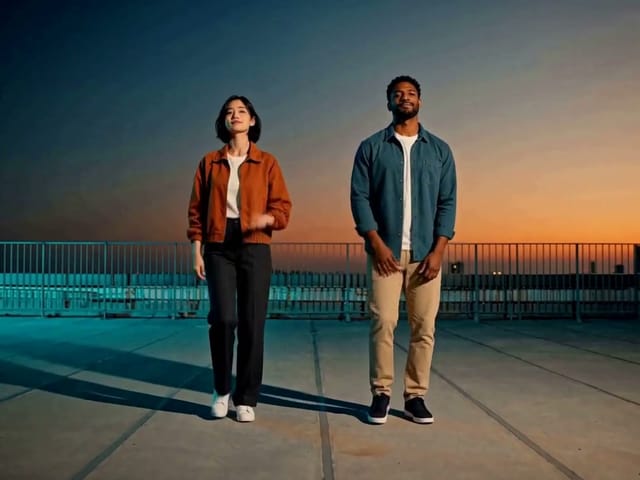
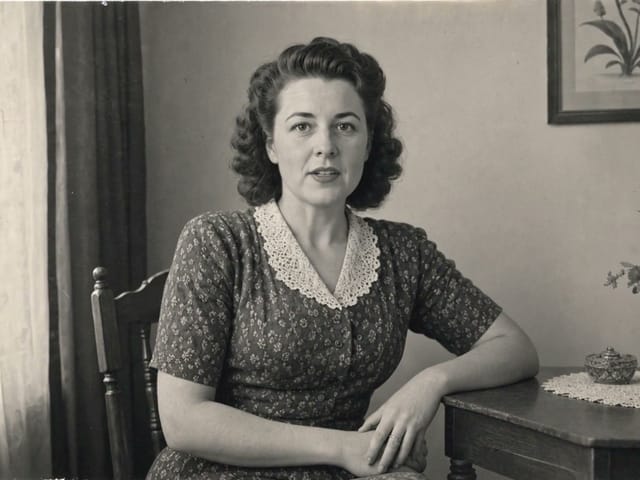
See the original example and result

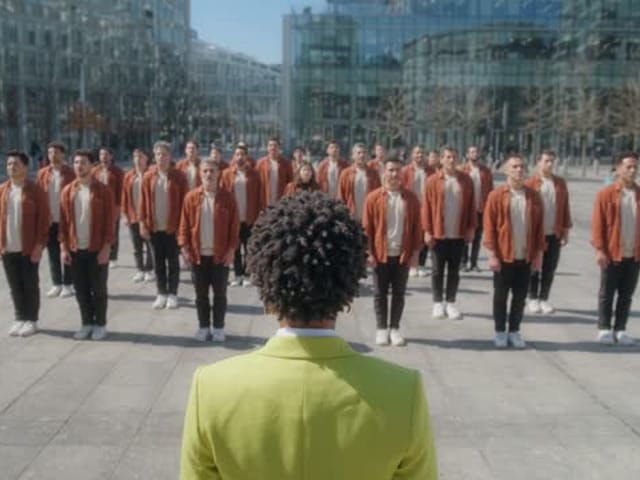
The sample characters, input photographs and reference scenes were newly generated with AI for NanoPic.

Five-second 3d-style animation

The sample characters, input photographs and reference scenes were newly generated with AI for NanoPic. Give a recognizable photo subject rounded form, tactile materials and cinematic depth. A small camera move reveals the scene without demanding a complex animation timeline.

Try My Photo
How it works

1. Choose a clear reference

Start with an in-focus photograph, an unobstructed subject and even lighting. Try the sample to understand the transformation, then use your own image. A clean input makes the result easier to judge.

2. Check the roles and credit estimate

Preview the uploaded image and make sure the important subject is not cropped out. Check the displayed model, settings and credit requirement before submitting.

3. Review and download

When the task finishes, inspect the complete output before downloading. Your generation history keeps the task available if you leave the page. Check the existing task before submitting the same input again.

Choose inputs that make the result readable

Subject and edges

Keep the complete subject inside the frame. Avoid cutting off faces, hands, ears or important object edges. A less crowded background helps separate the subject from details the model might interpret differently.

Review the transformation

The download is a rendered video. It does not contain an editable 3D mesh, rig, CAD file or scene project.

Allow for variation

AI can change small details, proportions or movement. The example demonstrates a particular input and output, not a promise that every photograph will behave identically. Check important details at full size before sharing.

A practical guide to choosing, creating and reviewing

Start with a subject that has a readable silhouette

A clear outer shape gives the animation something useful to preserve. Choose a photograph where the main subject is separate from the background and large enough to see without zooming. A small toy on a plain table, an expressive portrait or a simple everyday object can be easier to assess than a crowded shelf. Keep important edges in the frame. If the original cuts off half a face or the top of an object, the generated scene must imagine what belongs there. That imagined detail may not match your intention. Before uploading, look at the picture as a small thumbnail: can you still tell what it is? If the answer is no, use a closer photograph or a cleaner composition. You do not need a technical model sheet or photographs from every side for this fixed photo-to-video workflow.

Think about material and depth rather than a literal scan

The effect turns a photograph into a rendered, three-dimensional visual style. Rounded forms, lighting, shadows and surface texture can make the subject feel more like an animated character or a crafted object. That is different from measuring its real geometry. A shiny surface may become softer, hair may become simplified and a background may gain a more staged appearance. Judge these changes by whether they support the character of the image, not by whether they could be used as engineering measurements. If the exact finish of a product matters, compare the result carefully with the source before using it in public material. This page is useful for creative interpretation and short animated presentation. It should not be used to promise that a physical object has particular dimensions, construction details or materials that the photograph cannot establish.

Make a five-second scene easy to understand

A short animation does not need a complicated plot. One subject, a readable pose and a modest change in viewpoint can communicate more clearly than several competing actions. The five-second format is suitable for an animated introduction, a character reveal or a small visual accent in a longer project. When choosing the input, imagine what should remain recognizable after the scene gains depth and movement. A distinctive hat, a clear facial expression or the outline of a toy can provide that anchor. Avoid relying on tiny printed text as the main point of the clip, because small lettering may change during generation. If the final use needs a headline or a precise product name, add it later with an editing tool that supports text placement rather than expecting the image transformation to reproduce every letter exactly.

Separate animation output from editable 3D assets

The result is a finished video, not a three-dimensional object you can rotate freely after downloading. It does not include a mesh, a rig, texture maps, a CAD drawing or a scene file for a modeling application. You cannot recover hidden surfaces by moving a virtual camera in the downloaded clip; the video contains only the frames that were generated. This distinction helps you choose the right workflow before you spend credits. For a social preview or a character concept, a rendered clip may be exactly what you need. For a game asset, fabrication project or product configurator, you will need a tool that creates and exports the required three-dimensional data. You can still use an attractive video as a visual reference for later creative work, but it is not a replacement for that technical production step.

Inspect movement and shape together

Watch the full clip once without pausing, then look more closely at the beginning, middle and end. A subject can look attractive in a single frame while changing shape unexpectedly during motion. Check whether the eyes, hands, accessories and outer silhouette remain coherent. For an object, pay attention to repeated features such as wheels, handles or corners; they should not appear and disappear without a reason. Also inspect the relationship between the subject and its supporting surface. A toy that seems to float above a table may be less useful than one with a stable shadow. You do not have to reject every stylized change, but decide which changes are intentional-looking and which distract from the subject. The most useful result is the one that works throughout the five seconds, not simply the frame that makes the best thumbnail.

Use practical comparisons when trying another photo

If the subject becomes hard to identify, try a source with a stronger outline and less background clutter. If a face changes too much, a clearer frontal portrait can provide more useful reference detail. If a small object loses important parts, choose a photograph where it occupies more of the frame. These are specific changes you can compare; simply repeating the same submission may produce variation without solving the underlying issue. Keep the original image and the result together when reviewing attempts. Ask whether the new output preserves the features you care about, whether the movement is more stable and whether the scene is easier to read at the size you plan to share. Check your existing task before starting another generation. Each attempt uses the credits displayed by the tool, so it is worth learning something from the previous one.

Plan how the animation will sit in a larger project

A five-second clip can introduce a character, separate chapters in a presentation or add a brief visual moment to a social post. Think about the surrounding material before you crop or edit it elsewhere. Leave room for any text you will add in your editor, and check that a platform crop does not remove the main subject. If you use a still frame as a cover, choose one that represents the whole animation rather than hiding a problem that appears immediately afterward. This page does not promise a seamless loop, transparent background or a frame-by-frame editing timeline. You may be able to build those treatments in other software, but they are separate editing decisions. Keep the generated file and your edited version distinct so that you can return to the original if a crop, compression setting or added graphic reduces its quality.

Choose a photo animation for the right reason

Use this effect when you want the subject to feel like a small animated scene with depth, rather than simply applying a flat illustration filter. A portrait can become a character introduction, while a familiar object can become a playful motion study. If your main goal is a printable image, a still-image tool will give you a more direct workflow. If you need a fully custom story with several shots, a general video generator is a broader starting point. The example here shows the kind of transformation this particular preset is meant to make, so compare it with your intended result before uploading. You do not need to learn modeling terminology to get started. What matters is selecting a suitable photograph, understanding the finished-video output and checking whether the subject remains convincing as it moves.

3D AI Video Generator questions

What will I receive?

You receive a five-second 3D-style animation. The download is a rendered video. It does not contain an editable 3D mesh, rig, CAD file or scene project.

Do I need to write a prompt?

No. Upload the required photograph or photos and start the generation. NanoPic applies this effect automatically, so you can focus on choosing the subject and reviewing the result.

Which photos should I use?

Use a clear photograph you have permission to use. Keep the important subject inside the frame and choose an input that fits this effect. Check the preview before submitting.

Does generation use credits?

Each generation consumes the displayed credits. Video generation requires sufficient credits and is not unlimited free.

How is this different from nearby tools?

This is a 3D-style video workflow rather than a modeling application. It produces a finished clip rather than an editable scene.

Choose a related creative workflow

Choose by the input you have and the result you want to make.

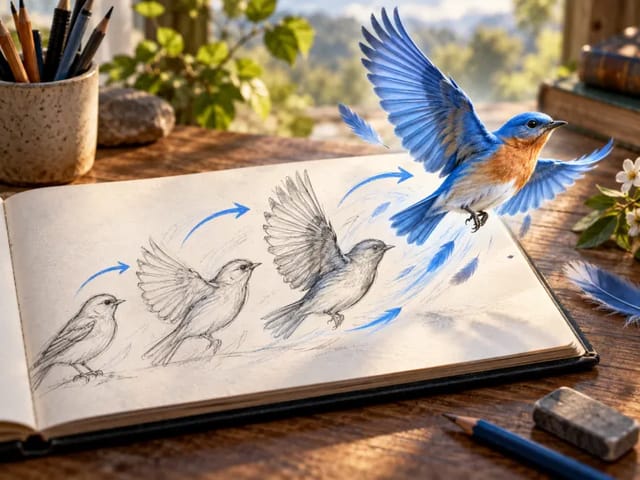
AI Video Generator — thematic cover illustration

Explore video creation

Compare the example and input requirements before choosing a workflow for your idea.

Explore tool
Explore photo effects

Explore photo effects

Compare the example and input requirements before choosing a workflow for your idea.

Explore tool

Start with your own photo

Review the example, choose your input and check the credit estimate.