



































Save up to 73% on plans
AI Furniture Generator From Text, Sketches & References
Your Furniture Concept
Image
More AI Image Models & Effects
See the Direction of One Furniture Idea
Start from words, an original sketch, or an authorized reference. Compare silhouette, wood tone, and upholstery before detailed design. This page supports visual decisions about one object; room layouts, product placement and garden design have separate tools.
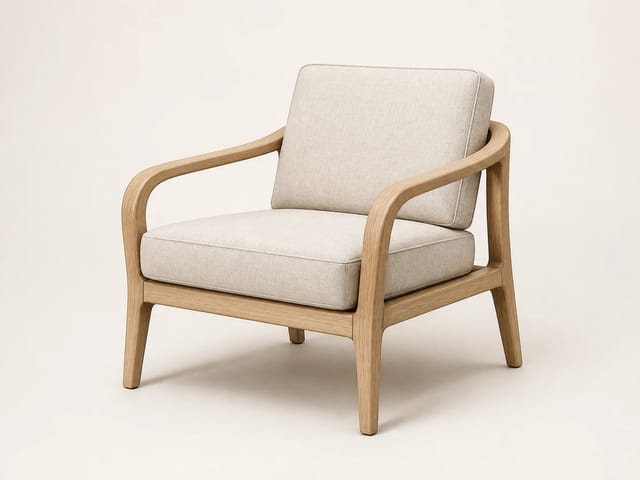
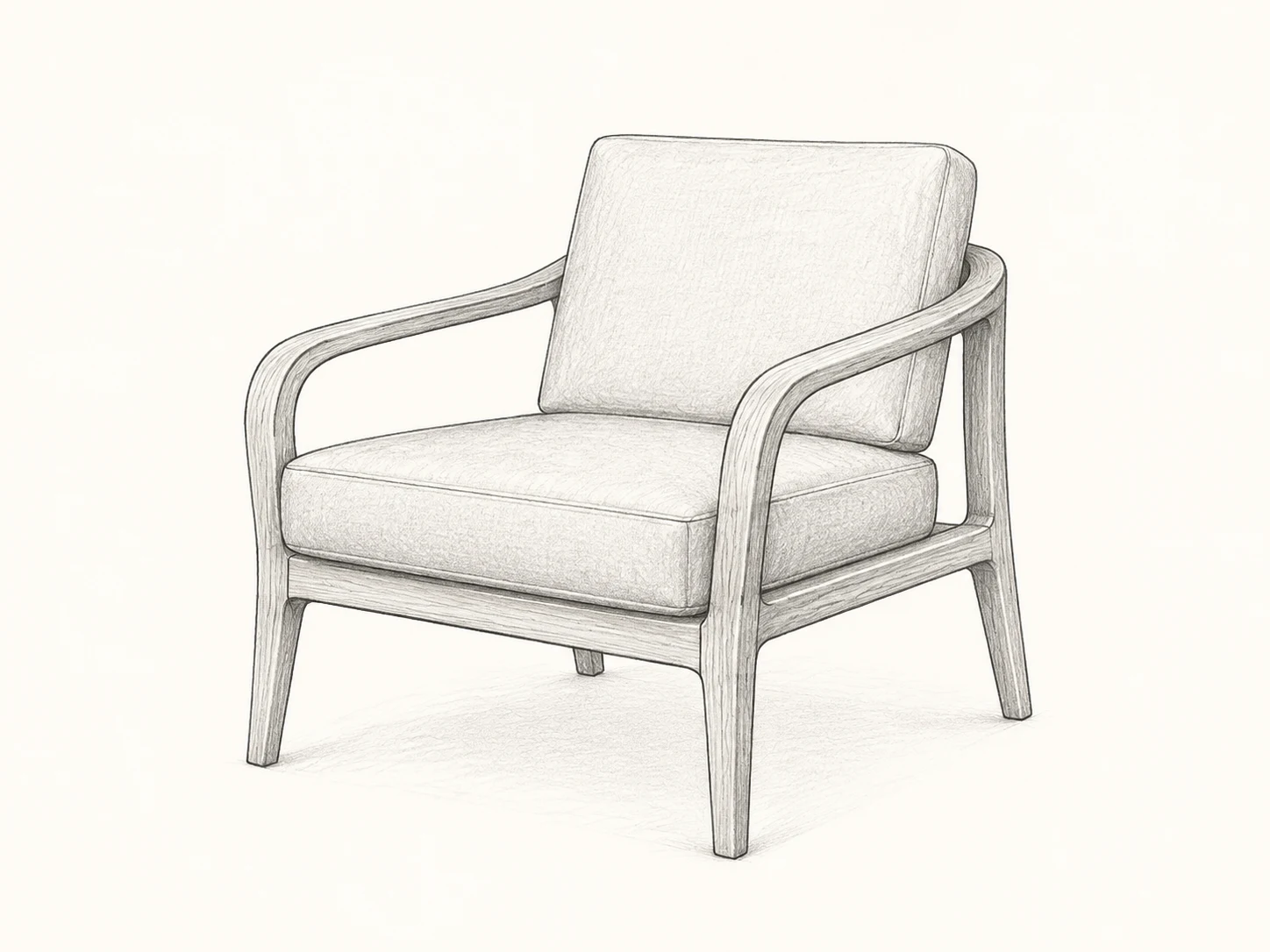
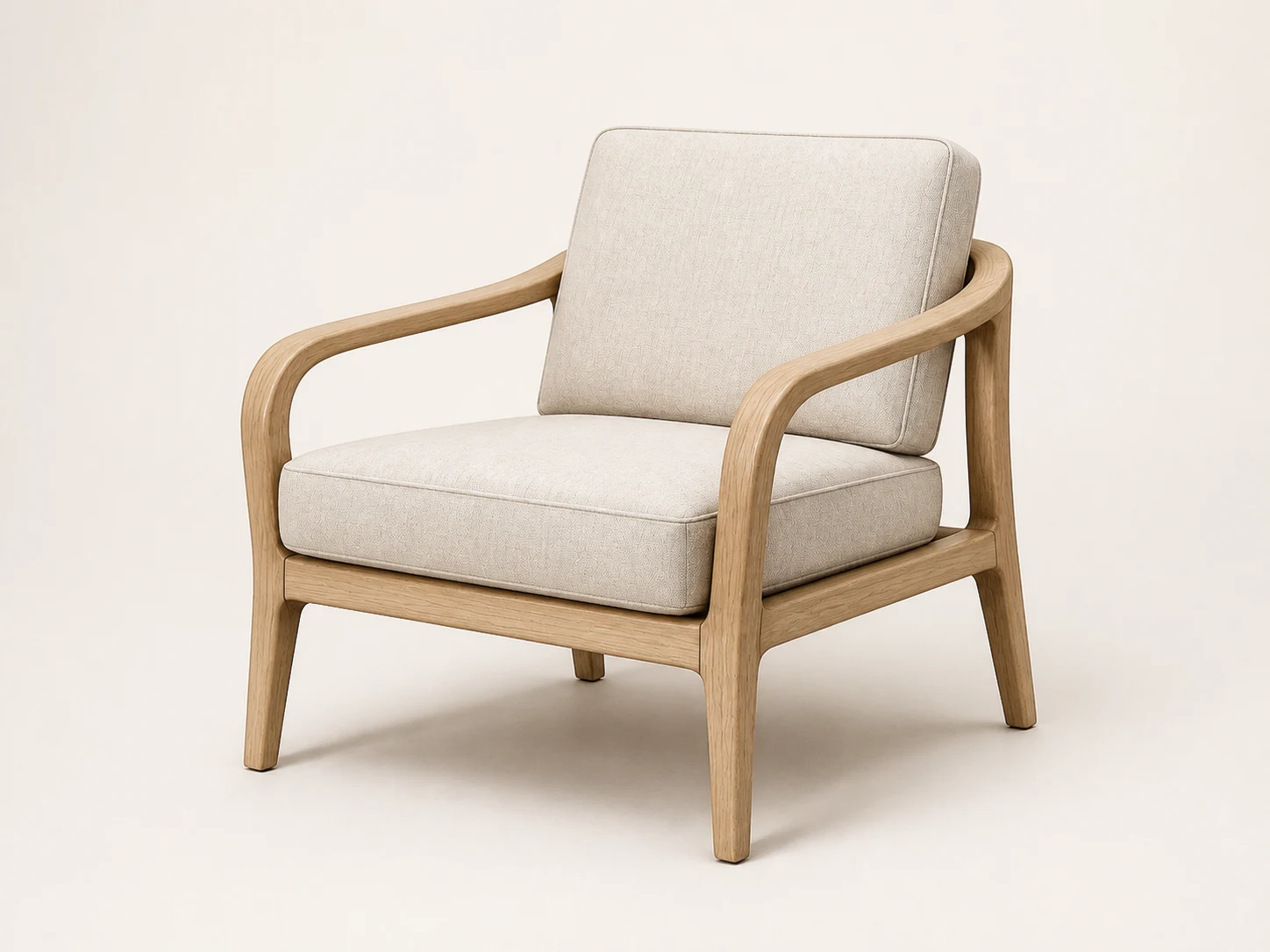
One Fictional Sketch, Two Material Studies
Original AI-generated demonstration assets, not manufactured products or structural validation.
Compare a Walnut and Moss Redesign
Start With One Furniture Decision
Text to furniture concepts
An AI Furniture Generator makes an idea visible before you commit to a detailed design. Begin with a single chair, table, cabinet, bench, or sofa. Describe its purpose, silhouette, material character, and preferred camera view. A brief such as compact reading chair with a curved timber frame and two upholstered cushions gives the model a clear object to resolve. Adding an entire living room, matching accessories, several products, and dramatic architecture makes the result harder to evaluate. The first image should answer a specific question: do these proportions and materials communicate the direction you want?
Sketch to a material study
Switch to the reference-image mode when the object already exists in your drawing. Photograph the sketch straight on, crop away unrelated notes, and keep the complete outline visible. Name the features that matter: the continuous arm rail, the open space below the seat, the thickness of a tabletop, or the rhythm of cabinet doors. Ask for materials and lighting while keeping those features stable. The model can interpret ambiguous lines differently, so the result is an interpretation of the sketch. Compare the outline and connection points before deciding whether the rendering is useful.
Reference-photo redesign
Use a photo you own or may edit to explore a new finish or a focused shape change. For a finish study, explicitly preserve legs, arms, cushion divisions, handles, and viewpoint. For a redesign, state the permitted change, such as rounding the tabletop corners while retaining its base. Keep a copy of the original so an attractive result does not hide unintended drift. The tool does not authenticate product identity or guarantee an exact reproduction. Avoid presenting an altered concept as a photograph of an existing item for sale.
Write a Brief You Can Actually Compare
Object, silhouette, materials, view
A practical furniture prompt has four parts. First identify one object and its role. Then describe the dominant silhouette: low and broad, upright and light, curved and enclosing, or rectilinear and compact. Add two or three material cues rather than a long list of luxury adjectives. Finally choose a view, such as a three-quarter studio photograph with the whole item visible. Keep the lighting neutral when comparing finishes. Colorful rooms and strong sunset light can make two very different materials appear similar and distract from the design question.
Change one variable at a time
Hold the source image, viewpoint, and silhouette steady while testing upholstery color. Next keep the chosen upholstery and compare wood tones. Only after the material direction is clear should you try a different arm shape or leg profile. This sequence makes feedback actionable: prefer the lighter frame, reduce the cushion bulk, or keep the open base. Independent generations can still vary unexpectedly, even with the same prompt. If the structure changes too much, return to the original reference and strengthen the preservation notes instead of building on accumulated errors.
Four ready-to-adapt prompts
Chair: one original lounge chair, continuous curved arms, pale oak, oatmeal cushions, three-quarter view, complete feet visible. Table: one compact oval coffee table, quiet wood grain, slender base, no surrounding furniture, neutral studio. Cabinet: one low sideboard with three plain doors, recessed pulls, warm timber, front three-quarter view. Bench: one entry bench with an open lower shelf, softly rounded edges, no decorative props. These are concept briefs. Modify the object details in the editable field and select the material direction that supports your decision; a preset is a starting vocabulary rather than a fixed product.
Use Furniture Images at the Right Stage
Design exploration and client discussion
Students, independent makers, and design teams can use a concept image to explain a direction that is difficult to describe in words. Share the original brief beside the image and identify what is still unresolved. A client may like a curved arm but dislike the visual weight of the base; that is useful feedback before detailed modeling begins. Keep rejected alternatives as well as the favorite, because the comparison explains the decision. Label the image as AI-generated concept work and avoid implying that a specialist has approved the design merely because it looks polished.
Material and collection direction
A consistent studio background helps compare timber, upholstery, metal finishes, and the visual relationship between them. You can describe a shared design language across separate objects, but generate one item per request so each remains legible. The model does not provide a verified material library, manufacturer swatch, or reliable color measurement. Screen settings and lighting affect the image. Once a direction looks promising, compare real samples and supplier specifications. If you need an actual product advertisement, photograph the finished object or clearly disclose the concept status of the visualization.
A useful handoff to a professional
Bring the selected image, original sketch or photo, and a short list of liked and disliked features to a furniture designer or qualified maker. Provide real requirements separately: intended use, available space, user needs, maintenance expectations, and relevant constraints. The professional can turn the visual direction into measured drawings, material choices, connection details, prototypes, and testing. Do not extract dimensions by measuring pixels in a perspective image. A convincing shadow, thick-looking leg, or neat seam does not establish load capacity, stability, durability, or safe construction.
Check the Concept Before Keeping It
Silhouette and support
Trace the outline from the original reference to the generated result. Count visible legs, compare their attachment points, and check whether feet meet the ground. Inspect arms, shelves, tabletop edges, cushion seams, and any area where parts overlap. Generative images may merge components, invent a support, or conceal an impossible joint behind an attractive texture. Reject the result when a critical feature has changed without permission. For a text-only concept, perform the same visual review, but remember there is no measured source establishing the dimensions in the first place.
Dimensions, structure, and safety
Every output is a concept image. Dimensions, structure, joints, ergonomics, stability, and safety must be verified by qualified professionals before fabrication or use. The generator cannot evaluate material defects, fastening methods, loading conditions, tip-over behavior, edge hazards, or compliance with applicable requirements. A furniture image is not a test report or an engineering opinion. Treat unusually thin supports, cantilevers, suspended elements, and complex moving parts as unresolved design questions rather than validated solutions. Keep this limitation attached when sending the image to a client, workshop, or collaborator.
Focused Furniture Projects to Try
A small-space side table
For a side-table concept, decide whether the visual priority is a light outline, useful surface area, or a strong sculptural base. Describe one option at a time. A circular top with a simple pedestal reads differently from an oval top with four legs, even when both use the same timber. Request an uncluttered studio view so you can inspect the relationship between top and support. Actual clearance beside a chair, reach distance, stability, and any edge treatment need real measurements and professional evaluation. The picture can help select a direction, but cannot tell you whether it fits a particular doorway or room.
A storage cabinet without invented specifications
Cabinet concepts are useful for comparing door rhythm, handles, grain direction, and the balance between open and closed storage. Ask for a straight or mild three-quarter view when these features matter. Avoid asking the image to solve an exact internal storage problem; it may draw doors with no corresponding depth or show hardware that cannot work. Keep intended contents and real dimensions in a separate written brief. A maker should establish the carcass, clearances, hinges, shelf support, anchoring, and construction details. If a generated image suggests floating storage, treat the fixing system as an unanswered question, not an invisible guarantee.
An upholstery redesign with a clear baseline
Start with the original chair or sofa reference and choose a single upholstery question: warmer color, finer texture, or a different visual seam pattern. Specify which cushion divisions and frame details must remain. Keep the background and light neutral so the comparison stays about the material. A generated weave is an appearance cue rather than a fabric specification, and the image cannot establish abrasion resistance, cleaning behavior, fire performance, seam strength, or suitability for a particular user. Shortlist the visual direction, then inspect real swatches and discuss the actual upholstery system with a qualified supplier or specialist.
Organize your iterations
Save the original input and give each promising result a descriptive name such as oak frame with light upholstery or rounded tabletop with unchanged base. Record the brief and the specific revision alongside it. Comparing named alternatives is easier than remembering which thumbnail used which instruction. When feedback arrives, translate it into one observable change instead of restarting with a completely different style. Keep failed generations as private working notes if they reveal a recurring problem. Before sharing a final concept, remove unrelated reference material and state clearly which details are proposals, which came from the source, and which still need to be resolved.
Know when to move beyond the image
Stop generating when additional images no longer answer a new design question. If you already know the preferred silhouette, material family, and visible details, the next useful step may be a measured sketch or a physical mock-up rather than another polished render. Ask the professional reviewing the concept what information they need before developing it. That may include user requirements, environment, actual space constraints, material samples, and a prototype plan. The value of the image is a clearer conversation and a more focused brief. It should support the next stage of design rather than disguise the work that remains.
AI Furniture Generator FAQ
Can I generate furniture without uploading a photo?
Yes. Choose text-to-image and describe one item in the editable brief. The default chair prompt is ready to adapt. Choose image-to-image when you want a sketch or authorized reference to guide the shape. Changing modes changes the input workflow; it does not turn the result into a measured design.
Does this create CAD files or a 3D furniture model?
No. NanoPic produces a two-dimensional concept image here. A photorealistic or render-like appearance is not a mesh, CAD file, cut list, exploded drawing, or manufacturing specification. Use appropriate modeling tools and professional review for those deliverables.
Can it redesign my entire living room?
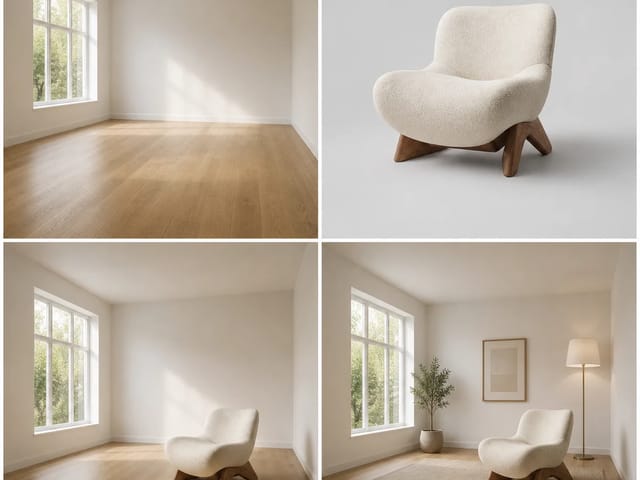
This page focuses on designing or modifying one furniture item. Use AI Room Design Generator for an existing interior, Furniture Visualizer for placing a supplied product into a room, and AI Landscape Design for outdoor-space concepts. Keeping the tasks separate gives each reference a clearer role.
Will the result preserve my sketch exactly?
Preservation is a prompt instruction, not a guarantee. The model may reinterpret an unclear line, change proportions, or invent hidden surfaces. Use a clean reference, identify important features, and compare every output with the original before continuing.
Are the examples real furniture products?
No. The chair sketch and material studies are original fictional AI-generated demonstration assets. They illustrate the input and concept direction, not a manufactured product, a customer project, or proof of structural feasibility. Your own results will vary.
Can I edit the brief before signing in?
You can explore the page and prepare a brief before starting a task. Sign in when you are ready to generate, review the current settings in the generator, and inspect the finished image and task history afterward.
Turn One Furniture Idea Into a Reviewable Concept
Choose your input, edit the brief, and inspect the details before developing the design.
Related tools

80s Photo Filter
80s Photo Filter adds warm, faded film color to your photo in the browser. Adjust strength, preserve clothing and framing, and download a PNG.
Open tool
AI Age Filter
AI Age Filter creates a natural older-look concept from an authorized adult portrait. Review identity, complete-head framing, light and scene after editing.
Open tool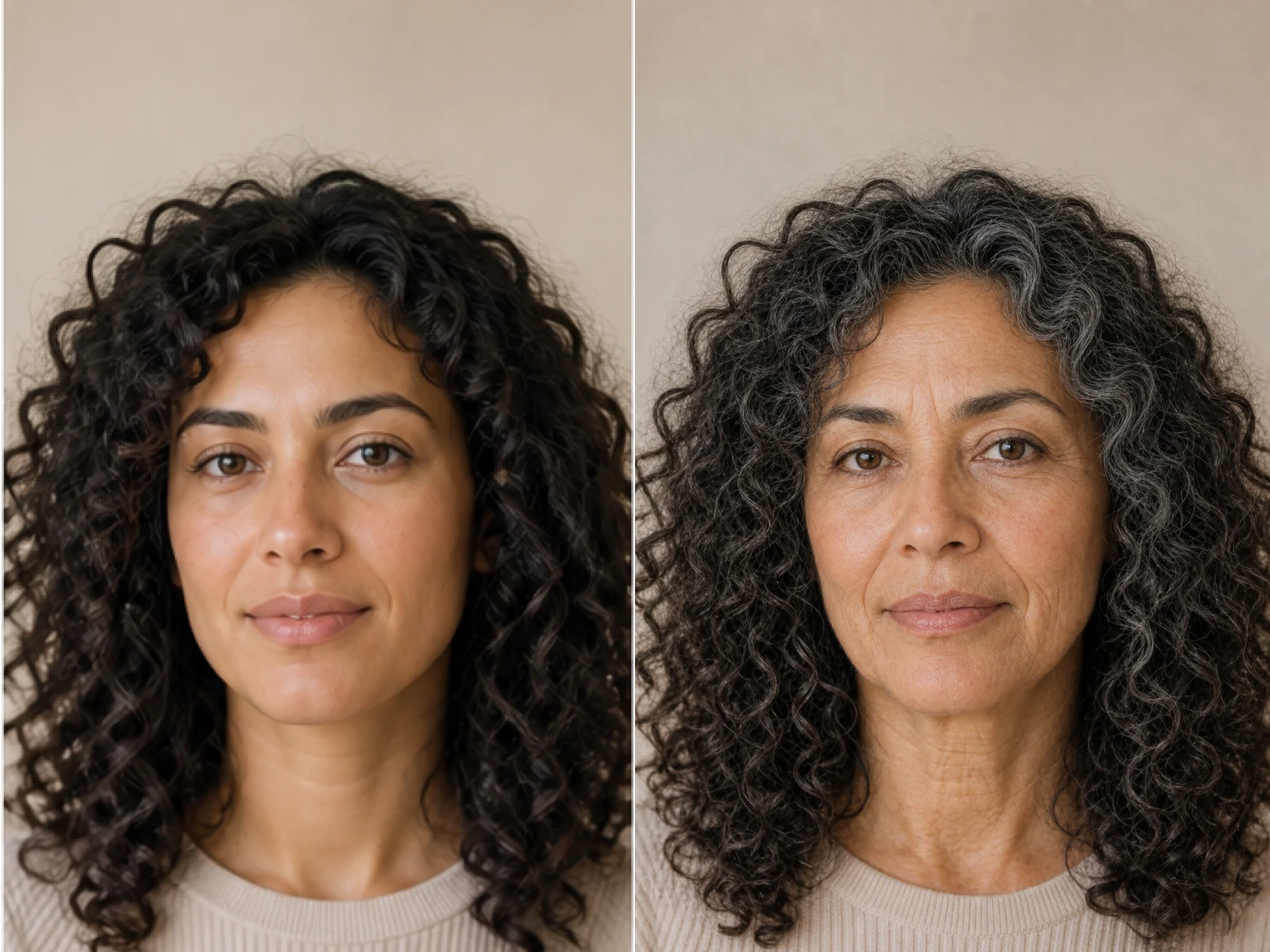
AI Age Progression
AI Age Progression creates a target-age concept from an authorized adult portrait. Set an age interval and review identity, framing and scene after editing.
Open tool
AI Labubu Generator
AI Labubu Generator helps explore your own monster doll concept from an authorized reference. Create original shapes and outfits, with no official affiliation.
Open tool
Camera Roll AI
Camera Roll AI turns an authorized reference photo into one lifestyle collage. Plan varied scenes and a phone-gallery-inspired layout, then save one image.
Open tool
Face in Hole Generator
Face in Hole Generator places an authorized face into your chosen photo or template. Upload two references, refine the blend, and save a creative portrait.
Open tool
Hotpot AI Image Generator Online | NanoPic
Create still images with the Hotpot AI Image Generator on NanoPic. Write a clear scene, generate with Nano Banana 2, refine the look, and download the picture you like.
Open tool
Make Image Higher Resolution
Make Image Higher Resolution with real 2× or 4× browser resizing. Compare pixel dimensions and download PNG without claiming recovered detail.
Open tool
Remove Glare from Glasses in Photos
Remove Glare from Glasses in photos with an editable AI image prompt. Upload your portrait, reduce lens reflections, and review the result before using it.
Open toolFlashlight AI Photo: Tiny Character Scene | NanoPic
Turn one authorized adult portrait into a realistic flashlight scene with a miniature stylized double. Generate, then inspect identity, hands, light, scale, and crop.
Open toolFunny AI Prompts — 12 Photo and Pet Editing Ideas | NanoPic
Try 12 original funny AI prompts on one authorized person or pet photo. Load, edit, generate, and review identity, anatomy, props, text, and visual coherence.
Open tool
Magnific AI Image Generator Workflow on NanoPic | Clarity from One Photo
Run a magnific ai image generator style enhance on NanoPic: upload one photo, rebuild edges and textures toward 4K, then download after a full-size check.
Open toolMinecraft Pixel Art — Turn a Photo Into Block Art | NanoPic
Turn one authorized photo into original blocky pixel art with six editable prompts. Generate, then review subject detail, geometry, text, rights, and composition.
Open toolPrompt Seen Girl AI Photo Prompts & Generator | NanoPic
Prompt seen girl portraits from your own selfie: upload one photo, describe the outfit, setting and light, and keep your face looking like you.
Open tool
Pumpkin Head Photoshoot - Turn Your Photo into a Jack-o'-Lantern Portrait | NanoPic
Pumpkin head photoshoot from one photo: swap heads for carved jack-o'-lanterns while keeping your outfit and pose, with an optional autumn or spooky mood.
Open tool
Sorry I Lied AI: Childhood Costume Reveal Photos | NanoPic
Make sorry i lied ai costume reveal photos from one authorized childhood costume shot: Perfect, First Apology, Almost Honest, then your real original last.
Open tool
Vikas Editor AI Image Generator: Vikas Prompts | NanoPic
Vikas Editor AI image generator: turn your own photo into a Vikas edit style portrait online, with editable prompts that keep your face recognizable.
Open tool